
Sharing & Exporting Tally Sheets — User Manual
Also searched as: share link, export tally, public link, download tally, tally share, PDF export, excel export, bundle export, zip download, watermark, branding on export.
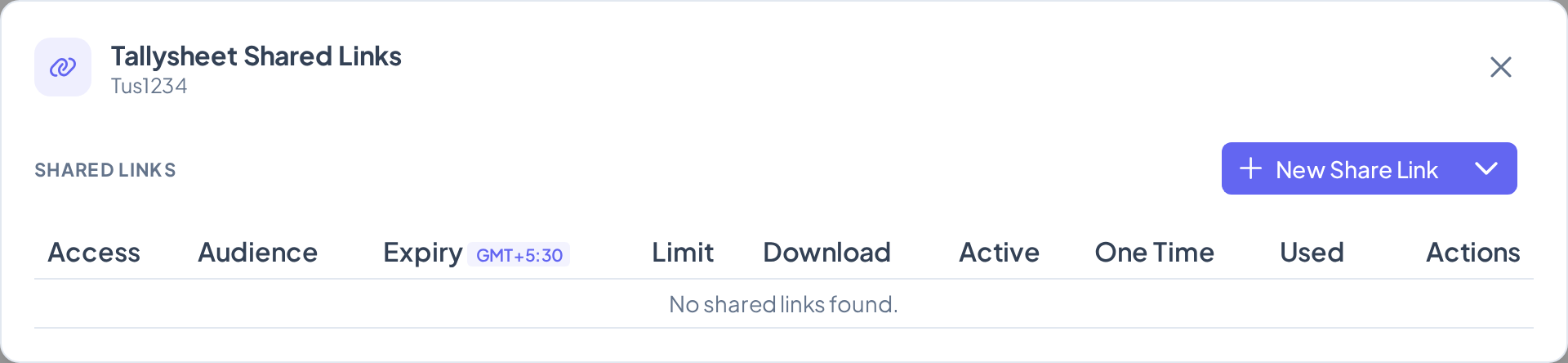
How to Share a Tally Sheet with an External Party
Buyers, surveyors, and freight forwarders can view tally data without a LumberLinq account using shareable links.
Steps to create a share link:
- Open a tally sheet (from Stock Unit → Stock Units → click a Stock Unit).
- Click the Share button in the toolbar.
- Choose an access level (see below).
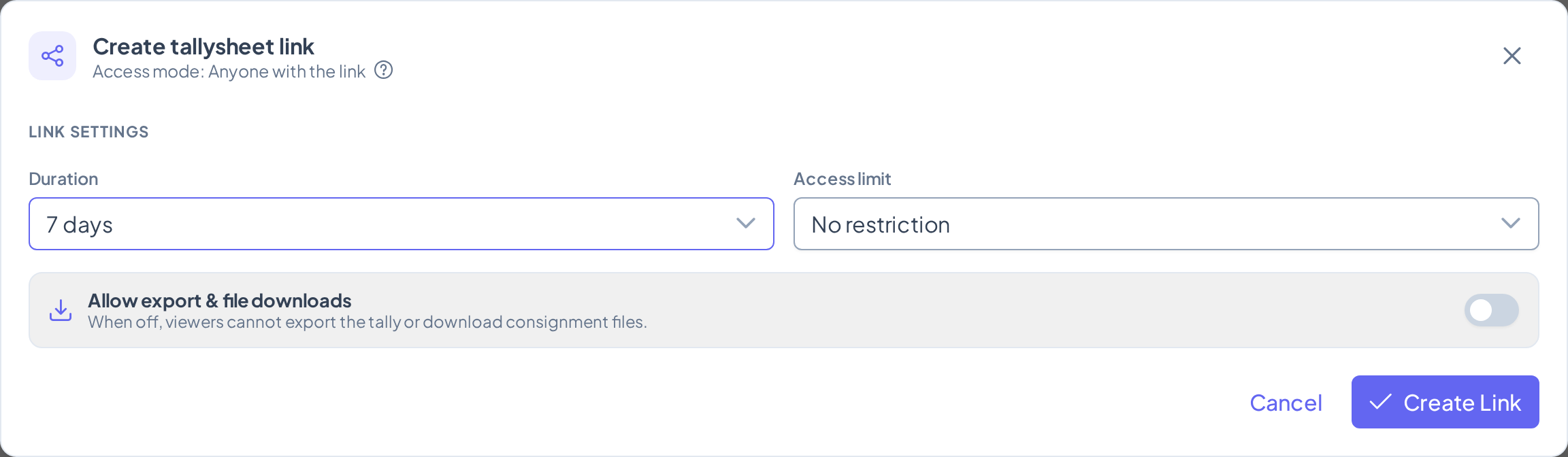
- Set optional: expiry date, download permission, document visibility.
- Click Create Link.
- Copy the URL or scan the QR code to share.
Share link URL format:
- Public:
app.lumberlinq.com/s/p/:code - Protected:
app.lumberlinq.com/s/r/:code - Private:
app.lumberlinq.com/s/x/:code
Three Access Levels Explained
PUBLIC — Anyone with the URL can view the tally, no login needed. Shows basic volume summary, log count, Stock Unit ID. Does not show internal notes, pricing, or full party details.
PROTECTED — Recipient must be logged into a LumberLinq account. Shows all PUBLIC data plus more detailed measurement rows and product information.
PRIVATE — Recipient must be logged in and belong to your company or be an explicitly invited party. Shows full tally data including all fields.
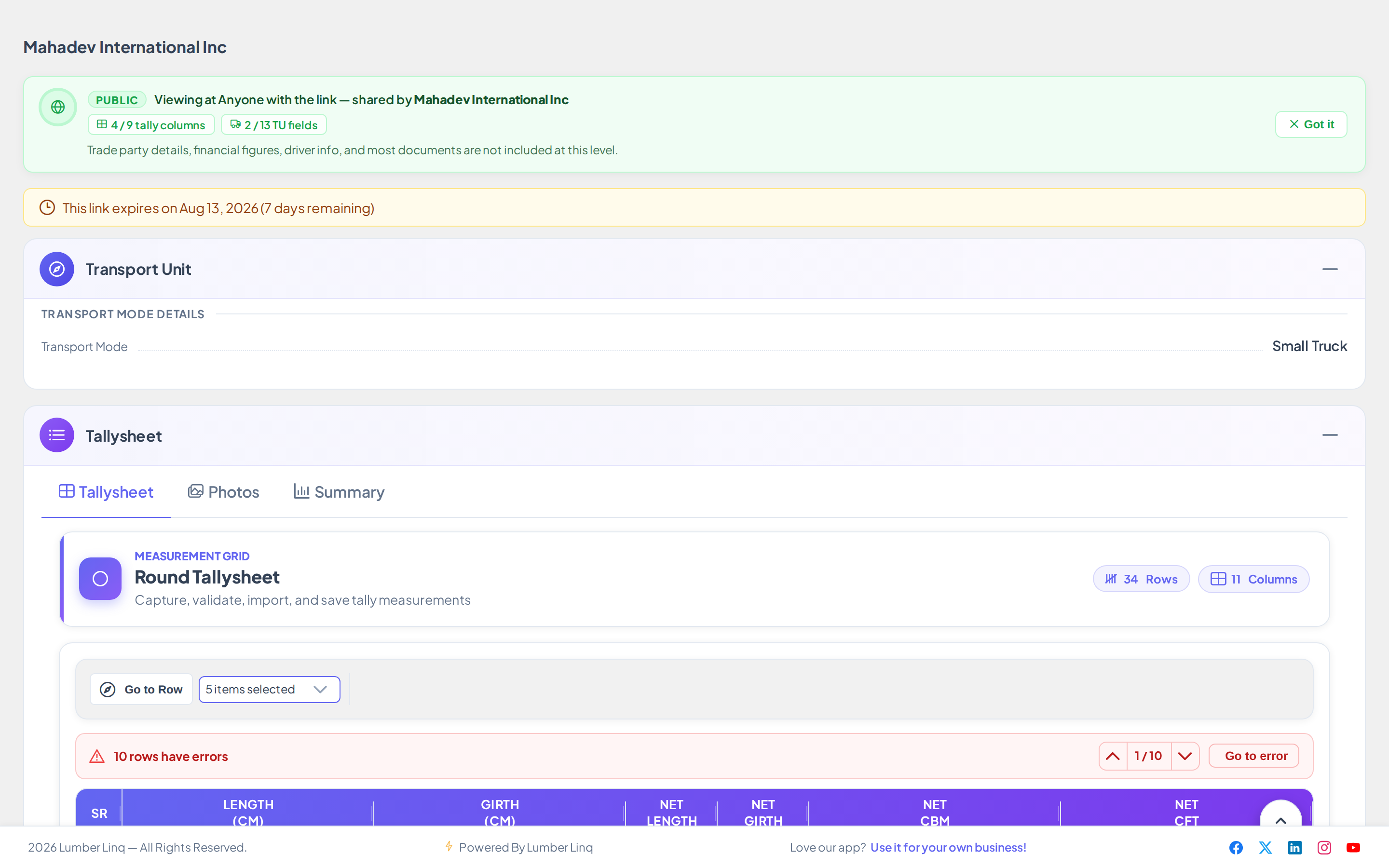
Use the Access Visibility Panel (the “eye”/info button inside the share dialog) to see exactly which fields are visible at each access level before sharing.
Share Link Options
- Expiry date — the link stops working after this date; leave blank for no expiry
- Download permission — allow the recipient to download a PDF or the whole Download pack (ZIP) from the share view
- Document access — control whether uploaded Stock Unit documents (photos, files) are visible in the share view. Each file also has its own setting, see “Which files a link shows” below.
- Show details in link preview — when the link is pasted into WhatsApp, Telegram, LinkedIn, Slack and similar apps, the chat shows a card with the details this link is allowed to show (for a public link: product, volume, pieces). Turn it off for a plain card. Protected and Private links always show a locked card with only the number of Stock Units — never volume or product.
Opening a link on a phone: a share link opened from WhatsApp or Instagram on a phone with the LumberLinq app opens that link inside the app, not the login page.
How long a link works: a link keeps working until its own Expiry date (or forever when left blank) — it no longer stops after 3 days on its own.
Which Files a Link Shows
Which files a link shows. Every uploaded file has its own setting: Anyone with the link, LumberLinq users only, or My team only. A Public link shows only the files marked “Anyone with the link”. A Protected link shows those plus the files marked “LumberLinq users only”. A Private link (your own team) shows every file. A file marked “My team only” is never shown to outsiders. If a customer says a file is missing from a link, check the file’s own setting first.
The download icon next to a file appears only when the link has Download permission turned on. Download permission is off unless you turn it on for that link.
What the Shared Stock Unit Page Looks Like
A shared Stock Unit opens as one clean page: a strip at the top with the Transport ID (or the product when there is no Transport ID), the product, and small chips for the location, vehicle type, container or vehicle number and weight. Under it are the tabs (Tallysheet, Photos, Summary), then the tally.
- Only what the sender allows is shown. A detail switched off in Stock Unit Field Access is missing from the strip and from the details. A tab the sender hid is not in the tab bar. The Stock Unit ID number is not shown on a shared link.
- Stock Unit details opens the full read-only details in a side panel (a sheet on a phone). A small note tells the visitor when the sender has hidden some details.
- On a wide screen the strip and the tab bar stay at the top while the visitor scrolls.
- If the sender switched off the whole Stock Unit section, the strip just says Stock Unit and there is no details button.
- The same layout is used for each Stock Unit inside a shared or opened Consignment.
Choosing What a Share Link Shows (Stock Unit Field Access)
Company admins decide, field by field, what Public and Protected links show. Open Main Menu → Stock Unit → Stock Unit Field Access (admins only).
- Each field has a Hidden or View choice for Anyone with the link and for LumberLinq users only. “My team only” always sees everything and cannot be changed.
- Each group (Stock Unit, Round Tally Grid, Square Tally Grid, Photos, Summary) has a master switch. Switching a group off hides the whole group for that kind of link.
- Some tally columns are marked Always visible (Length, Girth, Net Length, Net Girth, Net CBM, Net CFT, Width, Thickness, Pieces). They are needed to read a tally and cannot be hidden.
- The Stock Unit’s Supplier and Buyer are hidden on Public and Protected links until you switch them on.
- Details such as who locked a Stock Unit, over-stock notes and reconciliation figures are never shown on the share page of a Public or Protected link.
- Reconciliation is its own group with a single switch. It decides whether the loaded-versus-received figures go into the Download pack. It starts OFF for Public and Protected links, and even when ON nothing is added for a Stock Unit that is not reconciled yet.
- When a recipient opens a link and you have hidden some Stock Unit details, they see a small note: “Some details are not shared on this link.”
- Three more switches control what a PDF made from the link says about you (company name, company logo, footer line); see “Exporting From a Share Link”.
Three buttons at the top help with this:
- Preview as visitor — shows which fields a visitor of each link type will see, with hidden fields crossed out. It changes nothing.
- Presets — start from Public (minimal), Buyer or Agent instead of switching fields one by one. You see what will be shown and hidden before anything is saved. A red warning appears when a preset makes fields visible to anyone with the link. Presets never switch on supplier, buyer, money or audit fields.
- History — the last 200 changes: who changed which setting, when, and from what to what.
Switching a single field to View for Anyone with the link asks you to confirm first, because no login is needed to see it.
Exporting From a Share Link
A person who opens a share link can make a PDF of the tally, and only if the link has Download permission turned on. Excel and Bundle (ZIP) are available inside LumberLinq when you are signed in; they are not offered on a share link.
- The Export menu on a share link lists PDF and Advanced… (the Advanced window also offers only the PDF). The PDF uses the columns the link is allowed to show.
- When Download permission is off for the link, the Export button is shown greyed out as “Export (download off)”.
- A shared consignment page also has an Export button (a PDF of the consignment details and its Stock Unit list) when Download permission is on.
- Both pages also have a Download pack button: one ZIP with the summary PDF, the Excel workbook, the documents and the photos. See “Download Pack for the Recipient” below.
What the share page and the PDF say about the sender. This follows three switches in Stock Unit Field Access (company name, company logo, footer line), set separately for Anyone with the link and for LumberLinq users only. Company name and logo are ON by default (a company can switch them off); the footer line is OFF by default. The same name and logo switches also decide the name and logo in the header of the share page, for Stock Units and for Consignments. With both off, the page header shows no name and no logo, and the PDF has none either:
- Company name on: the sender’s name in the header and as the watermark. Off: no name and no watermark.
- Company logo on: the sender’s logo (if their plan includes a custom logo). Off, or no custom logo: no logo is shown.
- Footer line on: “Shared by
· Link valid until · Powered by LumberLinq”. Off: just “Powered by LumberLinq” (no company name). - A Private link (your own team) always shows your name and logo.
What a New Share Link Starts With
LumberLinq gives every link type sensible starting settings. You can change all of them for your own company.
| Anyone with the link | LumberLinq users only | My team only | |
|---|---|---|---|
| Who | Anyone (WhatsApp, Facebook, email) | A buyer who has LumberLinq | Your own company (login) |
| Goods details, photos, ports and dates | Shown | Shown | Shown |
| Documents (BL, invoice, packing list) | Not shown, unless the file itself is set to Anyone with the link | Shown by each file’s own visibility | Shown |
| Supplier (shipper) | Not shown | Not shown | Shown |
| Invoice amount | Never | Off, you can switch it on | Shown |
| Cost, payment status, margin, who locked it, remarks | Never | Never | Shown |
| Internal IDs | Never | Never | Never |
| Download (PDF) | Off | On | On |
| Company name and logo | On | On | On |
| Link ends after | 30 days | 90 days | No limit |
- A file you upload starts as My team only. Set a file to Anyone with the link (or LumberLinq users only) to let those links show it.
- These starting settings apply to new companies and when you press Reset to default in Field Access. A company that already changed its settings keeps them.
- In the Create share link window the days and the download switch start from the table above, and you can change them for that link.
Download Pack for the Recipient
If the link has Download permission on, the page shows a Download pack button (on a Consignment link next to Export, on a Stock Unit link above the tally). It opens a small window that lists what is inside, with a switch for each part:
- Summary PDF — a premium, printable overview: details, volumes, distribution, tally rows, photos.
- Excel workbook — every figure, ready to filter, one sheet per Stock Unit on a Consignment.
- Documents — the files, grouped by type (BL, Invoice, certificates…).
- Photos — the original photos.
Press Download and the page prepares one ZIP, then shows a progress bar while it downloads. A Stock Unit pack also contains a compact Packing List PDF for printing, and every pack has a short README.
What the recipient gets always follows the link you created:
- Only fields and columns allowed by the link’s Field Access are included. A hidden field is missing from the PDF and the Excel too.
- Files follow their visibility: Public files are in every link, Protected files in Protected and Private links, Private files only in Private links. On a Consignment link, a document type you set to View only can be opened on the page but is not put in the pack.
- Your company name, logo and footer line appear only if you switched them on in Stock Unit Field Access.
- The Reconciliation figures (loaded vs received) are in the pack only if you switched on the Reconciliation row in Consignment or Stock Unit Field Access (it starts OFF) and the Stock Unit is really reconciled.
- The pack is a snapshot taken at download time; later changes are not in it.
Large packs can take a moment to prepare. A pack is limited to about 120 MB; the README lists anything that was left out.
Revoking a Share Link
Open the Share dialog on the tally sheet, find the link in the list, and click Delete. The link becomes invalid immediately.
How to Export a Tally Report
Click Export in the tally sheet toolbar. Formats:
- PDF — formatted, printable document with company branding
- Excel (.xlsx) — full spreadsheet with all measurement rows and summary totals, best for analysis
- Bundle (ZIP) — combines the PDF report with all uploaded Stock Unit photos into a single archive
The export dialog also has an Access Level selector (Public/Protected/Private) controlling which columns appear — the same rules as share links.
Export Options
- Company logo — include your uploaded company logo in the PDF header
- Watermark — add text (e.g. “DRAFT”, “CONFIDENTIAL”) across the PDF pages
- UoM row — add a row showing units of measurement at the top of the data table
- Include charts — add bar charts showing volume per Stock Unit (Excel only, when multiple Stock Units exist)
Why PDF Has No Photos
Photos are only included in the Bundle format. PDF and Excel exports contain measurement data only.
AI Import
Inside a tally sheet, click Import in the toolbar, then select AI Import. Upload a clear photo of a handwritten tally (good lighting, full page visible), review the extracted rows in the preview and correct any misread values, then click Confirm Import.
Each AI Import uses AI credits from your plan — credits are consumed after extraction regardless of whether you confirm the import. AI Import requires the feature to be enabled on your subscription plan. The credit cost is calculated dynamically from how much the photo actually needs to process, not a flat fee per image — the same formula used for Linc AI Help/Assistant, and the same for both Round and Square tally sheets.
Common Problems
“A file is missing on my share link” — check the file’s own setting (Anyone with the link / LumberLinq users only / My team only). A Public link shows only files marked “Anyone with the link”; a Protected link also shows “LumberLinq users only”; “My team only” files are never shown to outsiders.
“There is no download icon” — turn on Download permission for that link. It is off by default. On a Stock Unit link without it, the Export button shows greyed out as “Export (download off)”.
“There is no Excel or Bundle on the share link” — a share link offers the PDF only. Excel and Bundle are available inside LumberLinq when signed in.
“Share link shows ‘Login required’ even for a Public link” — check the link format. Public links use /s/p/:code; a link starting with /s/r/ or /s/x/ is Protected or Private and requires login.
“Recipient sees ‘Access denied’” — for Protected/Private links, the recipient must be logged into LumberLinq and their account must belong to your company (or the link has expired).
“Bundle export only produces a PDF, no photos” — photos must be uploaded to the Stock Unit first, from the tally sheet’s Documents tab.
“Export PDF shows no company logo” — upload your logo from Main Menu → Company → Branding before exporting.