
Dashboard, Utility, Storage & Support — User Manual
Also searched as: dashboard home, ctrl+k, quick search, global search, unified search, records mode, stock mode, calculator, storage full, out of space, guided tour, walkthrough, help desk, AI chat, ask AI, linc, chatbot, support ticket, keyboard shortcuts, hotkeys, paste files, ctrl+v, share to lumberlinq, send file from whatsapp, where should these files go, attach here, upload from clipboard.
Dashboard
Open Main Menu → Dashboard — usually the landing page after login, at /dashboard-v7. It’s the management view for high-level business visibility: consignments, inventory, payments, and reconciliation, all in one place, updating live within a couple of seconds of a change elsewhere in the app.
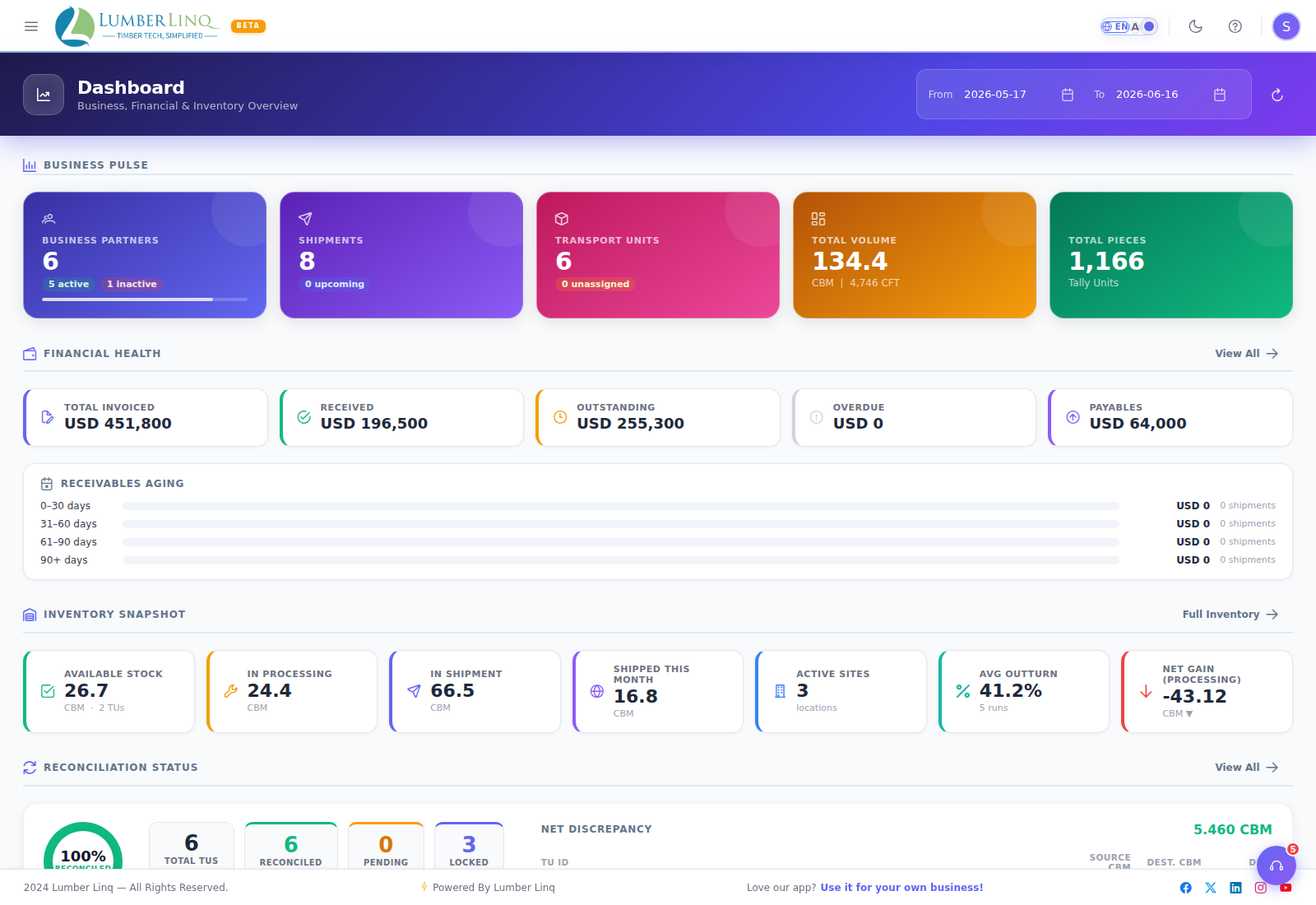

Not every section is visible to every user — several require a specific permission (Financial Health needs finance access, Inventory Snapshot needs inventory access, Mill Tasks needs process/mill access, Recent Activity needs a user-management permission). If a section is missing for you, that’s expected, not a bug.
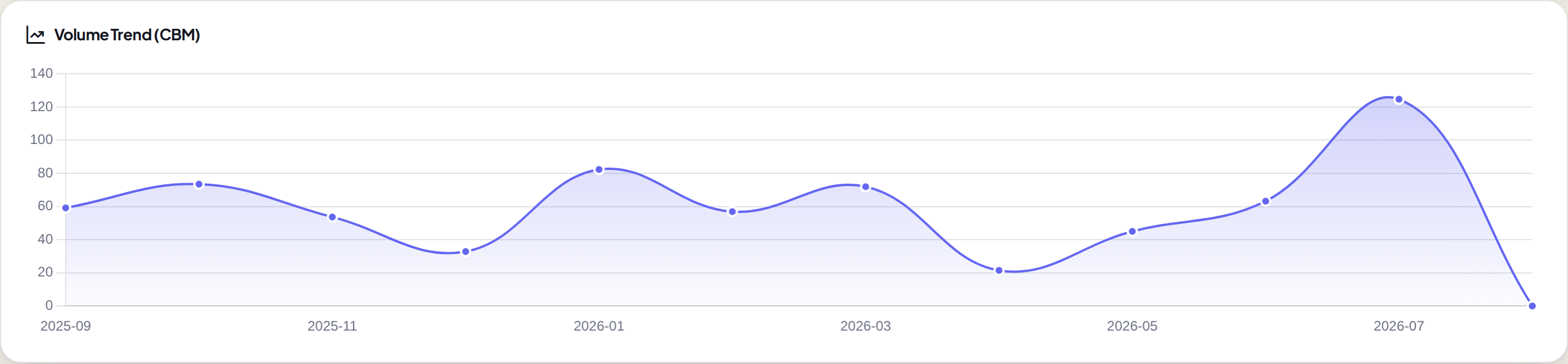
What it shows: Business Pulse KPI cards (Business Partners, Consignments, Stock Units, Volume, Pieces), My Active Mill Tasks (if you have any assigned), Financial Health, Inventory Snapshot, a Reconciliation ring, volume/product/trade-type charts, Recent Activity, and upcoming departures/arrivals.



Using it effectively — the dashboard is a navigation aid, not a data entry tool:
- Pending reconciliation not zero → open the consignment or the Reconciliation Report
- Volume trend drops sharply → check Tally Sheets for missing entries and Inventory for recent adjustments
- Financial Health shows overdue → open the Financial Report or the consignment’s Financials & Payments tab
- A Mill Task looks stuck → open Inventory → Processing to review, complete, or cancel it
Financial Health and the Reconciliation ring always reflect all-time data — they are not affected by any date range filter used elsewhere on the dashboard.
Admin, Super Admin, and Root users also have a separate, more detailed Command Center page — see its own section in the sidebar.
Unified Search
Press / anywhere in the app (as long as you’re not currently typing in a text field), or click the search icon in the header, to open Unified Search — one search box covering both record lookup and stock lookup, plus a built-in calculator. It replaced two separate older dialogs (previously called Quick Search and Global Search); if you used LumberLinq before, “Quick Search” is still the name shown, but it now opens the combined dialog below rather than a standalone one, and it opens with /, not Ctrl+K.
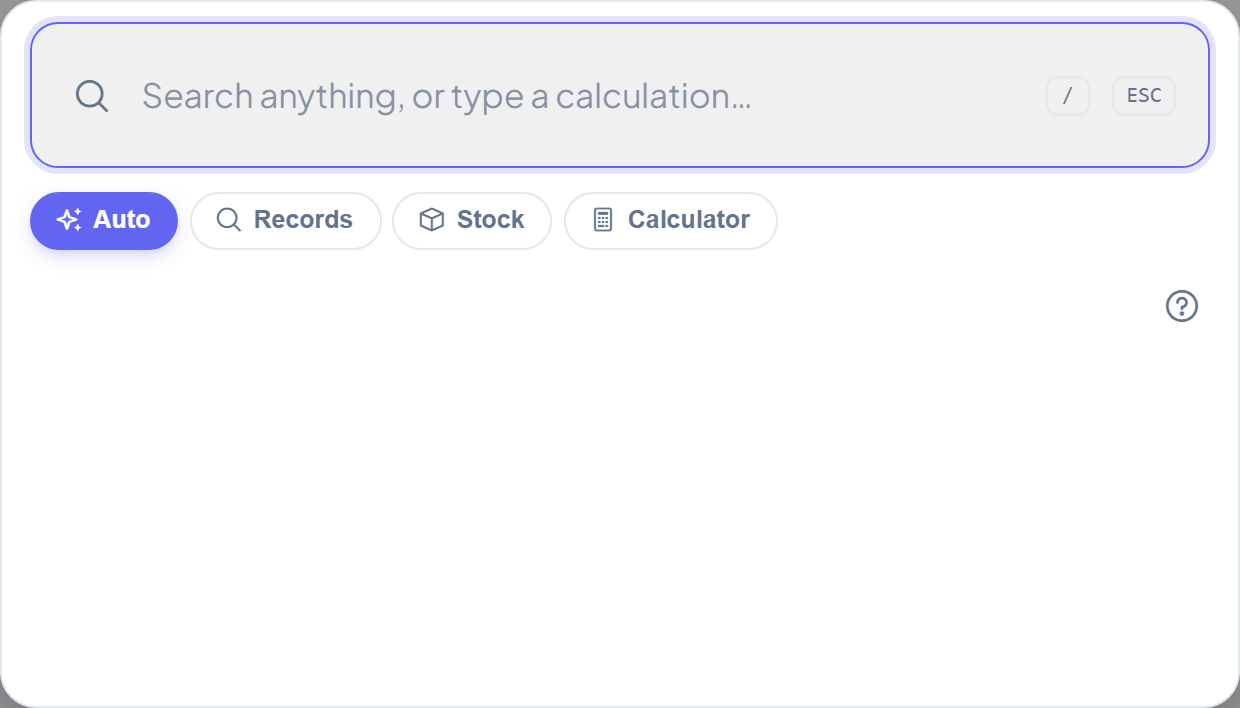
Four modes are shown as buttons across the top:
Auto
The default mode when you open the dialog. It reads what you typed and decides for you: if it looks like a size/dimension (a word like girth/width/thickness/length, a comparator like over/under/between, or a plain 4in x 3in x 8ft shorthand), it searches Stock; otherwise it searches Records. A small note above the results says which one it picked (“Searching as Records” / “Searching as Stock”), so you’re never guessing. If you type a plain calculation instead — 150*3, (200+50)/4 — the answer appears inline instead of search results; tap it (or press Enter) to open the full Calculator mode with that answer already filled in.
Records
Finds a record by name or reference number across six areas at once: Stock Units, Consignments, Business Partners, Products, Locations, and Users. Results appear grouped under each area as you type; click a result (or use the arrow keys and Enter) to jump straight to that record. Type at least 2 characters to search — short reference codes (like a 3-letter product code) match from 2 characters, longer names need 4+. Only areas you have permission to view show up in results. Each area shows up to 8 matches at a time; add another word or the full reference number to narrow it down if you don’t see what you want. Unified Search remembers your last 5 searches (shown as pills when you open it with nothing typed) — click a pill to repeat it, or its × to remove it. Click the ? icon inside the search box for a quick reminder of what each area covers. Records mode is a separate permission from Stock mode — by default only Admins have it, but it can be granted to any custom role from Manage Roles.
Records mode also matches sidebar menu pages by name — type a screen’s name (like “Reports” or “Manage Roles”) and a Pages group shows up alongside any record matches, so you can jump straight to a screen without hunting through the sidebar. Only pages you have access to ever show up here. Below the results, an Ask Linc card opens the AI Help chat with what you typed already filled in — handy when what you’re looking for isn’t a record or a page, but a question about how something works.
Stock
A fast, phone-call-style lookup for stock, similar to how Quick Tally parses a spoken measurement. It parses species, origin, and quality automatically, and understands two kinds of size search:
- Exact size, positional shorthand:
4in x 3in x 8ft teak(three numbers = square sawn) or90cm x 230cm ghana teak(two numbers = round girth × length). - Size ranges, with a comparator and a named measurement:
girth over 90cm ghana teak,width between 6 and 10 inch,length under 12ft.
Every measurement always needs an explicit unit (cm, mm, in/", or ft/') — a bare number is never guessed at a default unit, since guessing silently returns the wrong stock. Results show grouped into Available Now, Pending Stock-In, In Process, and Arriving/Departing/Preparing.
Pending Stock-In covers stock that’s been tallied on a Stock-In (BUY) Transport Unit but hasn’t been received into Inventory yet — so it’s real, but not yet part of your available stock figures. Matching units are grouped the same way Available Now is (same product, location, origin, quality and size) — a single matching unit still opens straight to that Transport Unit’s page for you to receive it; a group of several matching units instead shows a small badge with the count, and opening it lists each one so you can pick which to receive. Stock mode never receives stock automatically.
A chip row above the results shows what was understood from your text — a chip with a question-mark icon means that part was fuzzy-matched (close but not exact), not a guaranteed match. If a typed word is a plausible but uncertain match for a product name, a “Did you mean?” row shows the closest candidates instead of silently guessing — pick the right one and the search re-runs with it locked in.
Stock mode is a separate permission from Records mode above — by default only Admins have it, but it can be granted to any custom role from Manage Roles.
Ask AI (Forest plan) — inside Stock mode, click the Ask AI toggle to switch to AI-assisted parsing for messier or more conversational phrasing than the regular parser handles. Type your question and click Ask AI — this is a manual, explicit action (it never runs automatically while typing) because each request uses AI credits from your plan. Ask AI only translates your text into search terms — it never invents or shows a number that isn’t backed by real inventory. Ask AI requires the Forest plan and draws from the same AI credit pool as AI Import for tally sheets, charged by how much text is processed, not a flat fee per search; you’ll see a warning at 80%, 90%, 95%, and 100% of your credit limit used. Without AI credits or on a lower plan, the regular (non-AI) Stock search still works at no credit cost.
Calculator
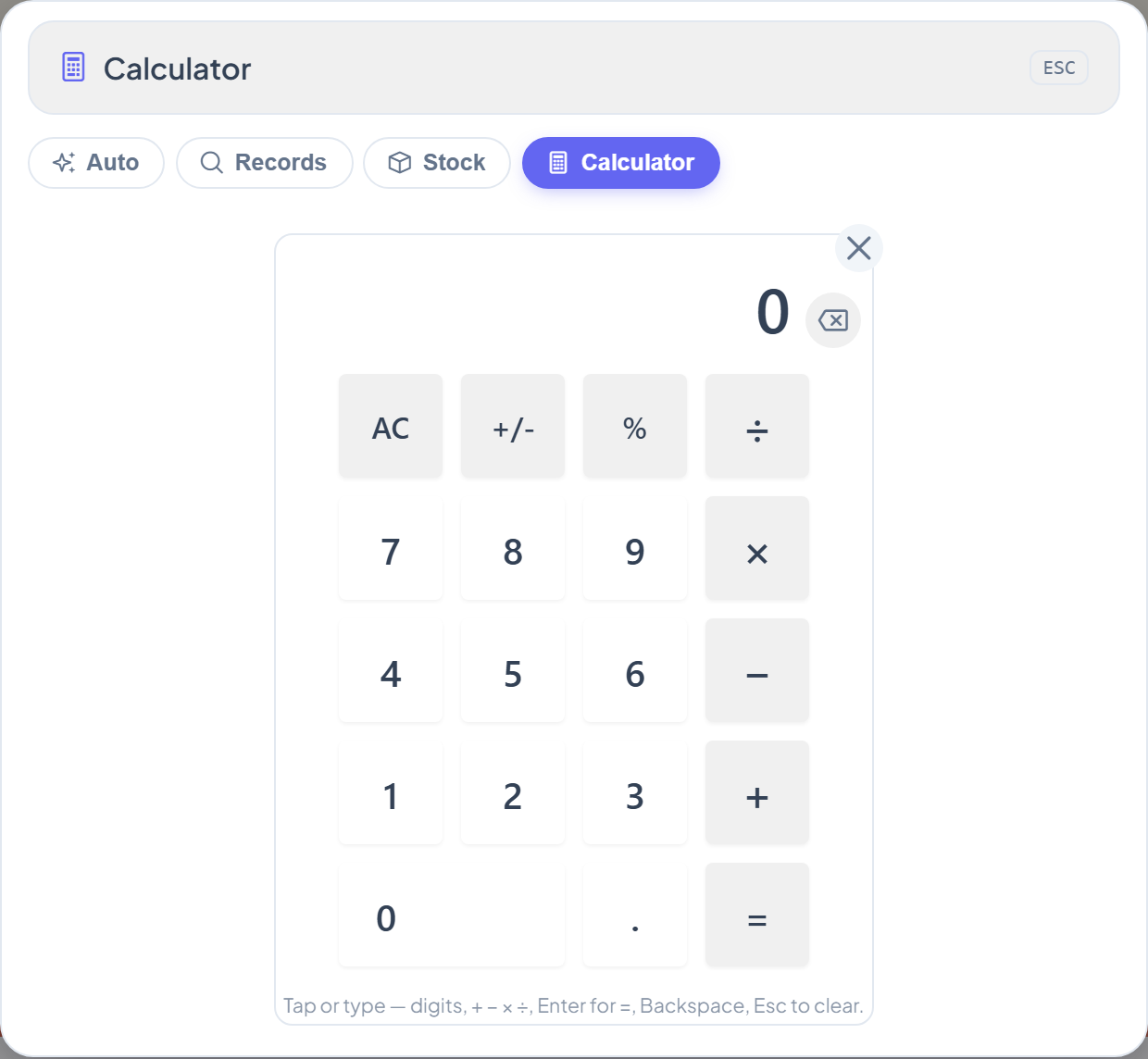
A real 4-function calculator you can type or tap into — handy for a quick price/CBM total without leaving the page you’re on. Nothing entered here is saved. Reach it by clicking the Calculator button inside Unified Search, by tapping a math answer shown in Auto mode, or by pressing Ctrl+Alt+C anywhere in the app to jump straight into it.
Keyboard Shortcuts
Press ? anywhere in the app (not while typing in a text field) to open the full Keyboard Shortcuts list — every shortcut across LumberLinq in one place, grouped by where it applies (Unified Search, tally entry, forms, the photo viewer, and the calculator). You can also reach it from the ? help icon inside Unified Search’s own help panel.
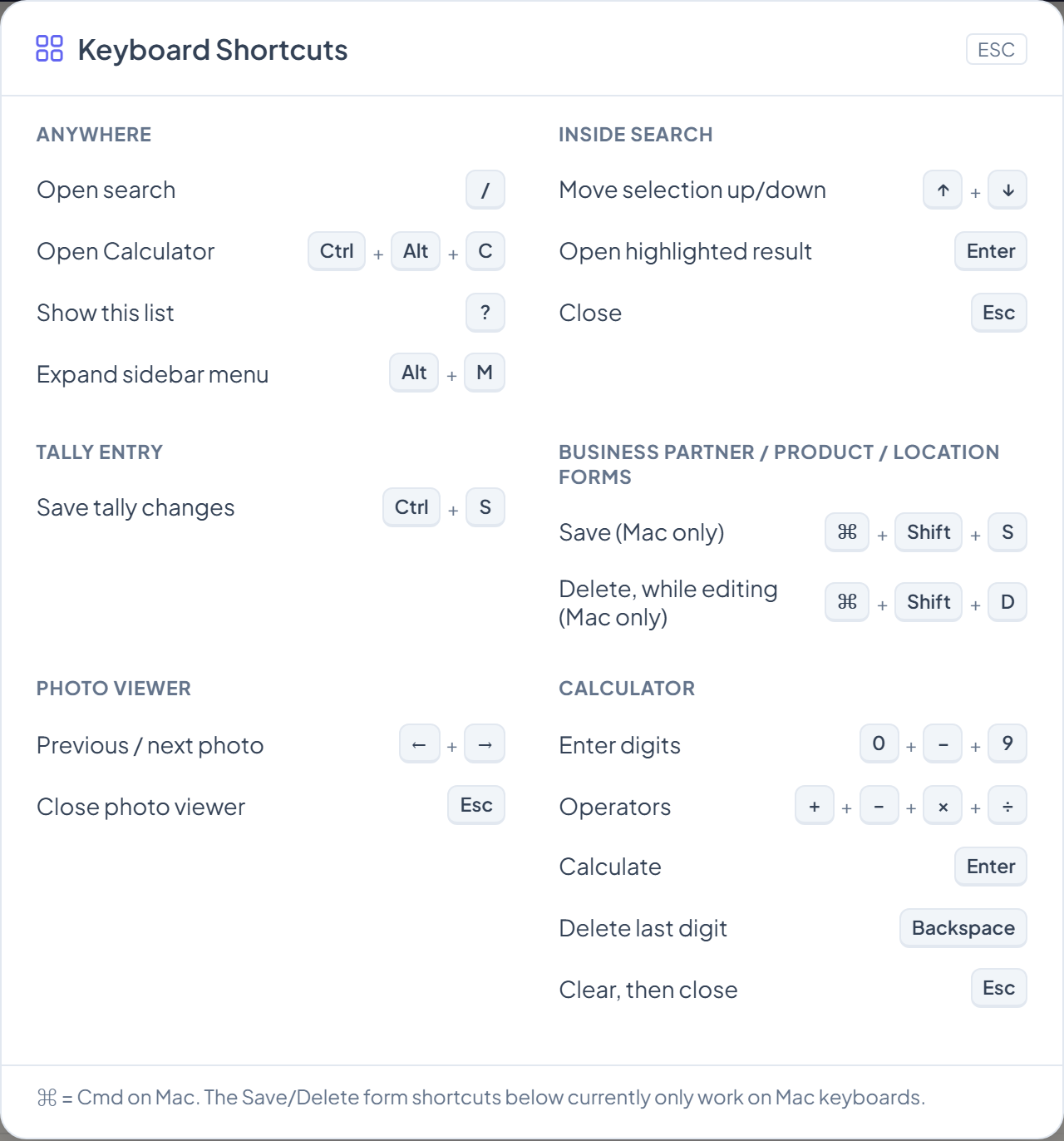
In the side menu, use the arrow keys and press Enter (main or numpad) to open an item.
Product Tour
The first time you land on a main app page after logging in, LumberLinq walks you through the header controls with a short guided tour: the navigation menu, the LumberLinq logo (click it to return to the Dashboard from anywhere), Language, Font Size, Theme, Dark Mode, your profile menu, and the Help & Support icon. Click the × on any step to dismiss the tour early — it won’t pop up again on its own once you’ve seen it or dismissed it.
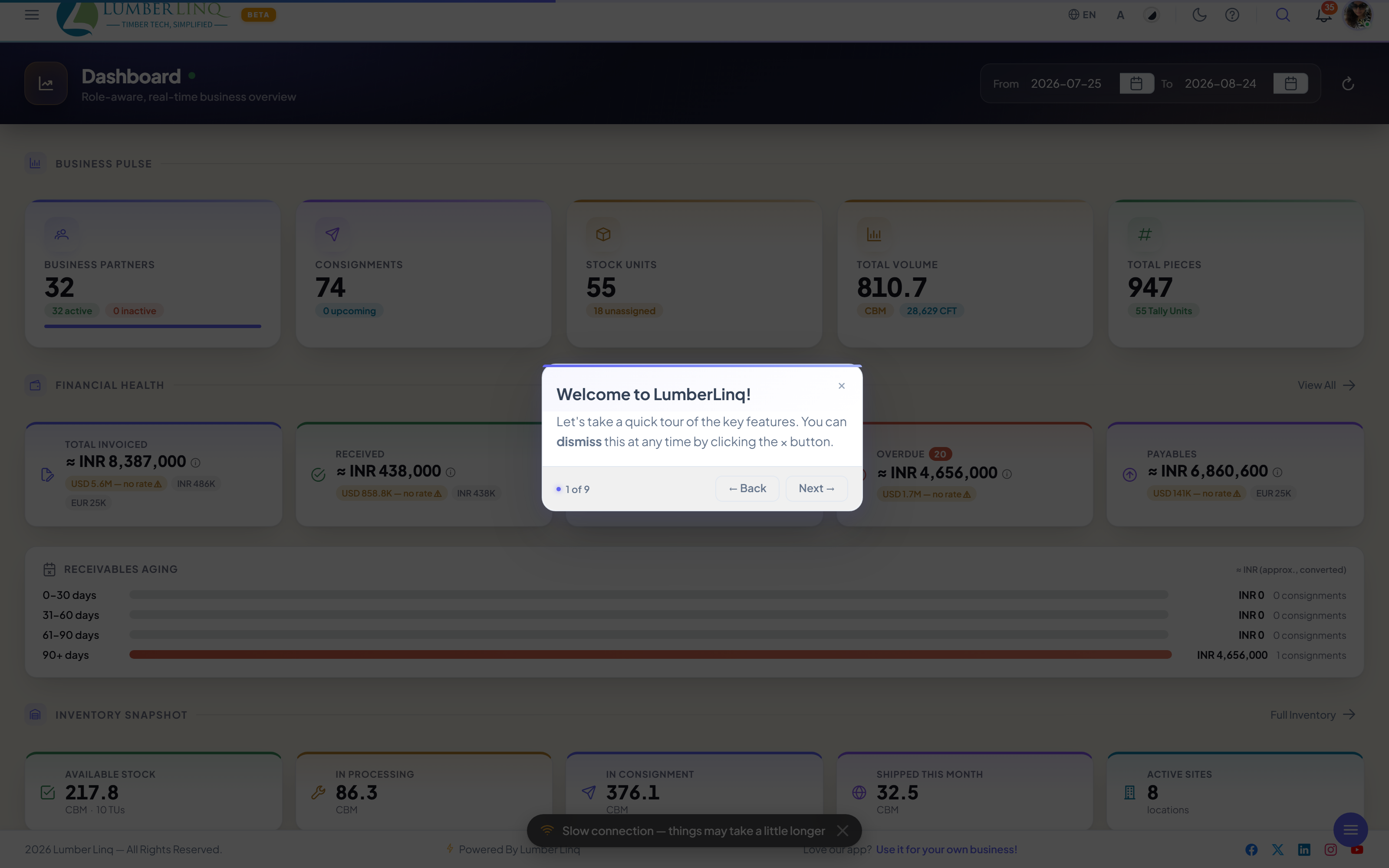
Many individual pages — Dashboard, Shipments, Tally Sheet, Reports, Business Partner, Products, Loading Site, Users, each of the four Inventory pages, RBAC Settings, and Subscription Management — also show their own short walkthrough the first time you open that page, pointing out the buttons and sections specific to that screen.
Replay the tour anytime: click the ? help icon in the header (it has a subtle pulse until you’ve seen the tour for the first time) or open your profile menu and click Product Tour — both restart the same header walkthrough from the beginning, even if you’ve already seen or dismissed it before.
Seen once — on every device. Each person sees each tour only once. Once you finish, skip or close a tour, it won’t show again for you on any phone, computer or browser (it used to come back on a new device). On a shared computer, every person still gets their own tours.
Tours can be switched off. LumberLinq can switch the product tours off for everyone while a tour is being refreshed. While they are off, no tour starts by itself and the Product Tour menu item and the pulsing ? are hidden.
After You Log In — Your Starting Page
LumberLinq opens the first page your role allows, in this order: Dashboard → Tally Sheets → Stock Units → Consignments → Inventory → Sales CRM → Profile. If your role doesn’t include the Dashboard, you land on Tally Sheets (for example) instead of an “Access restricted” screen.
- “This page isn’t part of your role yet” only shows when you open a page yourself (an old bookmark, a shared link, a typed address). Its Go to my home page button takes you to your first allowed page.
- Request access on that screen sends your company’s admins a bell notification (for example “Ravi asked for Dashboard access”). The admin gives the access in Manage Users / RBAC.
- If your account has no pages at all yet, you see a welcome screen with Request access and Log out — your admin is told automatically.
Pages Update by Themselves
Screens that show shared data — Command Center, Dashboards, Inventory, Stock Statement, Processing, Operators, Machines, the Reconciliation tab, My Tasks, support tickets and the Sales CRM inbox — update on their own when someone saves a change. There is no need to refresh the page.
- Only what changed moves: new rows slide in, changed rows glow for a moment, numbers roll to their new value.
- If you were away (phone locked, other screen), the page loads the latest data when you come back to it.
Pull Down to Refresh
On a phone or tablet, pull a page down from the very top and let go to reload it. A small round indicator shows while it loads. It works on almost every page: lists, dashboards, reports, Inventory, Consignments, Stock Units, Business Partners, Products and more. Some pages reload only their data (keeping your filters and page); others are simply opened again.
- It only starts when the page is already at the top and you pull straight down. It does not start inside the tally grid, in text fields, while a window or side panel is open, or while a file is uploading.
- If a page has changes you have not saved, you get the usual Unsaved changes question first. Choose Stay and nothing reloads.
- If you are offline, nothing is reloaded.
- It is switched off on sign in, sign up and password pages, payment and checkout pages, plan choice (it reloads the plan list only on the first step), error pages and the calculators, where reloading could lose your work.
- On a shared link, refreshing does not add a new line to the link’s visit history within two minutes.
File Uploads Show Real Progress
Every file upload shows its real progress: the percentage, MB sent of the total, speed and time left, with one bar per file and an overall bar. Several files upload a few at a time; each file has Cancel, and a failed file has Retry without touching the others. When the file is sent, the bar changes to Processing… while the server finishes (for example resizing a photo).
AI Import shows what the AI is doing right now — “Preparing page 3 of 8”, “AI is reading page 3 of 8”, rows found per page and about how long is left — with a preview of the page being read.
AI Import keeps working in the background. If you switch to another app, lock the phone or the page is closed while the AI is reading, the reading carries on at LumberLinq. When you come back, the result is waiting for you (kept for up to 24 hours), and you get a notification when it has finished.
Sending Files Into LumberLinq — Paste and Share
Files you already have — a photo, a PDF, a Word or Excel file, several at once — can be sent into LumberLinq without looking for the upload button first.
Paste into an upload button (computer). Copy the file or files in File Explorer or Finder (a screenshot works too). Click the upload button of the document you want — for example BL File on a Consignment — then press Ctrl+V (⌘V on a Mac). The files upload there, with the normal progress bar. The button only takes the file types it accepts; anything else shows “Pasted file not accepted”. Pasting text into an ordinary text box works exactly as before.
Paste anywhere else. With files copied, press Ctrl+V on any page — not inside a text box and with no dialog open. A sheet called Where should these files go? opens with your files listed (the ✕ on a file removes it) and up to four places, only the ones your rights allow:
- Consignment documents — you then pick the document type: BL File, Invoice, E-Waybill / LR File, Certificate of Origin, Phytosanitary or Other Documents.
- Stock Unit documents — photos and papers of a Stock Unit.
- AI Import — greyed out unless at least one file is a photo or a PDF.
- Support ticket — the files are added to a new ticket.
If your account may not upload anywhere, the sheet tells you to ask your admin.
What happens next. Nothing uploads by itself.
- For Consignment documents, Stock Unit documents and AI Import the sheet moves on to Which consignment? or Which Stock Unit?. Type at least 2 letters or digits of a number or name and tap the record. LumberLinq opens it straight on the right tab, and the Attach here banner scrolls into view and pulses so you do not miss it.
- If you are already on a record that can take the files (an open consignment that is not locked, a saved Stock Unit you may edit, the New Ticket page), the sheet does not ask: you stay there and the banner comes forward.
- A bar at the bottom shows how many files are ready until you attach or discard them. On a phone the sheet is a bottom sheet fixed to the bottom of the screen.
What you see per place:
- Consignment: its Documents tab, with a banner showing Attach here and Discard. If that consignment is locked, that document type is not available for it, or you can only view it, the banner is greyed and says why — the files wait, so you can open a different consignment. When you are on a consignment like that, the sheet asks you to pick another one.
- Stock Unit: its Photos tab. The same banner appears; Attach here opens the usual dialog (category, access level and note).
- AI Import: the Tallysheet tab of the Stock Unit. Attach here opens AI Import with the files already added; the AI starts only when you press the read button.
- Support ticket: the New Ticket page opens with the files already attached (if you are already on it, they are added at once). Fill in the ticket and submit as usual. The usual limits apply (5 files, the allowed file types, 20 MB each).
Everything else — limits, storage, who may upload — is exactly the same as a normal upload. Waiting files survive a page reload or an app restart for up to 12 hours (same person, same company). They are removed when you attach them, discard them or log out.
Android phone app — Share from other apps. In WhatsApp, Files, Gmail or Drive, open a photo, PDF, Word, Excel, CSV or ZIP file (or select several), tap Share and choose LumberLinq. The same Where should these files go? sheet opens. Plain text is not accepted. If you are not logged in yet, log in first — the files wait for up to 12 hours.
Android phone app — Paste. The small arrow next to an upload button has a Paste item that takes files you copied in the Files app. If nothing is copied you see “Nothing to paste”. WhatsApp has no Copy for documents — use Share → LumberLinq for those.
Paste a picture on an iPhone, an iPad or a phone browser. The same Paste item is in the small-arrow menu of an upload button on iPhone and iPad (in the app and in Safari) and in a phone browser such as Chrome. It takes a picture you copied: a screenshot, a photo copied from Photos, or an image copied from a website or a chat. On iPhone and iPad the system shows a small Paste button the first time: tap it. If the clipboard has no picture (or only text) you see “Nothing to paste”. It only reads the clipboard when you tap Paste.
Files (PDF, Word, Excel) copied on an iPhone cannot be pasted yet, and sharing a file from another app into LumberLinq on iPhone is not available yet. Use the upload button’s normal file picker for those. The newest Android app does both: Paste takes copied files and pictures, and Share → LumberLinq works.
Give Feedback
Open your profile menu (top right; on a phone, the side menu) and choose Give Feedback to tell us what works and what doesn’t. Your feedback goes straight to the LumberLinq team.
Utility
Open Main Menu → Utility for four built-in calculation tools, so timber teams can do everyday conversions and sums without a separate spreadsheet or a phone calculator: Calculator, Cost Estimate, Unit Conversion, and Generate Slab.
Calculator
A plain arithmetic calculator, just like the one on your phone — for quick sums that don’t need a tally sheet or a saved record. Nothing you enter here is saved.
Unit Conversion
Convert a measurement from one unit to another — e.g. centimetres to inches, feet to metres, CBM to CFT. Enter the source value, pick From/To units, set decimal places, and the result updates automatically. Click Reverse to flip direction, Add to keep a row for reference while working on another conversion, Clear to reset.
Cost Estimate (Volume Estimates)
Calculate the total volume of a timber lot from its dimensions without creating a full tally sheet — useful for quotations and purchasing decisions. Enter Width, Thickness, Length, and Quantity per size batch; CBM, CFT, and totals calculate automatically. Add more rows for different sizes. If results look wrong, it’s almost always a unit mismatch — check every unit field. Optional rate fields let you see estimated value alongside volume.
Generate Slab
For slab-priced markets (smaller cross-sections priced differently than larger ones). Enter a base Rate, Slab CFT, Slab Price Size, Slab Size, and how many Upper/Lower slab steps to generate, then click Calculate. Review the full rate table on the Slab Price tab and export or copy it for buyers.
Storage
Open Main Menu → User → Storage to see how much file storage your company is using and list all uploaded files.
The top section shows Used storage, Storage quota, Free storage, File count, and Usage percentage. If used storage approaches or exceeds quota, new uploads will fail — upgrade your plan or delete unnecessary files.
Storage aggregates files from every module: general documents, Stock Unit/site photos, Business Partner documents, consignment documents, and location documents. The file list shows type, name, size, uploader, and upload date.
If an upload fails: confirm free space is greater than the file size; if storage is full, upgrade or delete old files; if space looks fine but it still fails, use Refresh and try again; very large files may simply time out — try compressing or splitting them.
Support Tickets
Open Main Menu → Support → Support Tickets to create and track help requests without leaving LumberLinq.
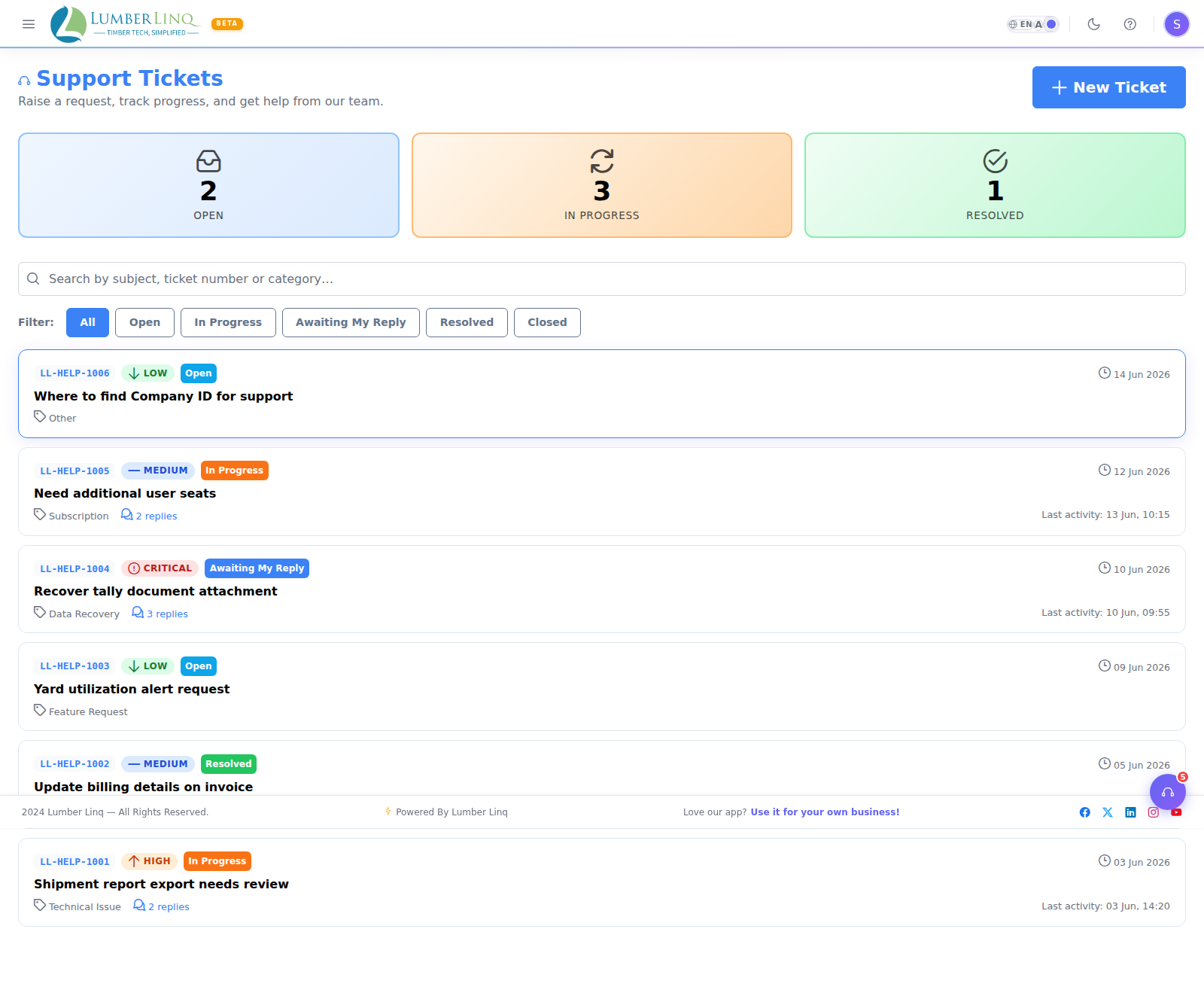
The ticket list shows category, subject, status (Open, In Progress, Resolved, Closed), and dates. Click New Ticket to create one:
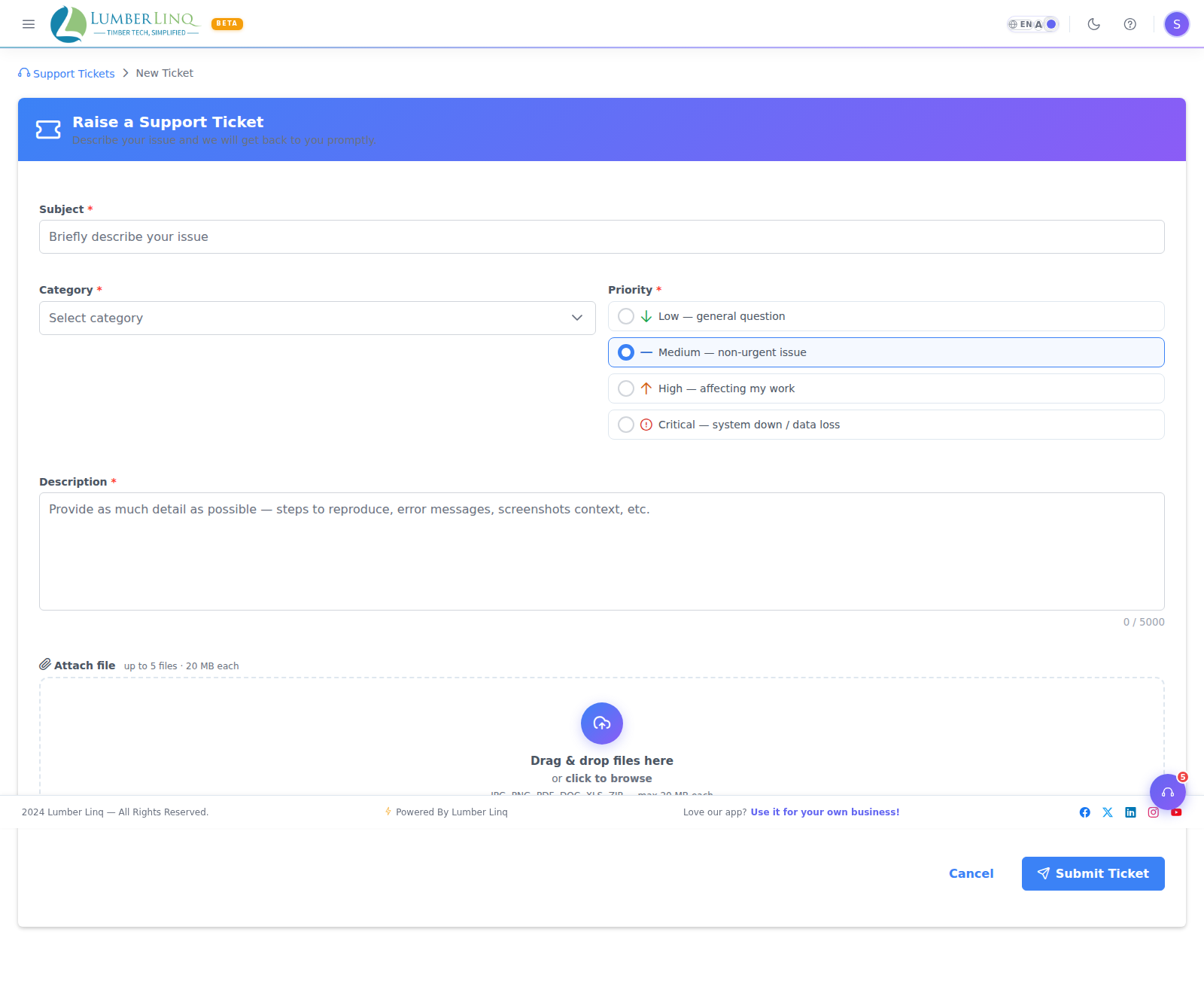
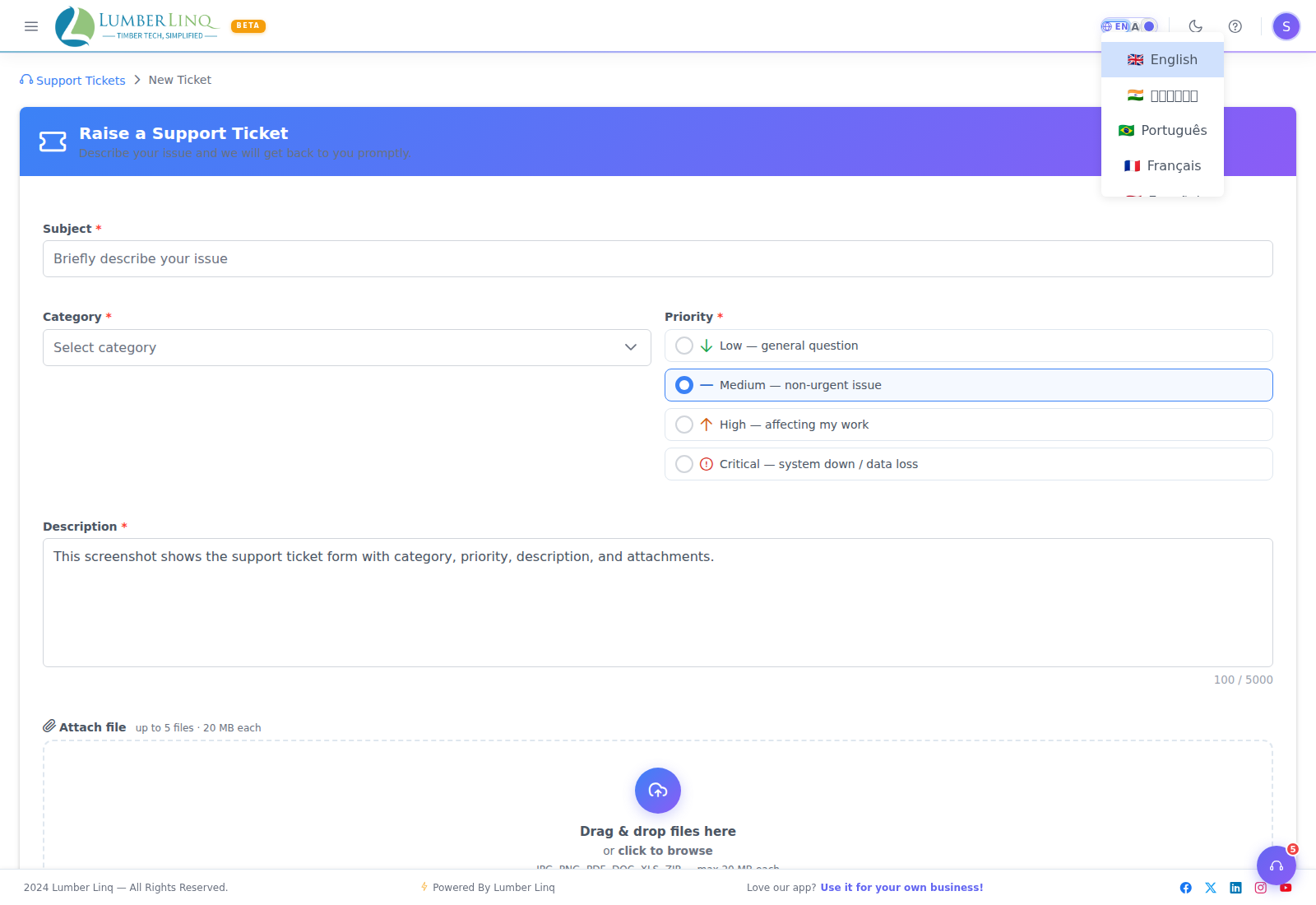
For faster resolution, include: the exact module and action, the Stock Unit ID/Consignment BL number/tally reference involved, the product or business partner name, a screenshot of the error, and your Company ID (Company Profile → Identity tab).
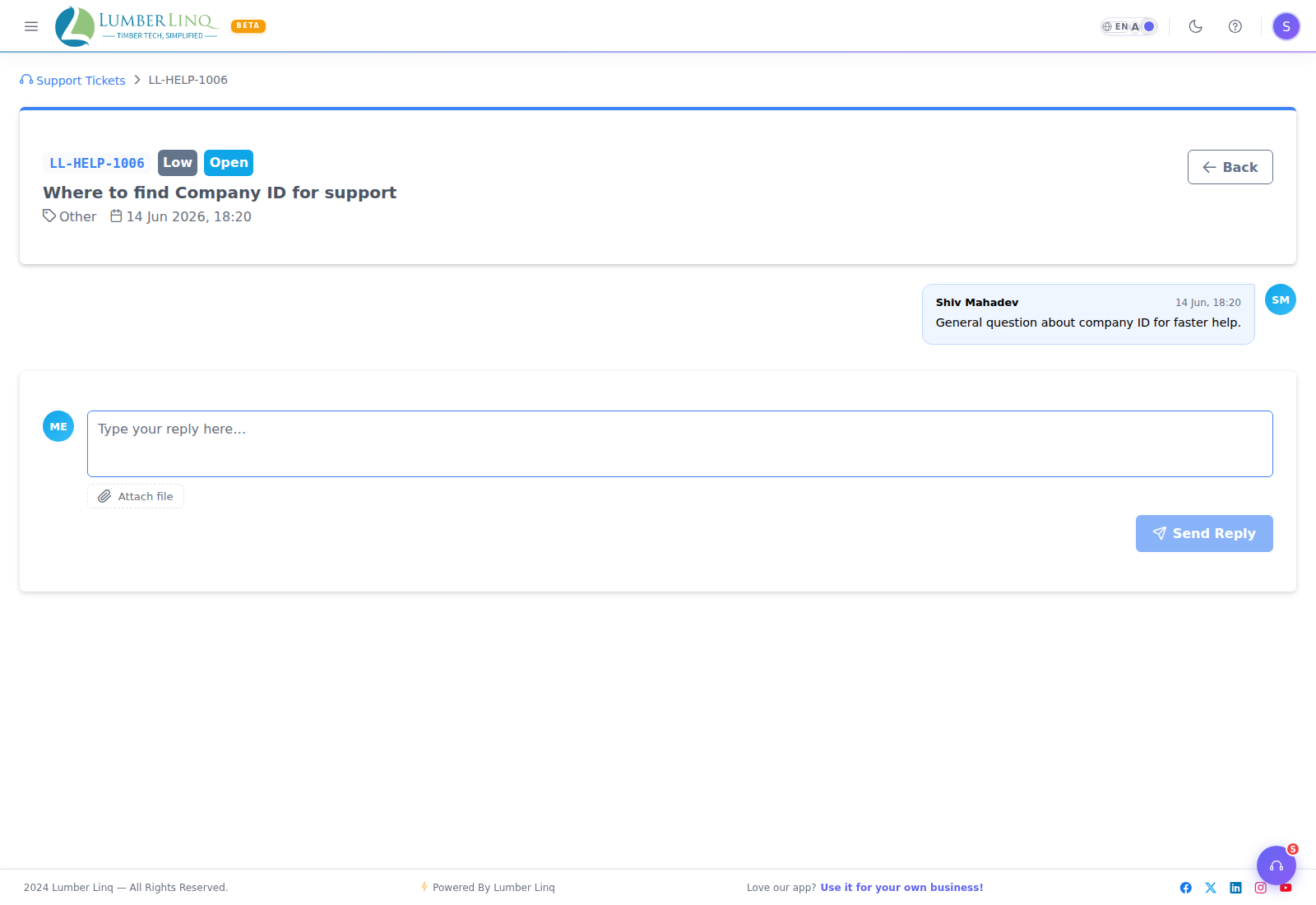
Open any ticket to see the full conversation and reply with more information. Tickets are visible to all admins and the user who created them.
Plan Limits — What Can Get Restricted
Depending on your subscription package, limits may apply to: storage quota, number of users, AI credits (for AI Import), tally sheets, consignments, Stock Units, product catalog entries, Business Partner records, priority support, and Analytics/App Usage report access. If you can’t create a new record, upload a file, or invite a user, check your current plan limits on the Subscription page before assuming it’s a technical error.