
Company Settings — User Manual
Also searched as: business profile, company logo, business settings, company details, tax id, GST number, allow oversell, currency setting, branding, legal entity type.
How to Access Company Settings
Open Main Menu → Company → Company Profile. Requires Administrator role to edit.
Company Settings has three tabs: Identity, Location, and Profile.
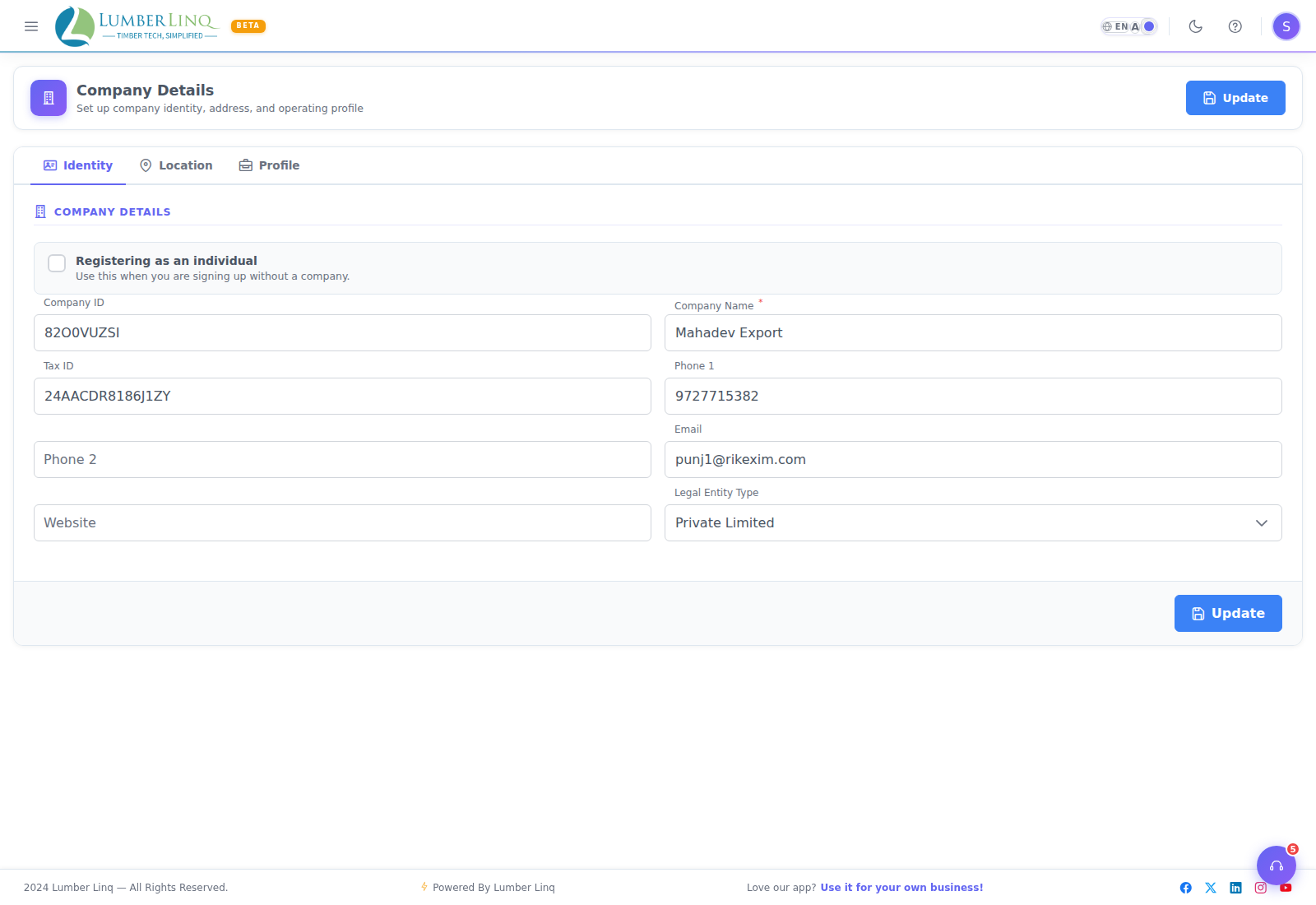
Identity Tab
Contains the legal and business information for your company:
- Company ID — a unique identifier for your account; this is the reference to give LumberLinq support when reporting an issue
- Company Name — the trading or legal name of your business
- Tax ID / GST / VAT
- Phone numbers — primary and secondary, include country code
- Email and Website
- Legal Entity Type — Private Limited, LLP, Partnership, Sole Proprietor, Foreign Entity, etc.
- Individual / Company classification
- Company Timezone — the clock your monthly plan allowances (tally sheets, consignments, stock units, AI credits) reset on. If left empty, India time (Asia/Kolkata) is used. It is the company’s setting, not your personal profile timezone.
Keep Identity details accurate — they appear on exported PDF documents and in account communications.
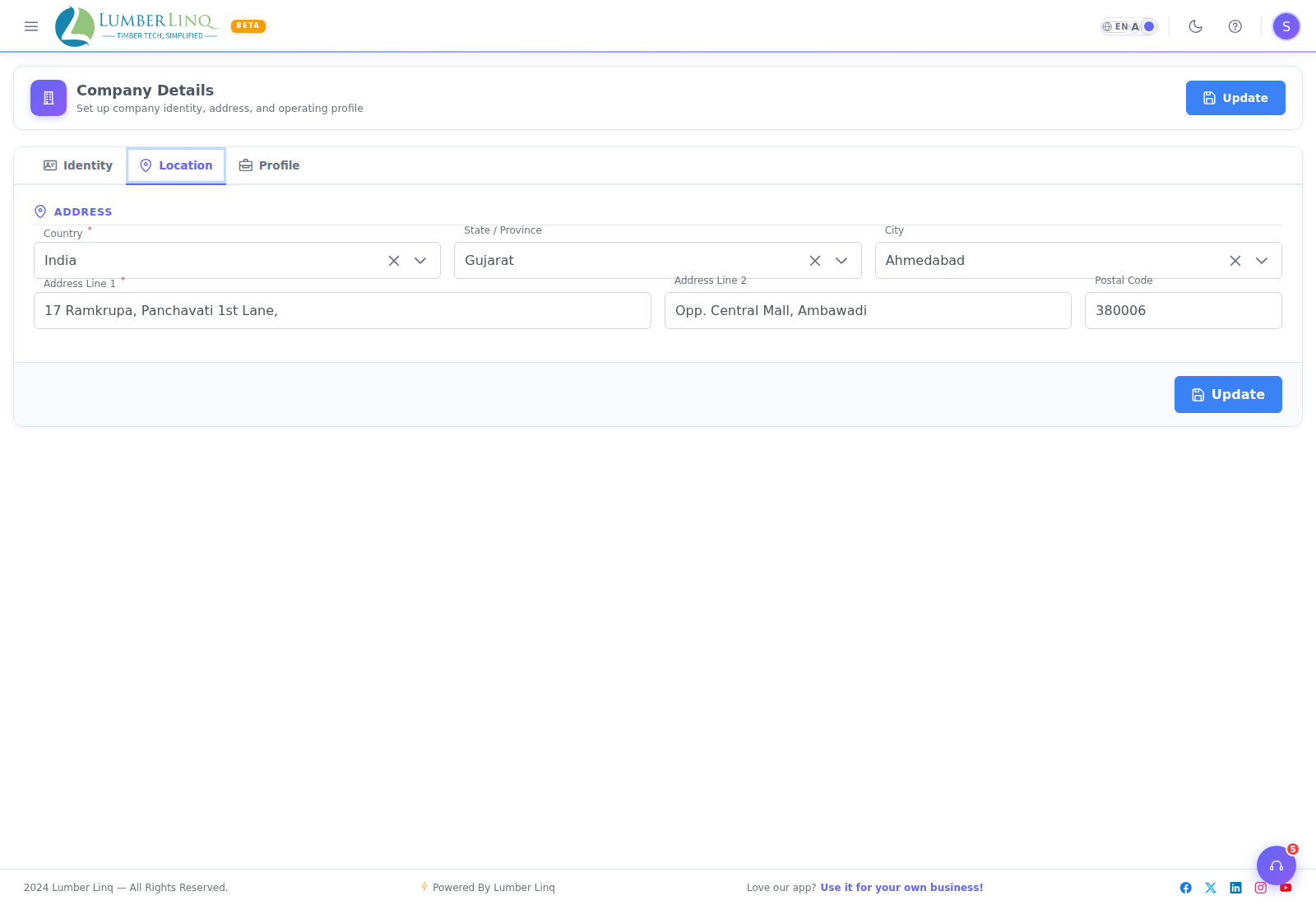
Location Tab
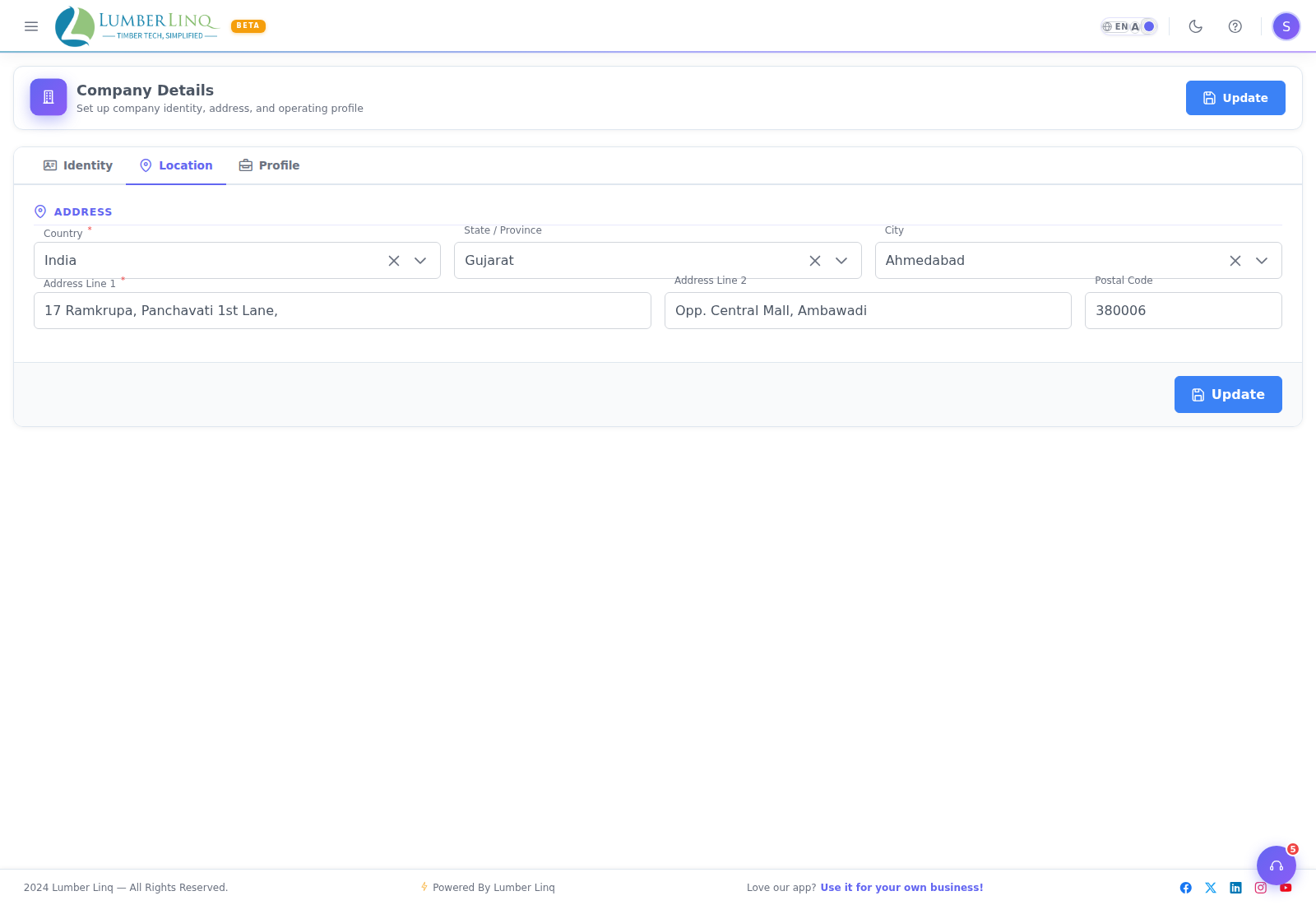
Stores the registered address of your company: Country (required), State/Province, City, Address Line 1 and 2, Postal Code. Select Country first — State and City dropdowns load based on it.
Profile Tab
Stores supplementary business information: Industry Type, Company Size, and Role in Company. Your logo is managed on the Branding page, not here.
Two Company-Wide Inventory Toggles
Two settings on the Company page control inventory-wide behaviour and don’t belong to any single Inventory screen:
- Allow Stock Oversell — when enabled, lets a consignment be assigned more volume than is currently available in inventory (useful for pre-selling against expected incoming stock). Leave this off unless your workflow specifically needs it — it removes a safety check.
- Include Reservations in Available Stock — controls whether tentatively reserved stock (not yet formally assigned) still counts as “available” in the Inventory Overview totals.
Both are saved independently of the main company form — toggling either takes effect immediately, no separate Save button needed.
Company Branding
Open Main Menu → Company → Branding. Custom branding is available on the Forest plan; on other plans the page shows an upgrade prompt.
Click to choose a logo file and it uploads right away — there is no URL box and no Save button. Use PNG, JPG or WEBP, up to 5 MB, at least 200×50 px. Large images are scaled down to fit 584×158 px (never cropped). Your logo appears on PDF reports, shipment and tally share pages, and image exports (Excel exports carry no logo). Until you upload one, the default LumberLinq logo is used; Use Default switches back to it.
If your company moves to a plan without custom branding (a downgrade or a lapsed payment), the custom logo is removed and the default LumberLinq logo is used automatically.
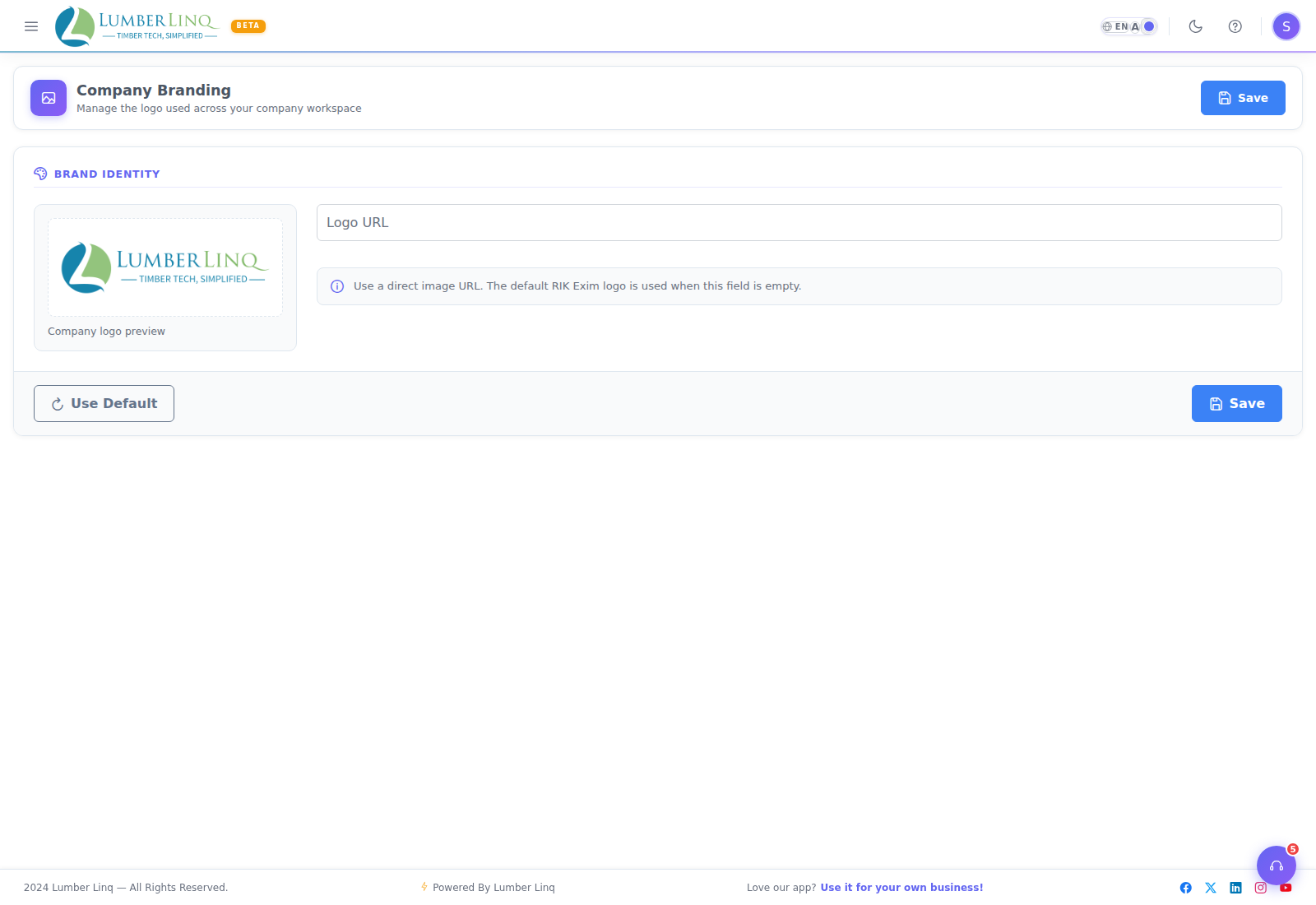
Share pages pick up a new logo automatically — no need to create new share links. Already-downloaded PDFs are not changed.