Consignments — User Manual
Also searched as: shipment, shipments, export order, BL, bill of lading, packing list, container, sea port, vessel, ETA, ETD, financials tab, lock shipment.
Purpose
The Consignments module helps timber and logistics teams manage export, import, domestic sale, domestic purchase, and trading consignments in one place. It brings together consignment details, parties, Stock Units, documents, invoice values, payment tracking, export reports, share links, and audit/status information.
Plan note. Consignments are part of the Tree and Forest plans. On Seedling and Sapling the Consignments menu, its reports and shared consignment links are not available. Your data is never deleted: when a plan that includes Consignments is active again, everything is back.
Open the Consignments List
Go to Consignments > List Consignments.
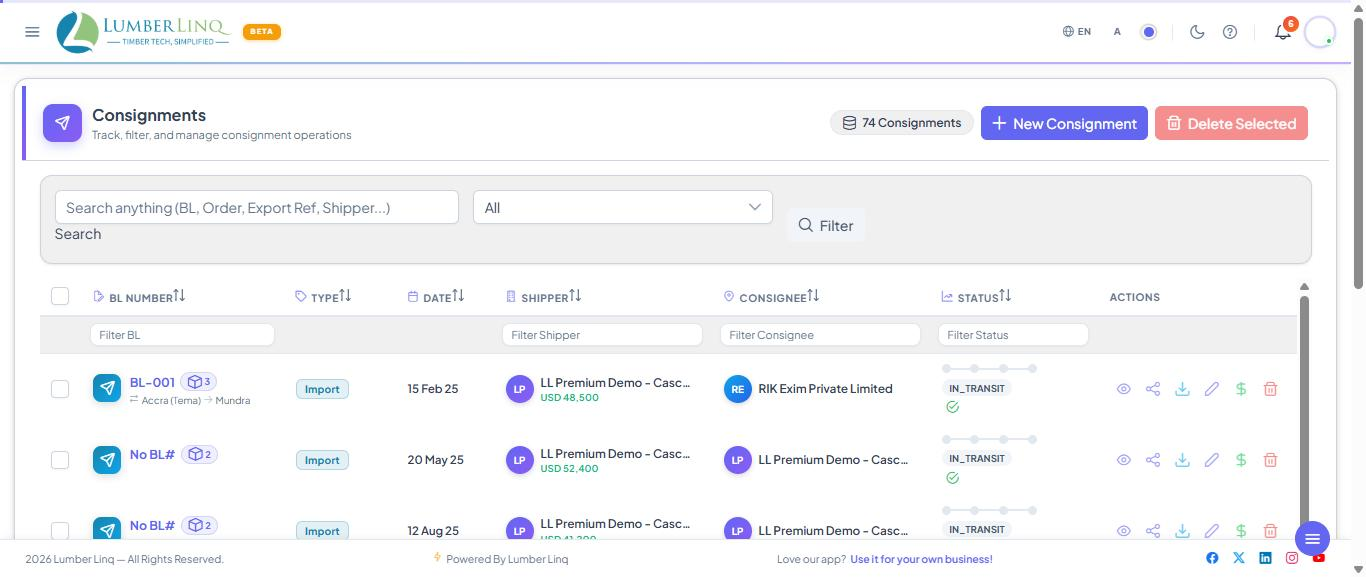
The list shows:
- BL number or bill number
- Type
- Date
- Shipper
- Consignee
- Status stepper
- Stock Unit count
- File chips: the Consignment’s own documents and the photos and files of its Stock Units (see below)
- Route summary
- Row actions for view, share, download/export, edit, payments, and delete
File chips on each row
Under the BL number every row shows two small file chips:
- Document chip (for example 3): the files attached to the Consignment itself. Tap it to see a checklist of the six document types — BL, Invoice, Certificate of Origin, Phytosanitary, E-Waybill and Other. A green tick with a count means that type has files; a grey cross with “missing” means nothing is attached yet. The card shows document types only, never file names.
- Box chip (for example 7 photos, 2 files): all the Stock Units of this Consignment added together, with photos and other files counted separately. Tap it to see the same two totals and one line for every Stock Unit; tap a Stock Unit line to see its files by category (Front, Stack, Back, BL, Document, Other).
On a phone the card opens from the bottom of the screen. Tapping a chip never opens the Consignment itself.
Search and Filter Consignments
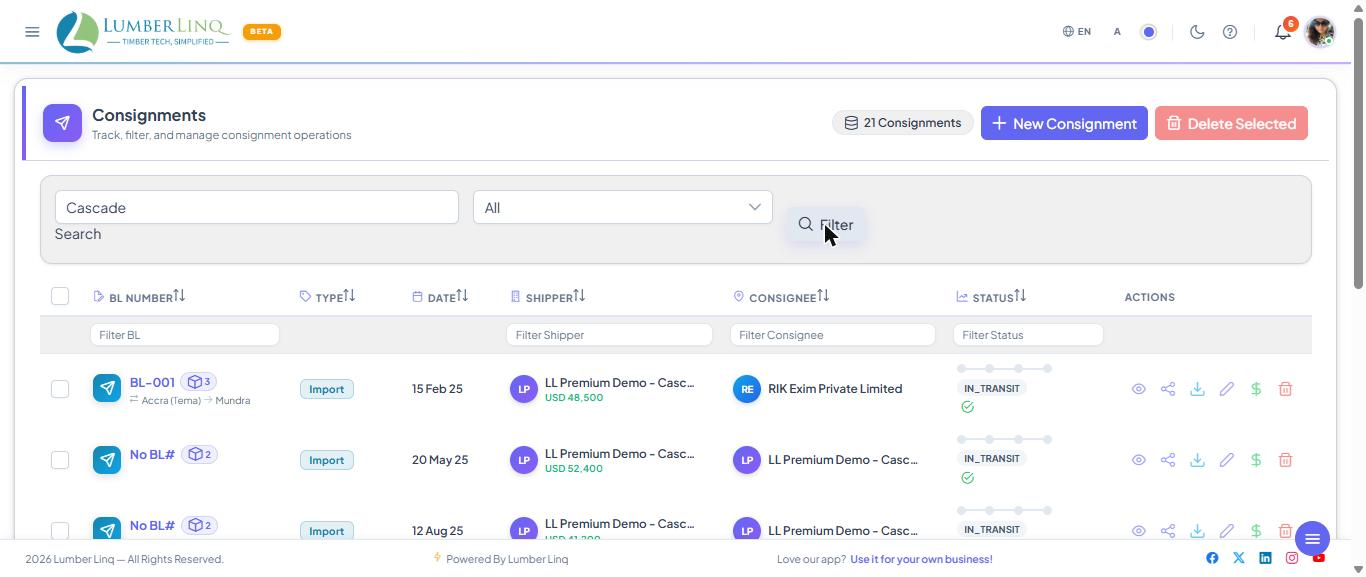
Use the global search box to find consignments by BL number, partner, buyer order number, exporter reference, or related consignment text.
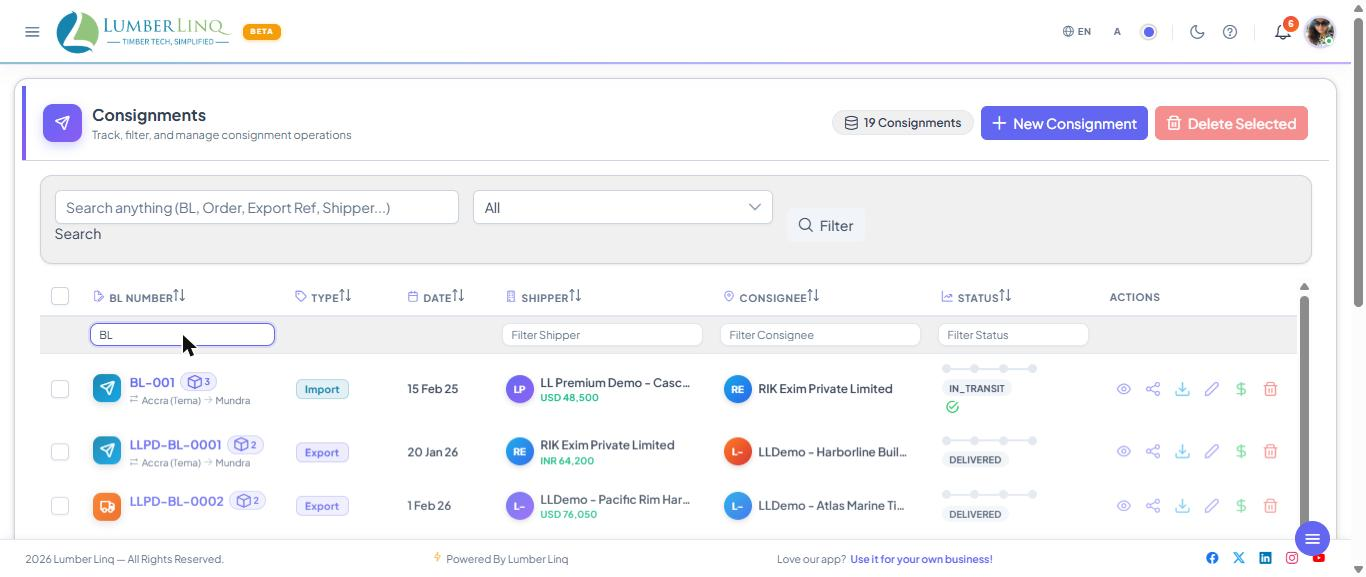
The list also includes column filters for BL number, shipper, consignee, and status. Use these when the global search returns too many results.
Create a Consignment
Select New from the Consignments list.
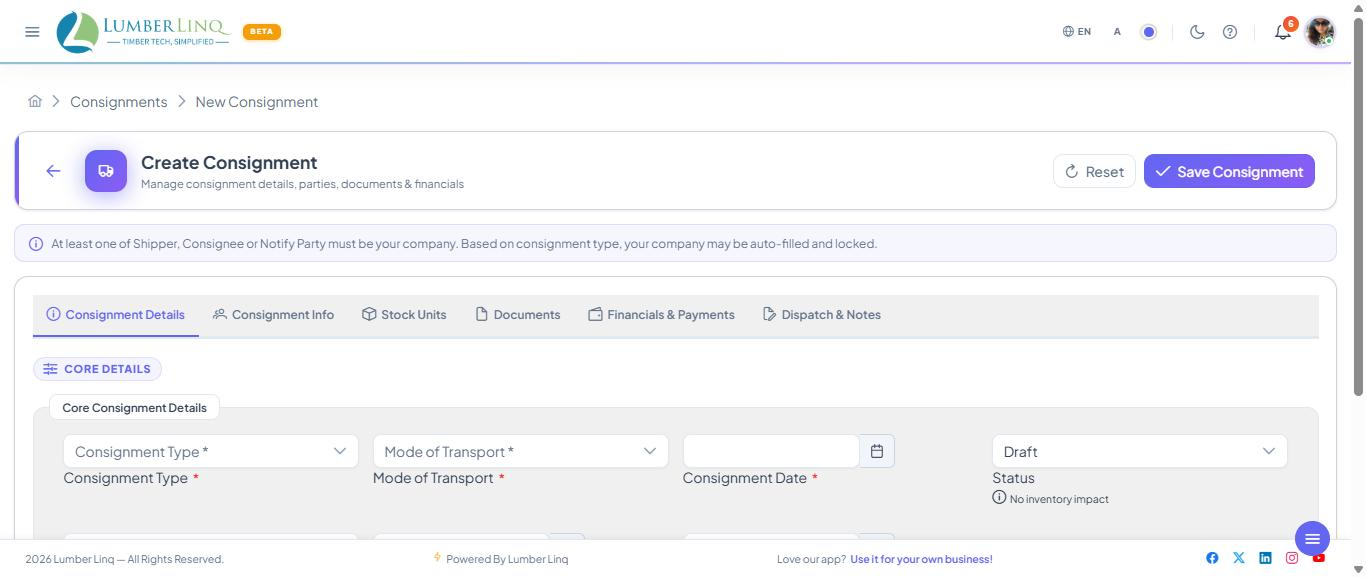
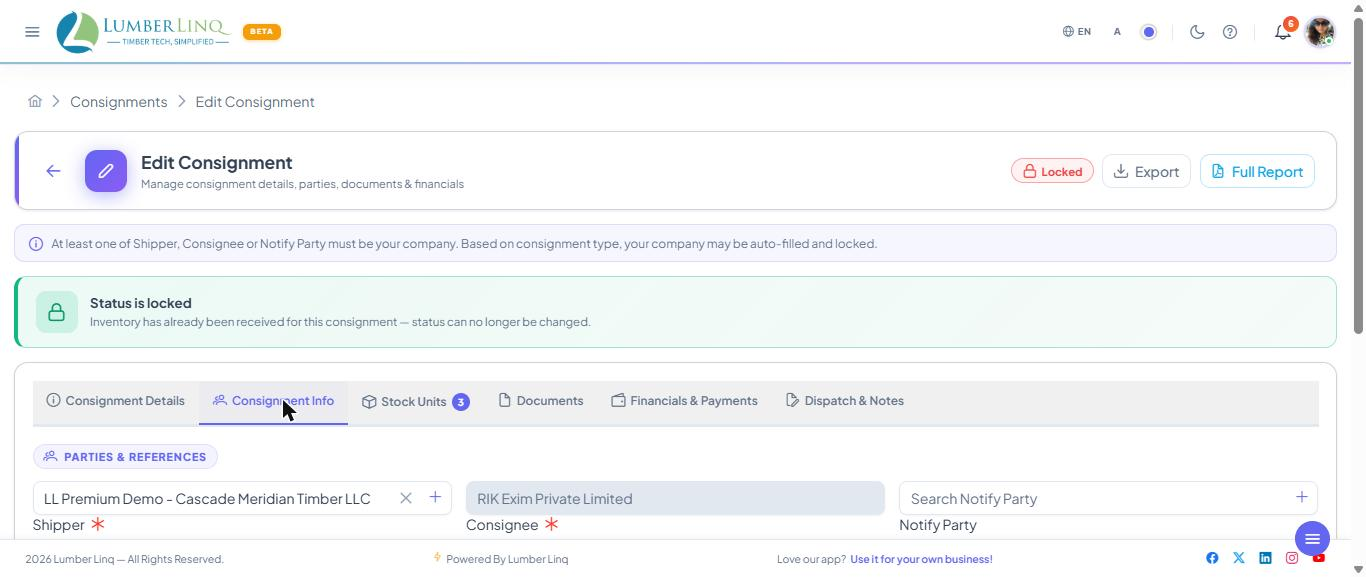
The form has a summary at the top (type and mode, the Bill of Lading / Bill number, the Status button, the Seller → Buyer names, a progress strip, Stock Units, Invoice and Outstanding, and a “x/y ready” ring that lists what is still missing) and five tabs:
- Deal: type, mode and date; the references (Bill of Lading / Bill No, BL type, commercial invoice, packing list, exporter reference, buyer order); the parties (Shipper / Seller, Consignee / Buyer, Notify Party); for a domestic deal the buyer’s tax number and delivery contact; and the notes (approved by, remarks)
- Route & Timing: estimated departure and arrival (the same day is fine), final destination, countries, Incoterms, and the port & carrier, road or rail details for the mode you chose
- Stock Units: search and add Stock Units; the ? explains which units are listed; a bar shows the totals
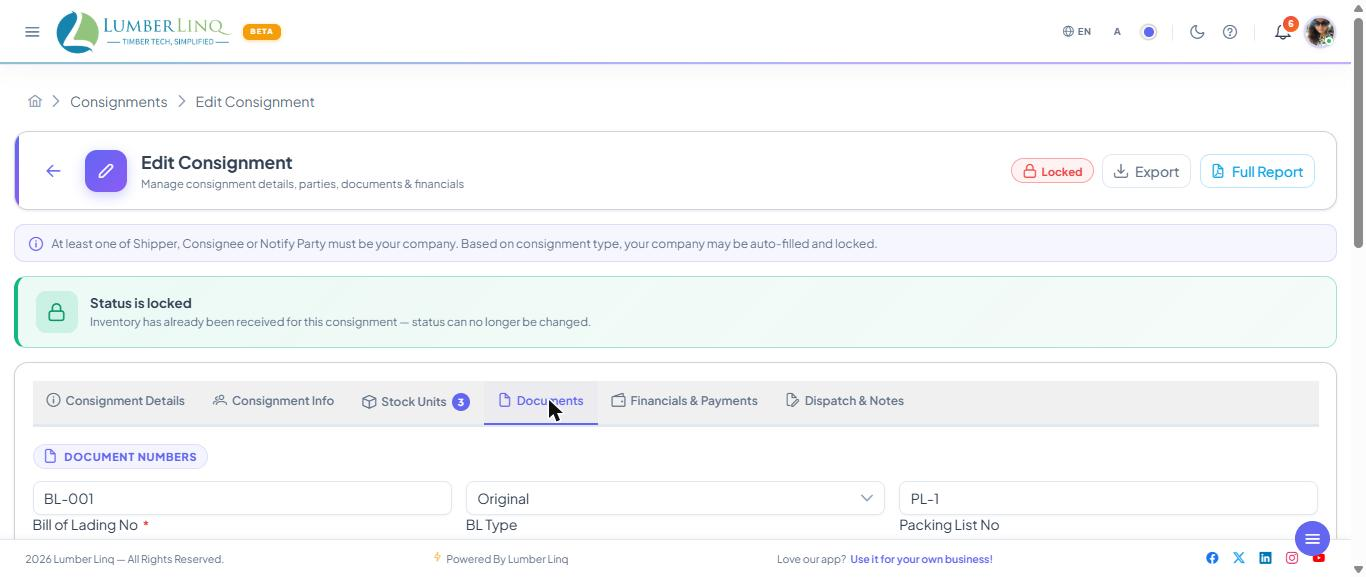
- Documents: a checklist of the documents on file, the document numbers (certificate of origin, fumigation, insurance, E-way bill) and the upload cards
- Money: invoice amount, currency, insurance, freight terms, an “invoice per CBM” hint, payment terms, the paid / received bar, the payment summary and the payment history
The status list fits the kind of consignment (for example a domestic sale has no Stuffing or Arrived), and a status never changes your stock. Full details: Buying and Selling Timber.
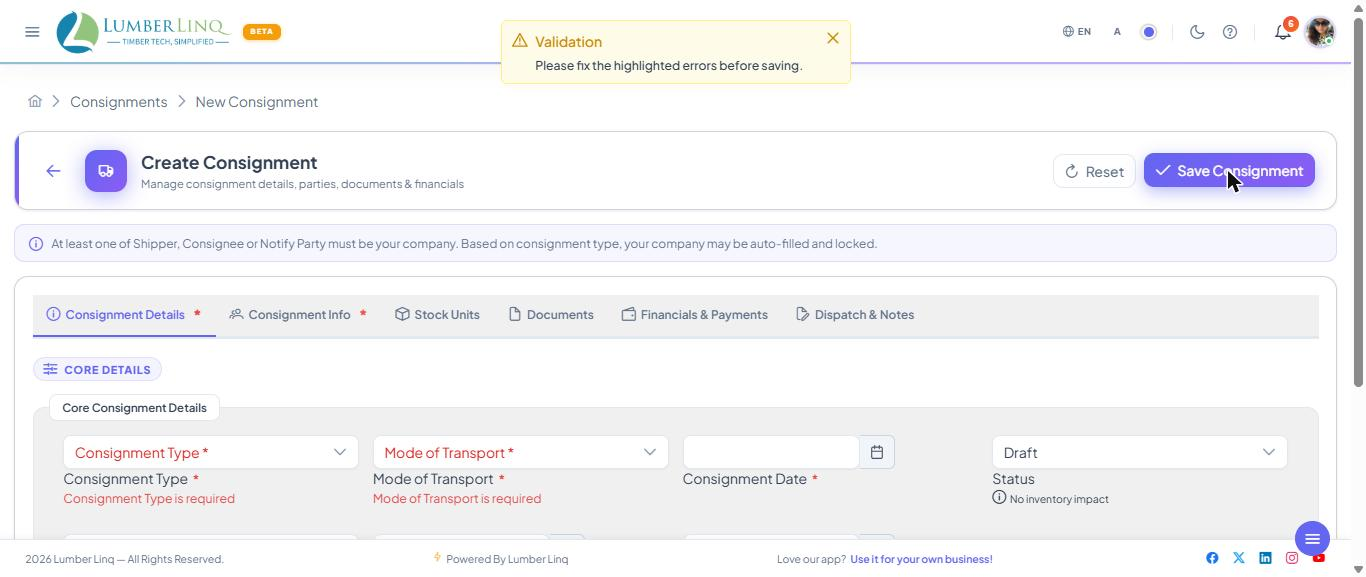
Required Field Validation
A red * shows only while a field is required, and a tab with fields to fix shows a red number. You can save a Draft with little: type, mode, date, seller and buyer (one of the parties must be your own company). More is needed as the status moves on: estimated departure and arrival from the first status after Draft (the same day is fine); the route details for the mode, the Bill of Lading number for sea, Incoterms (export / import) and, for a domestic sale, the buyer’s tax number and delivery contact once the goods leave; and payment terms as soon as an invoice amount is entered.
Edit Consignment Details
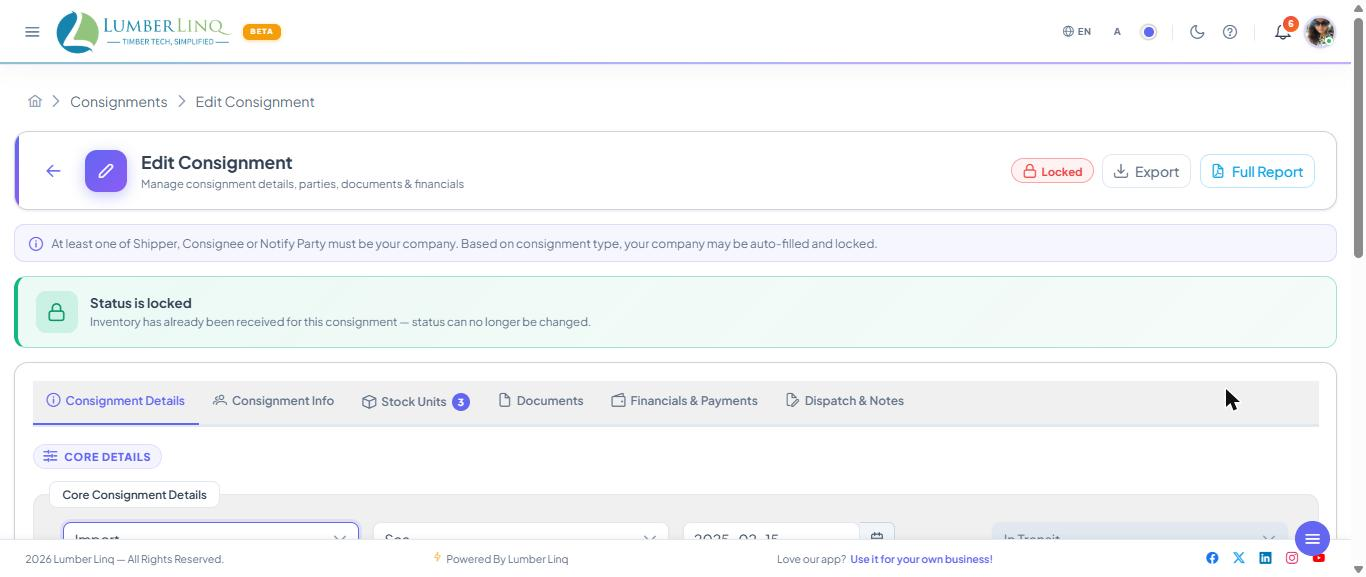
Open a consignment from the BL number link or the pencil icon.
Use the edit screen to update:
- Core consignment and route information
- Shipper, consignee, and notify party
- Linked Stock Units
- Document numbers and attachments
- Invoice and payment information
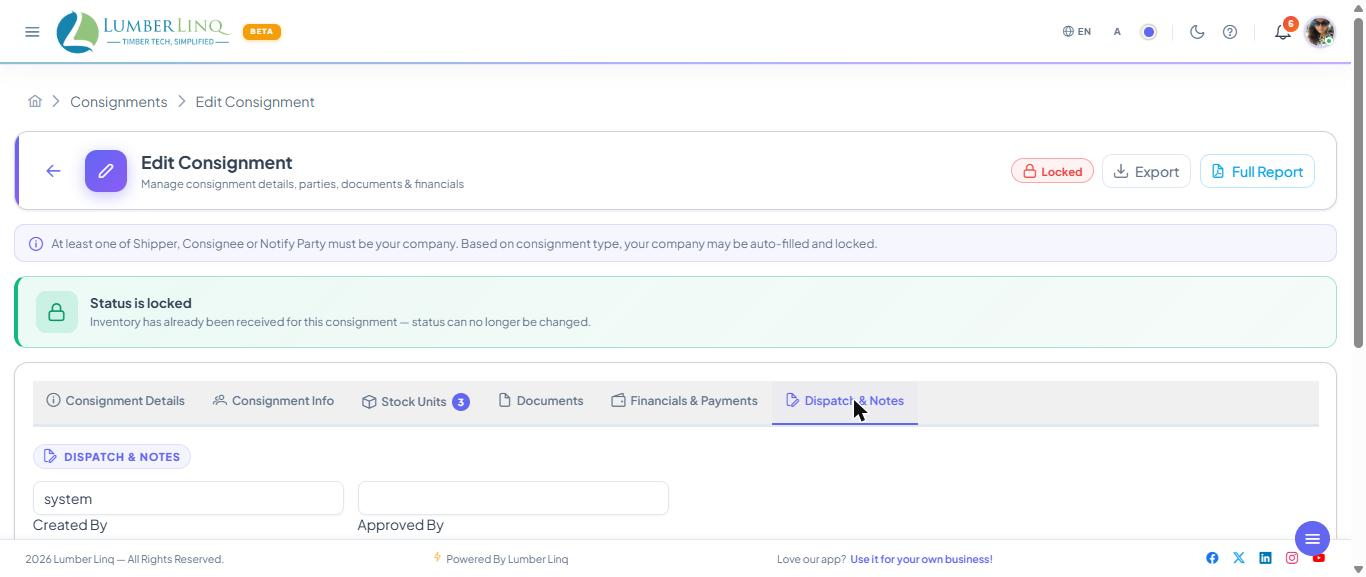
- Consignment status (the Status button at the top of the form) and remarks
- The Activity button shows who made the consignment, when it last changed and the status history
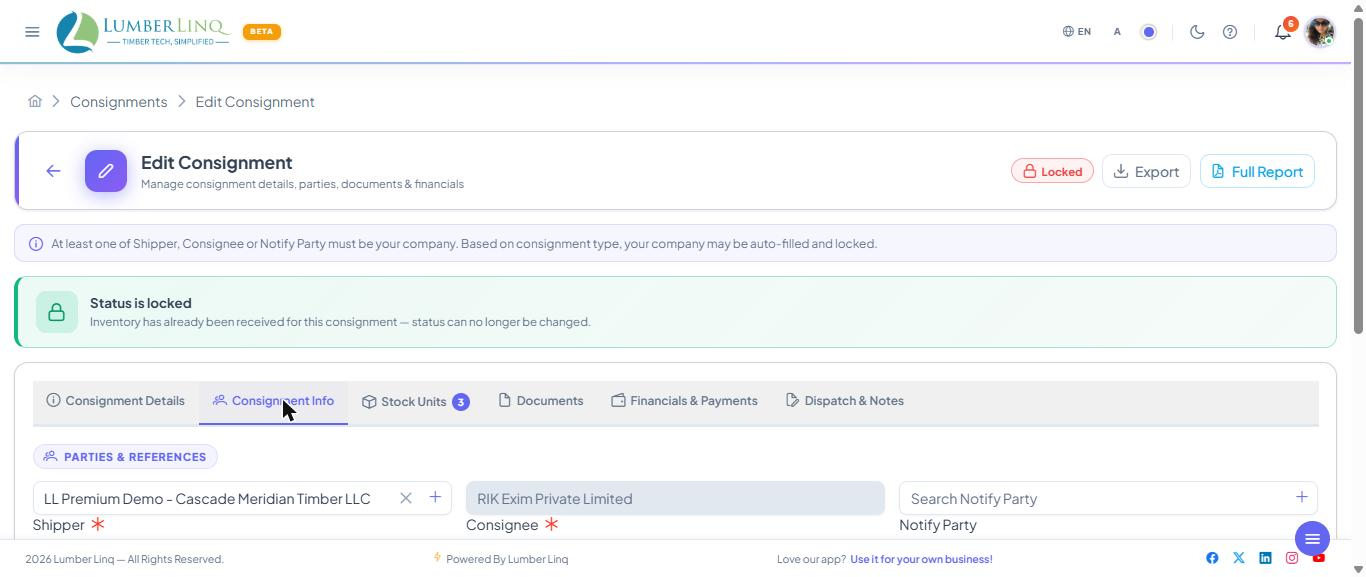
Stock Units
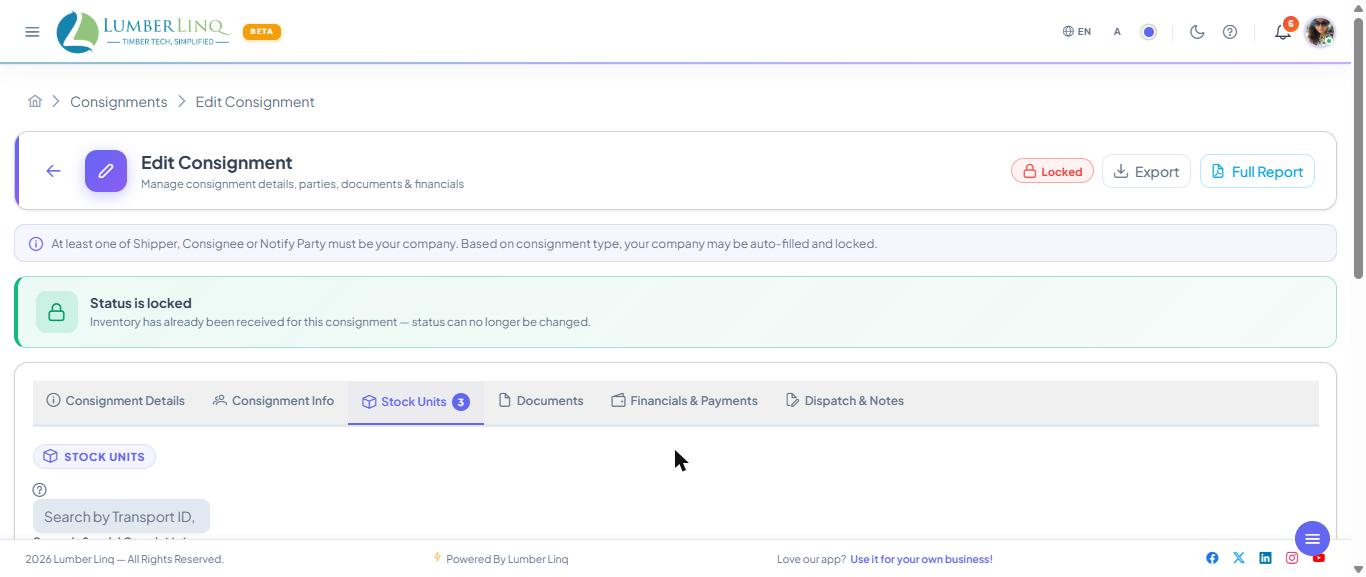
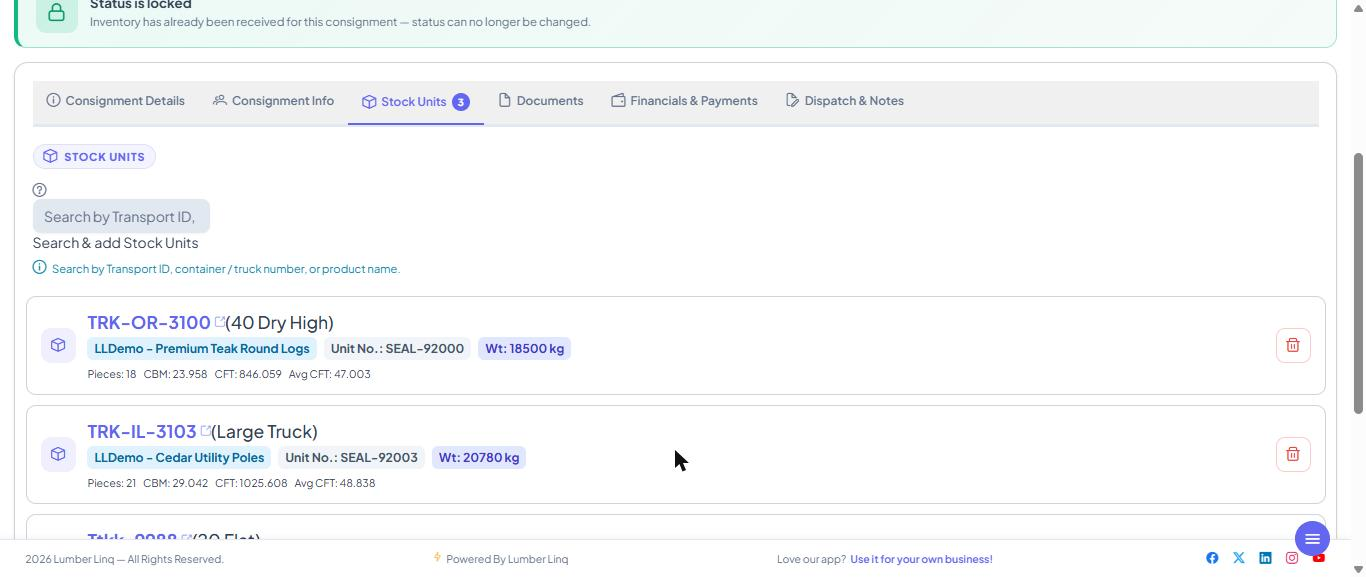
The Stock Units tab lets users search available units and link them to a consignment.
Only eligible, unassigned units are listed: units not already in another consignment, whose Direction fits the deal (Stock Out units on a sale, Stock In units on a purchase, both on Trading). A Stock Unit does not have to be received or confirmed first — you can link it before or after, and linking never changes stock. See Buying and Selling Timber.
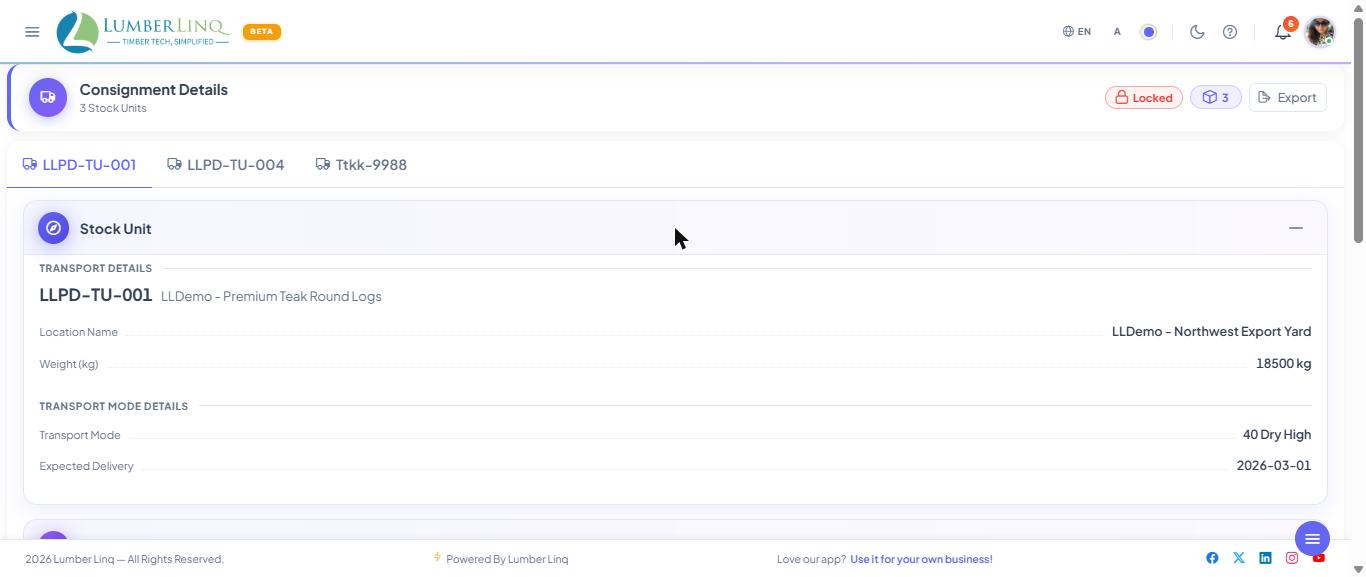
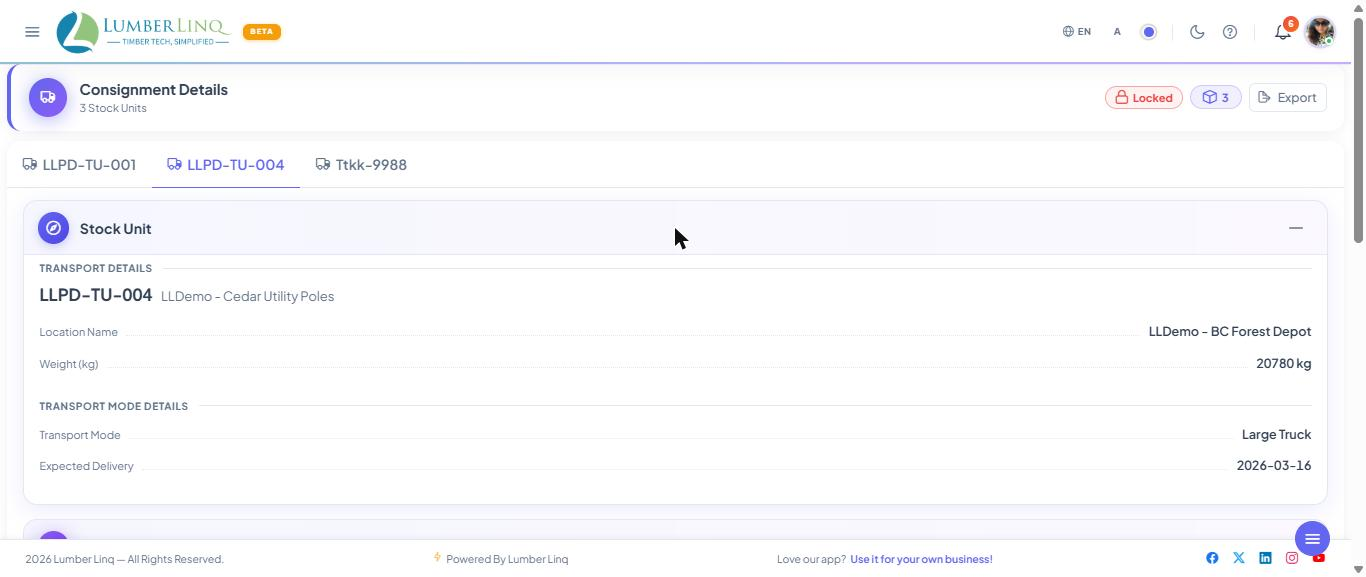
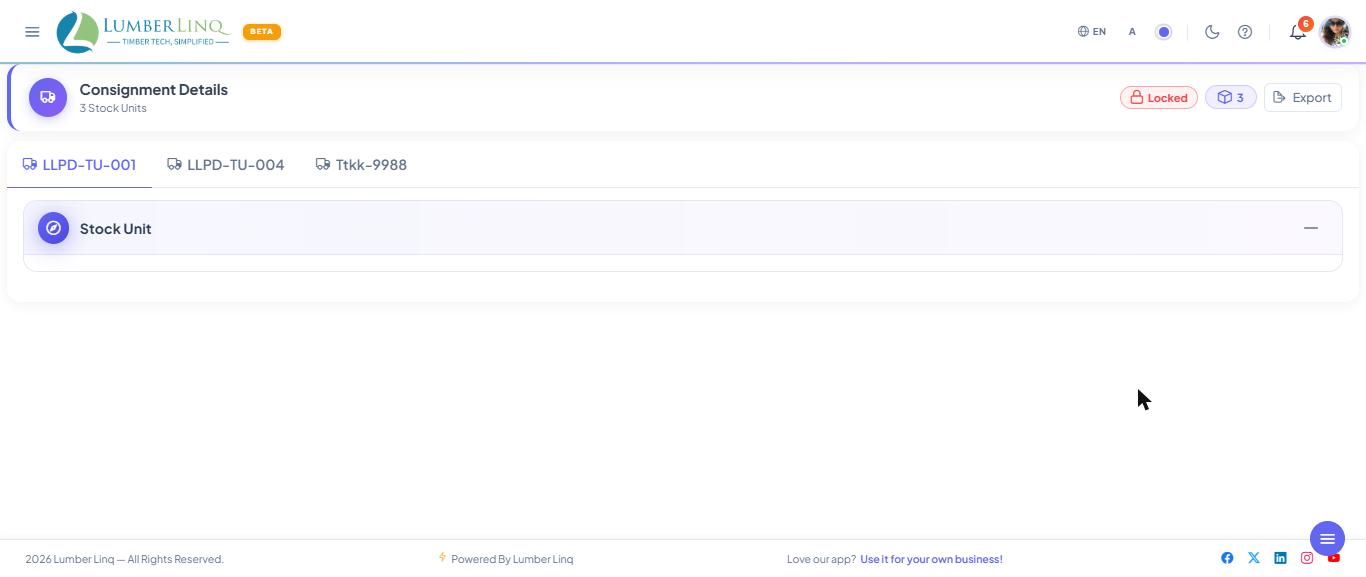
Viewing the Stock Units of a Consignment. On the consignment view page each Stock Unit has its own tab. Inside it you see the same layout as a shared Stock Unit: a strip with the Transport ID or product and small chips, the tabs (Tallysheet, Photos, Summary), and a Stock Unit details button that opens the read-only details in a side panel (a sheet on a phone).
Documents
Use the Documents tab to maintain consignment document numbers and upload files. Supported document areas include BL, packing list, commercial invoice, certificate-related documents, and other attachments.
Financials and Payments
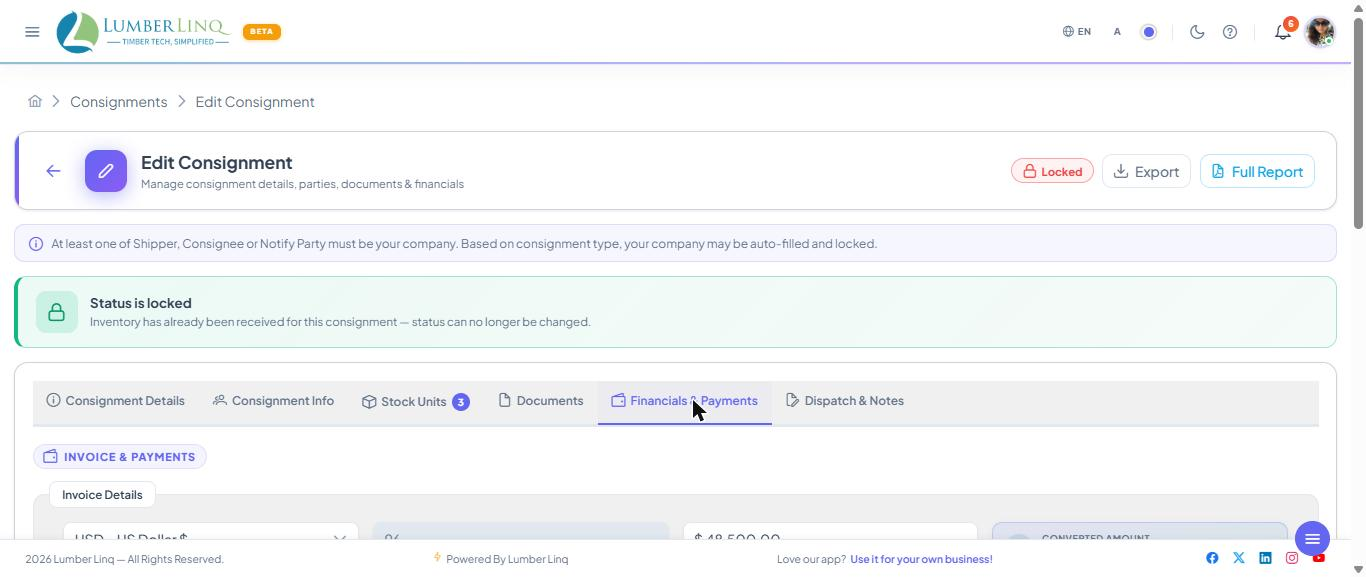
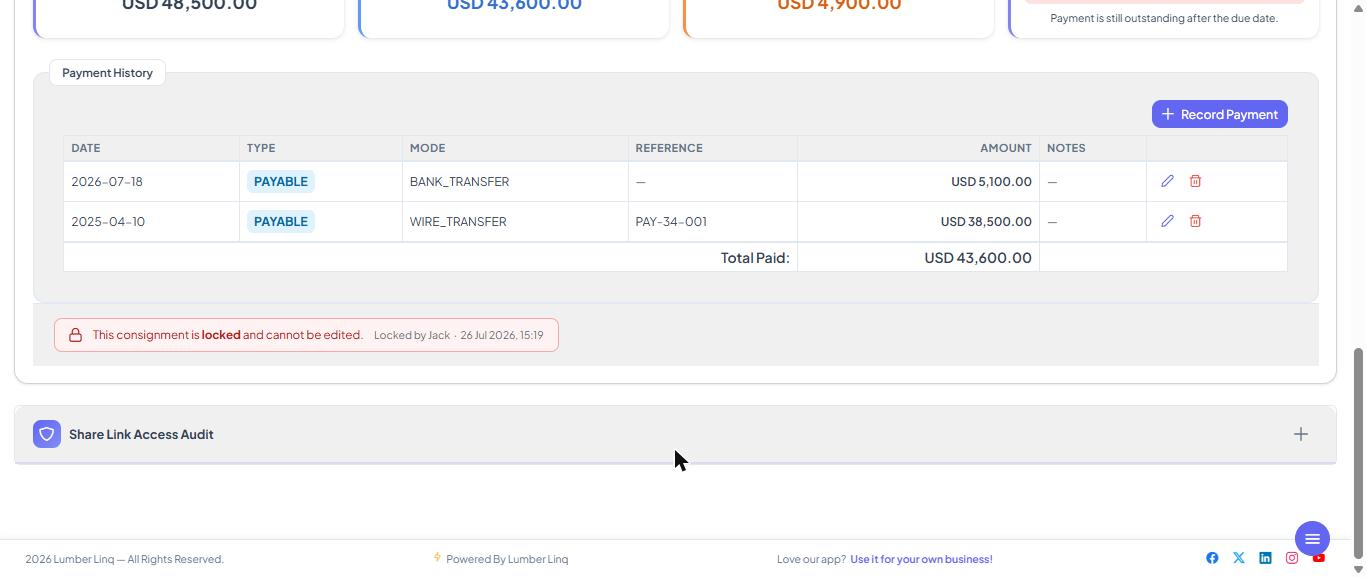
The Financials & Payments tab tracks invoice value, currency, insurance, freight terms, payment terms, due date, payment status, and payment history.
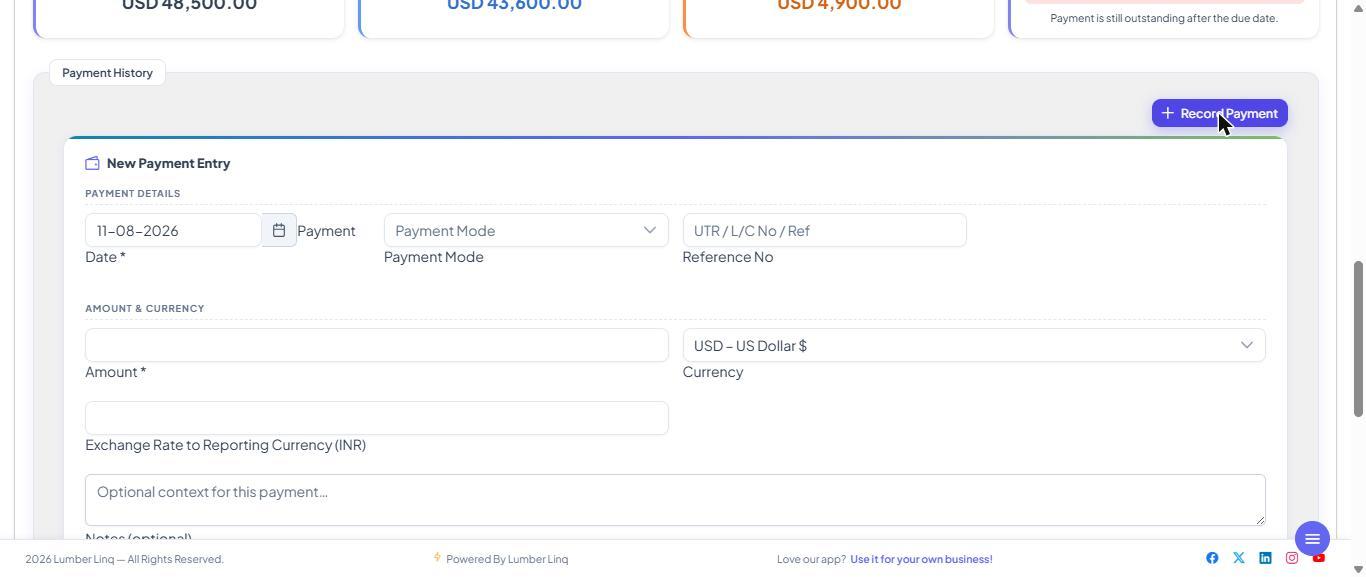
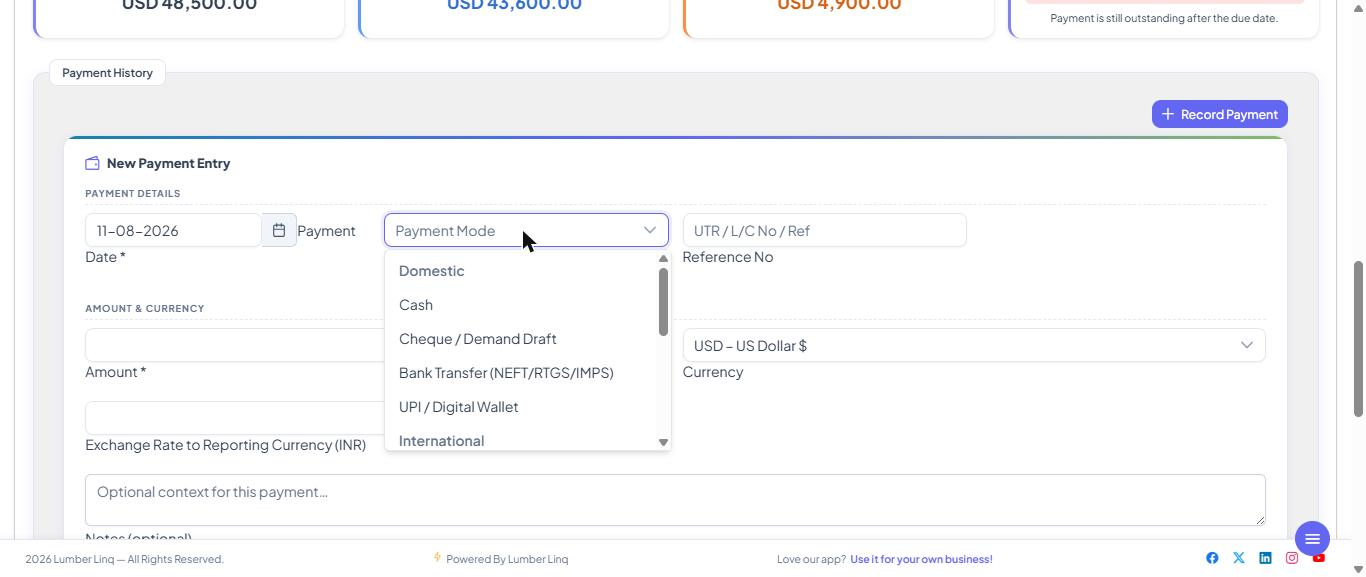
Payment terms are saved together with everything else when you press Update (there is no separate Save Terms button) and are required once an invoice amount is entered. Use Record Payment to add a received or paid amount with date, mode, reference number, amount, currency, and notes.
Export Consignment Reports
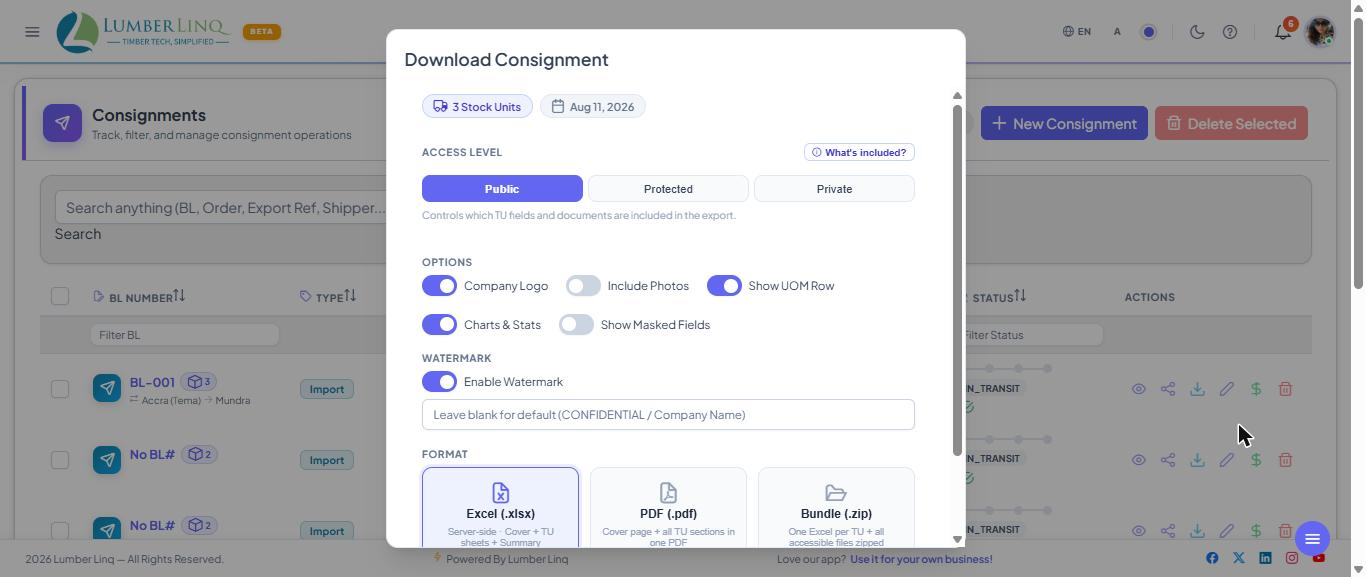
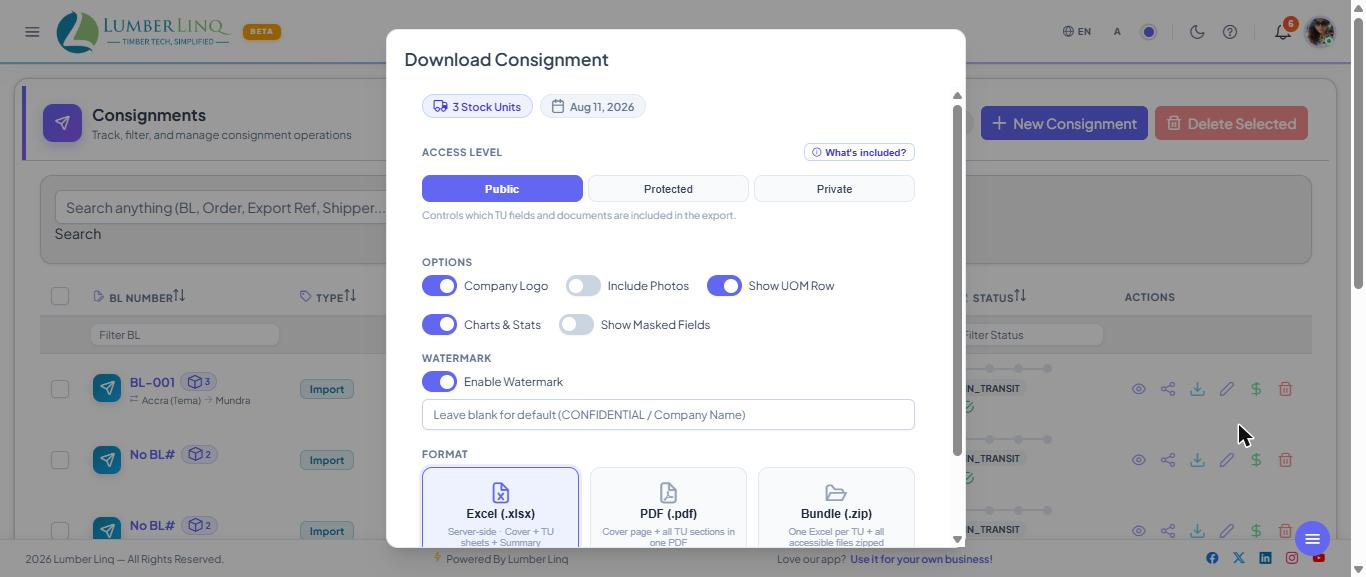
Use the Export action from the consignment edit screen or the download action from the list. The export dialog supports access-level options, report format choices, watermark, company logo, photo inclusion, UOM row, and chart/stat options where available.
Share Consignment Links
Use the share action from the list to create public, protected, or private consignment links. The share dialog lets users control duration, access limits, download permission, and document visibility.
Show details in link preview controls the card WhatsApp and other chat apps show when the link is pasted: on a public link it shows the consignment’s real details (only what your field-access settings allow); turn it off for a plain card. Protected and Private links always show a locked card with only the Stock Unit count.
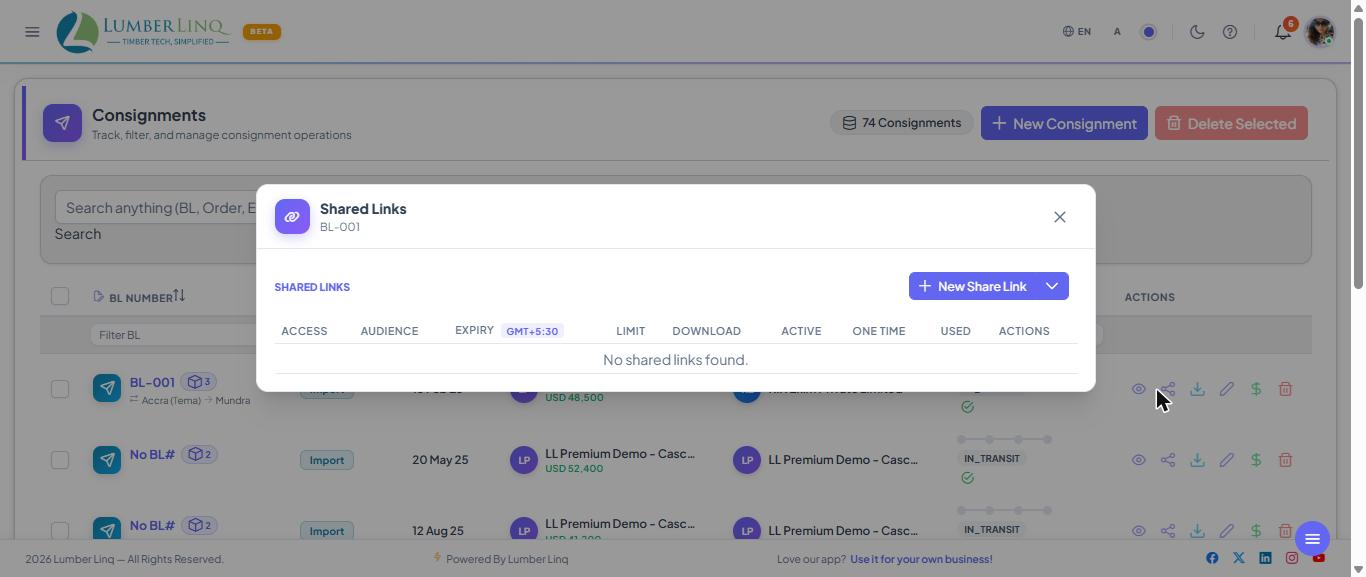
Which files a link shows. Every uploaded file (BL, invoice, certificates and so on) has its own setting: Anyone with the link, LumberLinq users only, or My team only. A Public link shows only the files marked “Anyone with the link”; a Protected link also shows “LumberLinq users only”; a Private link (your own team) shows all. A file marked “My team only” is never shown to outsiders. In the share dialog you can also hide a whole document type or show only its file name. The download icon appears only when the link’s Download permission is on (it is off by default). A document box (for example BL File) appears on the shared page whenever a file of that type is shown, even on a stock-out consignment. With Download permission on, the shared consignment page shows an Export button (a PDF of the details and Stock Unit list) and a Download pack button (one ZIP with the summary PDF, Excel workbook, documents and photos that the link may show). A Stock Unit opened from a shared consignment offers a PDF export (when Download permission is on).
Choosing What a Consignment Link Shows (Consignment Field Access)
The Documents group also has Certificate of Origin No., Fumigation Certificate No., Insurance Details and E-way Bill No. They start hidden for outsiders; switch them on only if the link holder should see them.
Company admins decide, field by field, what Public and Protected consignment links show. Open Main Menu → Consignments → Consignment Field Access (admins only).
- Each field has Hidden or View for Anyone with the link and for LumberLinq users only. “My team only” always sees everything and cannot be changed.
- The groups (Core Consignment, Route & Vessel, Location & Logistics, Parties, Documents, Financials, Audit) each have a master switch. Switching a group off hides every field of that group for that kind of link, whatever the single field switches say. Switching Documents off also hides the files. The Stock Units group switch does not hide the Stock Units tab.
- Preview as visitor shows what each kind of visitor will see, with hidden fields crossed out. It changes nothing.
- Presets — Public (minimal), Buyer or Agent: you see what will be shown and hidden before saving, with a red warning when fields become visible to anyone with the link. Presets never switch on money, tax or audit fields.
- History — the last 200 changes: who, when, and what changed.
- Switching one field to View for Anyone with the link asks you to confirm first.
Lock a Consignment
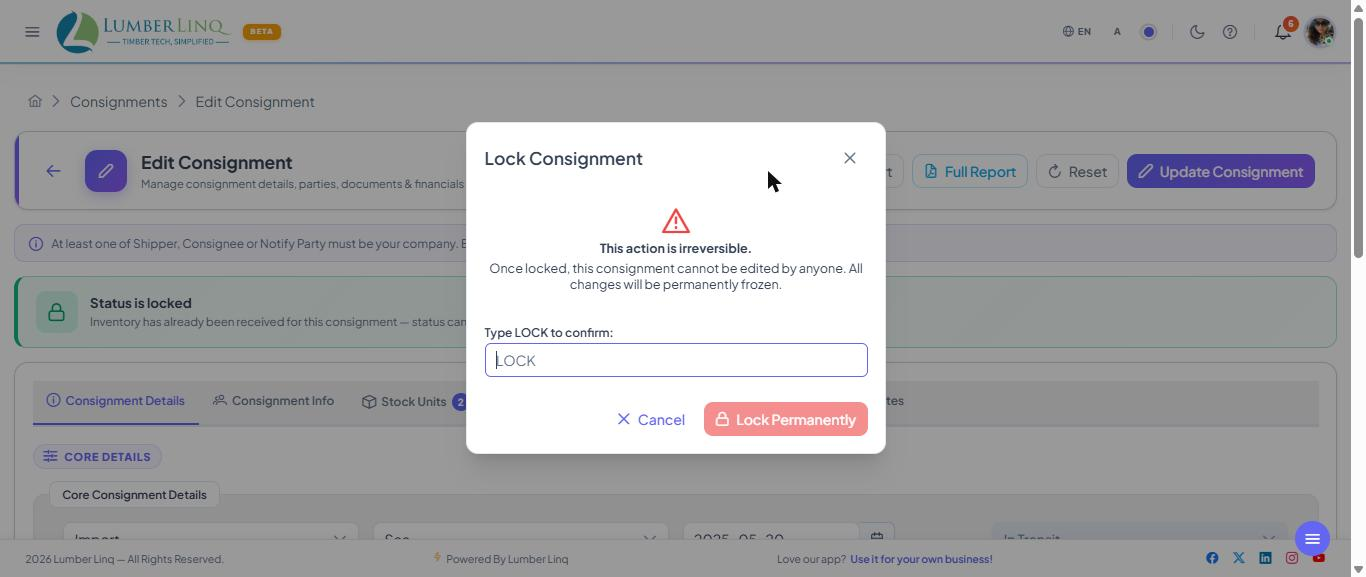
Use the Lock action on the edit screen when a consignment should no longer be changed. Locked consignments show a lock badge and prevent normal editing.
Read-Only View
The view action opens a read-only consignment view for reviewing consignment details without editing.
Inventory and Reconciliation
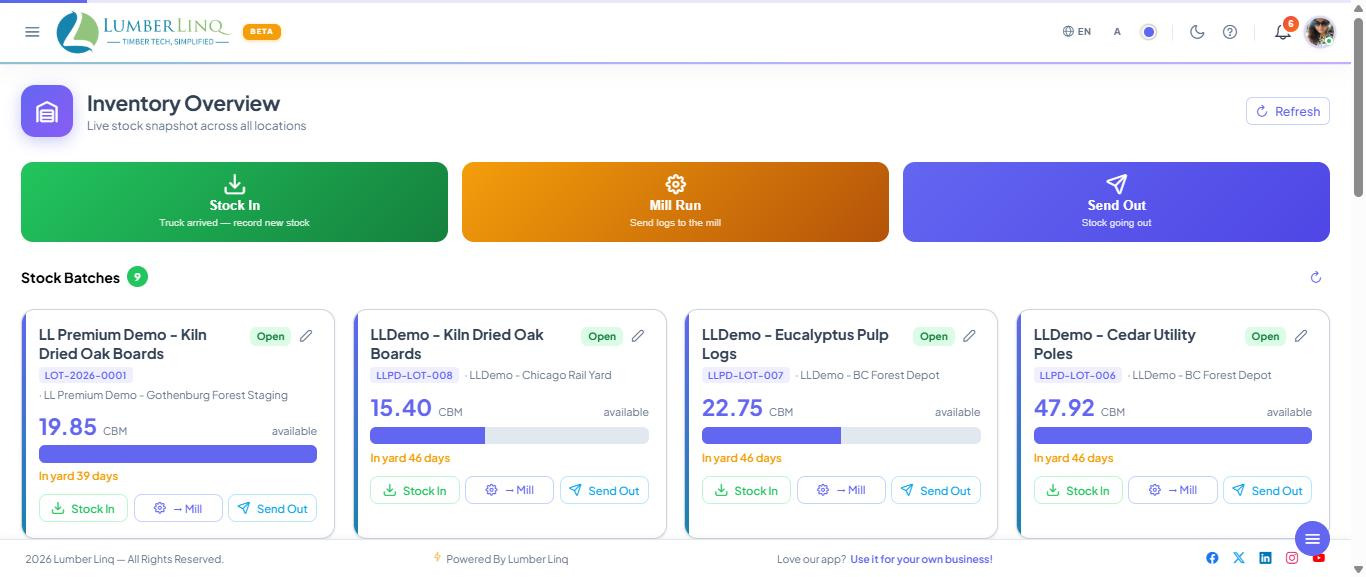
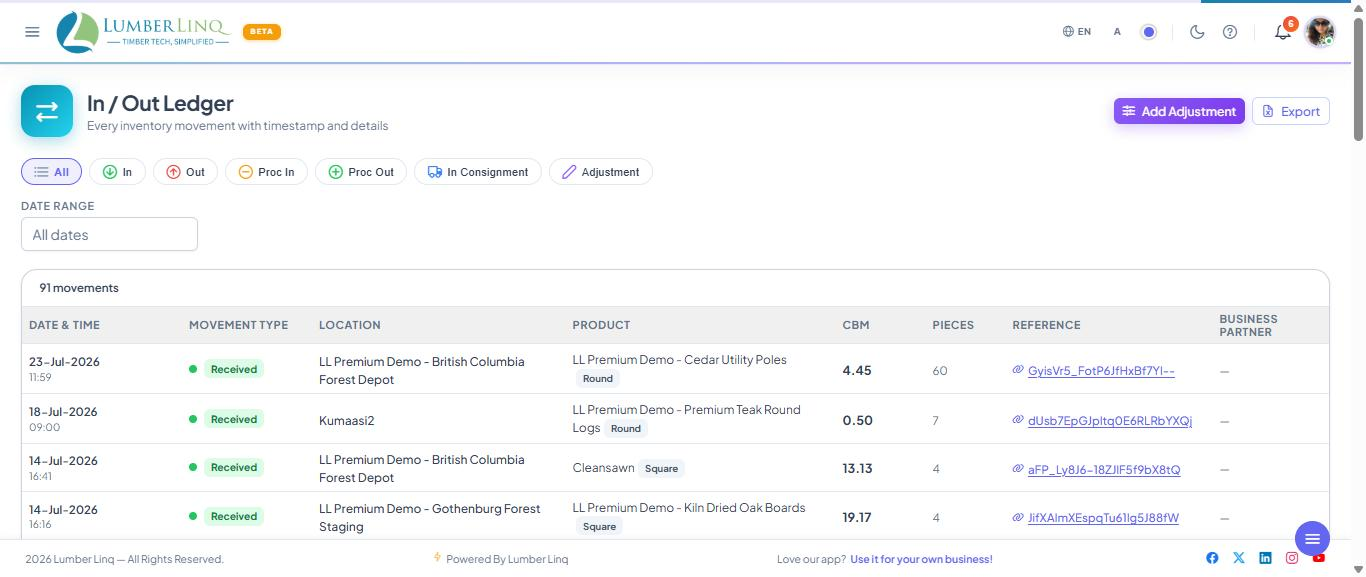
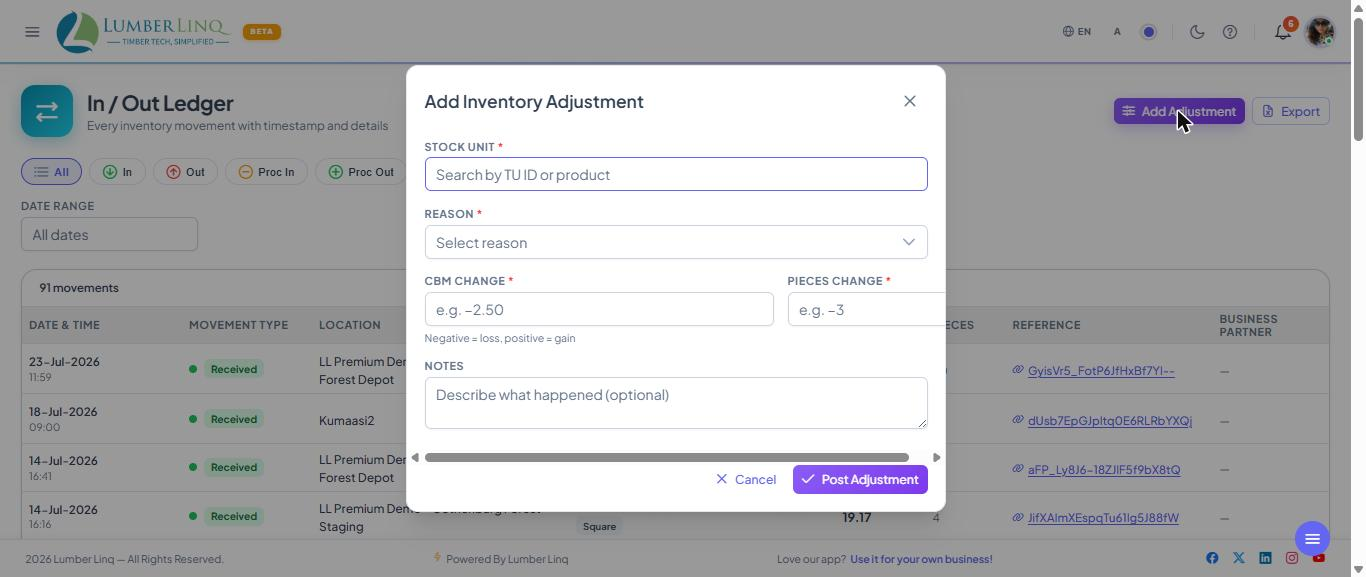
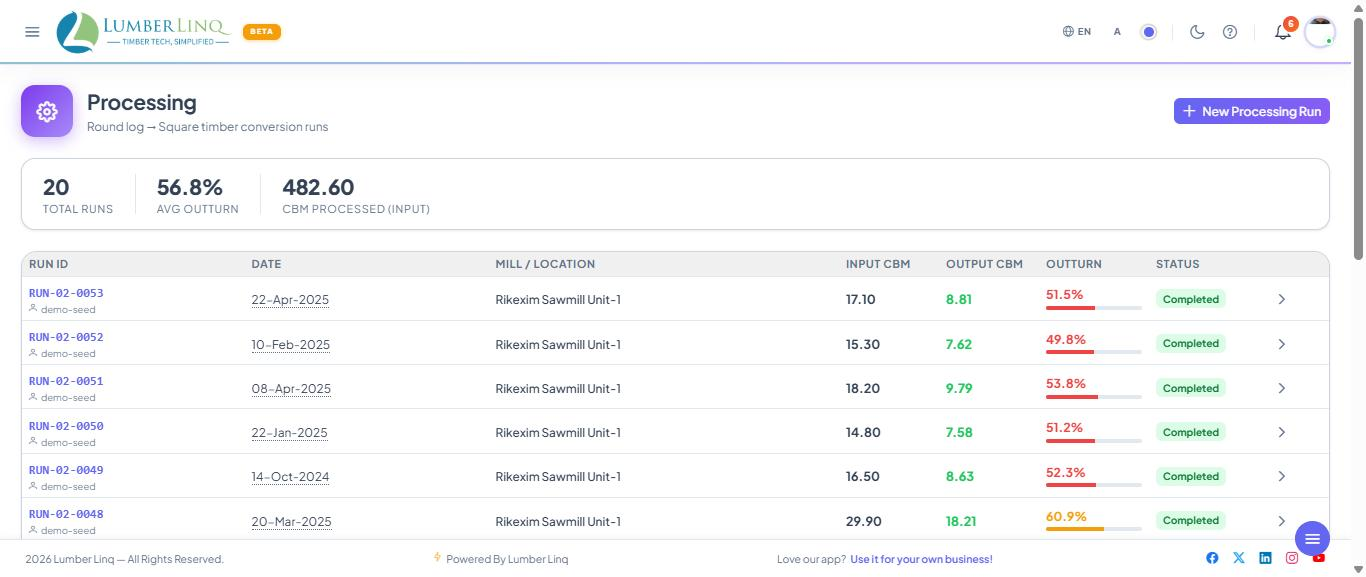
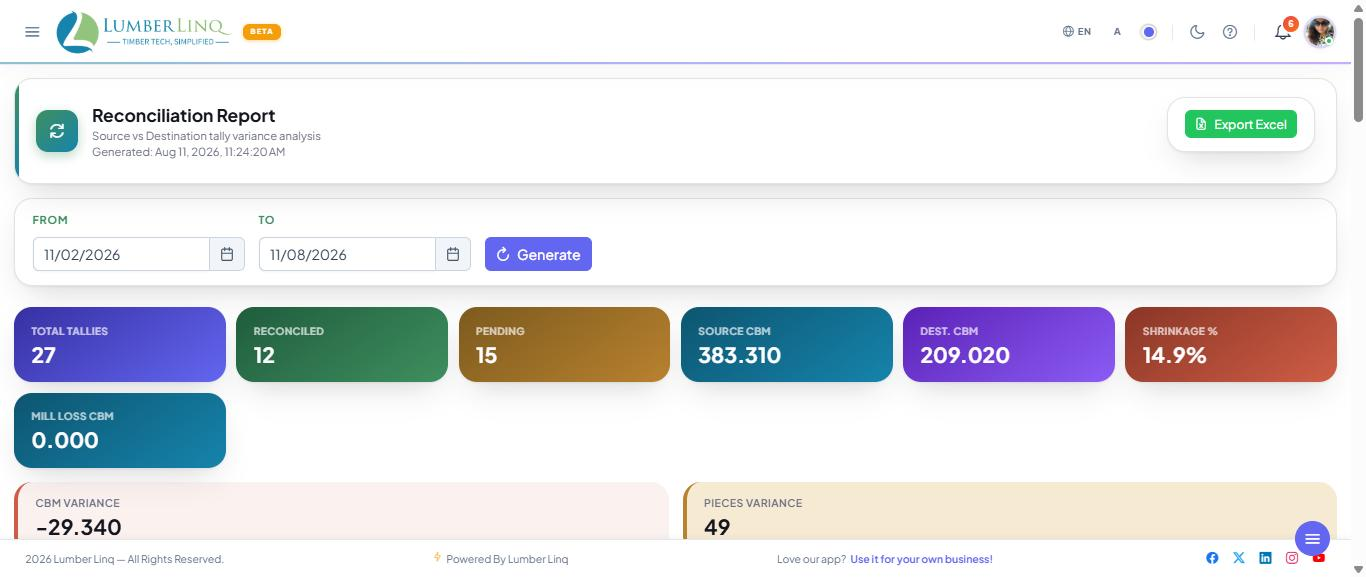
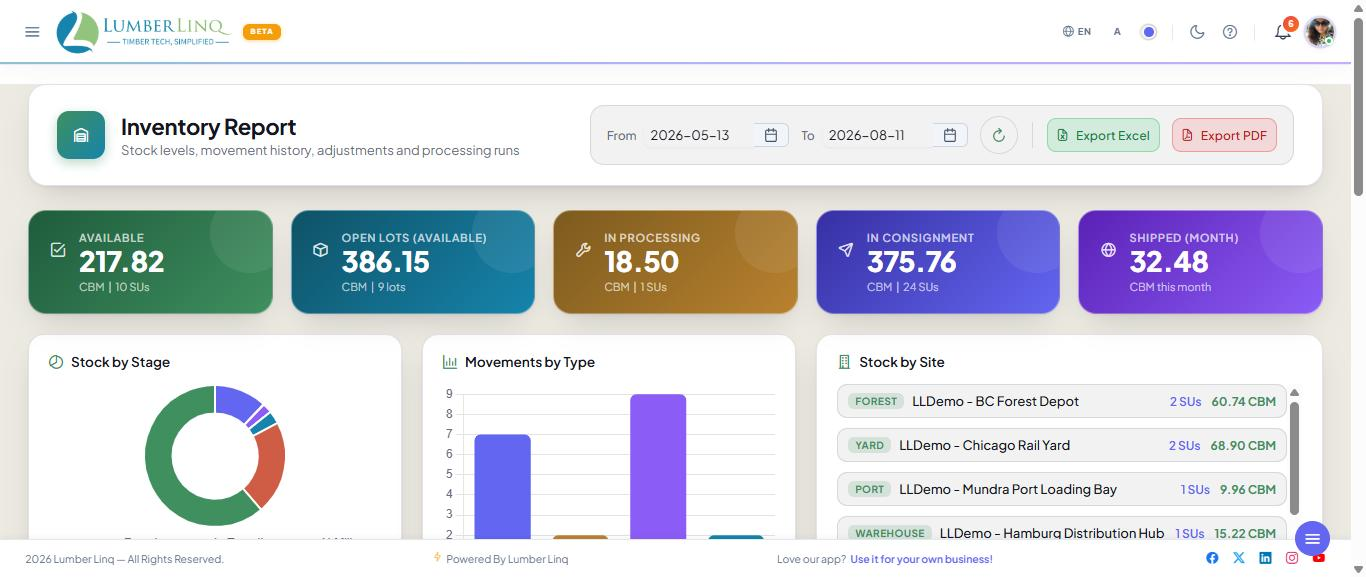
Consignment assignment is connected to inventory. A Stock Unit can be linked to a consignment before or after it is received (Stock In) or confirmed (Stock Out); linking and the consignment status never change stock — only Receive into Inventory (up) and Confirm Stock-Out (down) do. Inventory screens help teams review available stock, movement history, adjustments, processing runs, reconciliation, and inventory reports.
Mobile View
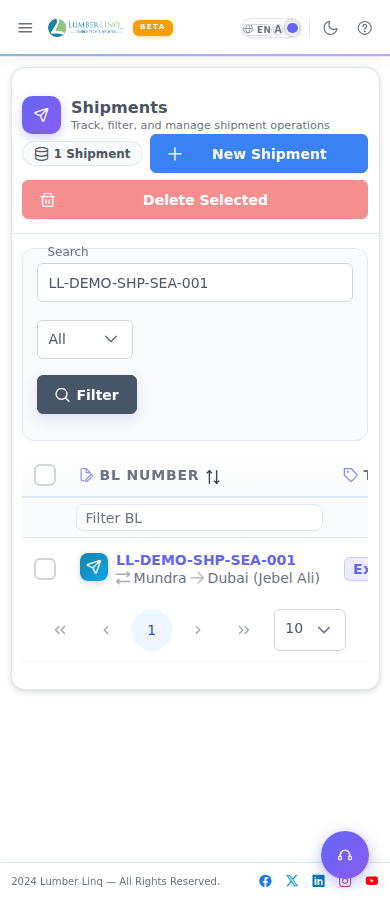
The Consignments list is responsive and can be used on smaller screens for search, review, and follow-up actions.