
Mill Command Center — User Manual
Also searched as: mission control, operations dashboard, ops dashboard, machine management, machine dashboard, floor status, money today, consignment radar, needs attention.
What Is the Command Center
Open Main Menu → Command Center, or go directly to /command-center. It’s a single page built for owners and admins to get a full business snapshot — stock, mill floor, money, and consignments — without navigating between separate modules. It updates live within a couple of seconds of a relevant change elsewhere in the app (a tally saved, a payment recorded, a processing run completed), the same way the main Dashboard does.
Who can see it: the Command Center menu item and route are only available to Admin, Super Admin, and Root users. It is a separate page from the main Dashboard (/dashboard-v7) — a focused owner’s view, not a replacement for it. Within the page, each section still respects its own existing permission (Inventory, Process, Finance, Consignments) — an Admin without a specific module permission may still see fewer sections than another Admin.
The page is organized into five tabs.
Overview Tab
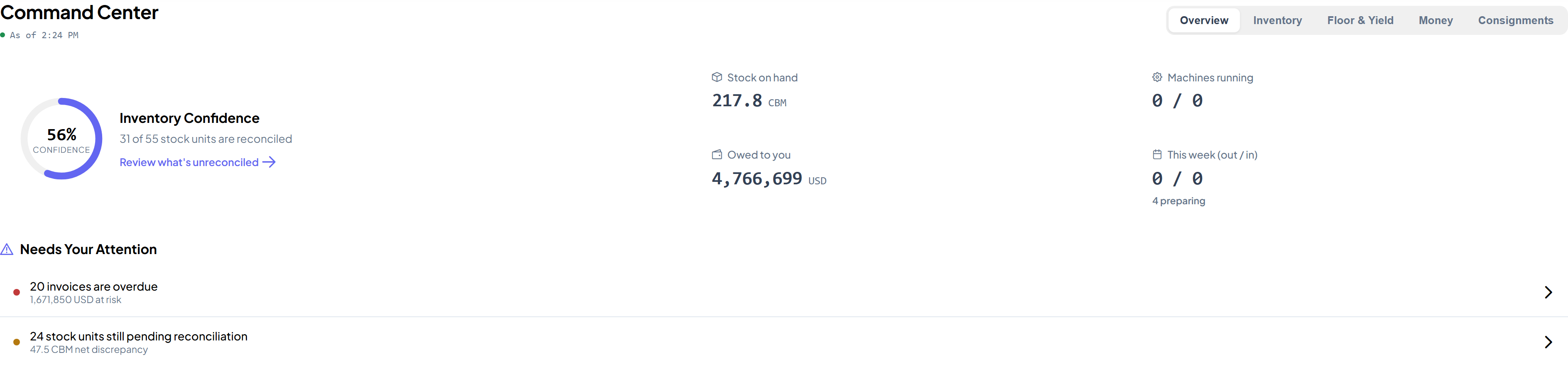
The default tab. Shows:
- Inventory Confidence ring — the percentage of Transport Units that are fully reconciled, with a link to jump straight to the unreconciled ones.
- Snapshot tiles — stock on hand (CBM), machines currently running vs. total, amount owed to you, and this week’s arriving/departing/preparing consignment counts.
- Needs Attention — a prioritized list of items that need a decision (e.g. overdue payments, stuck processing runs, unreconciled Transport Units). Click any item to jump to it. If the list is empty, everything is clear.
Inventory Tab
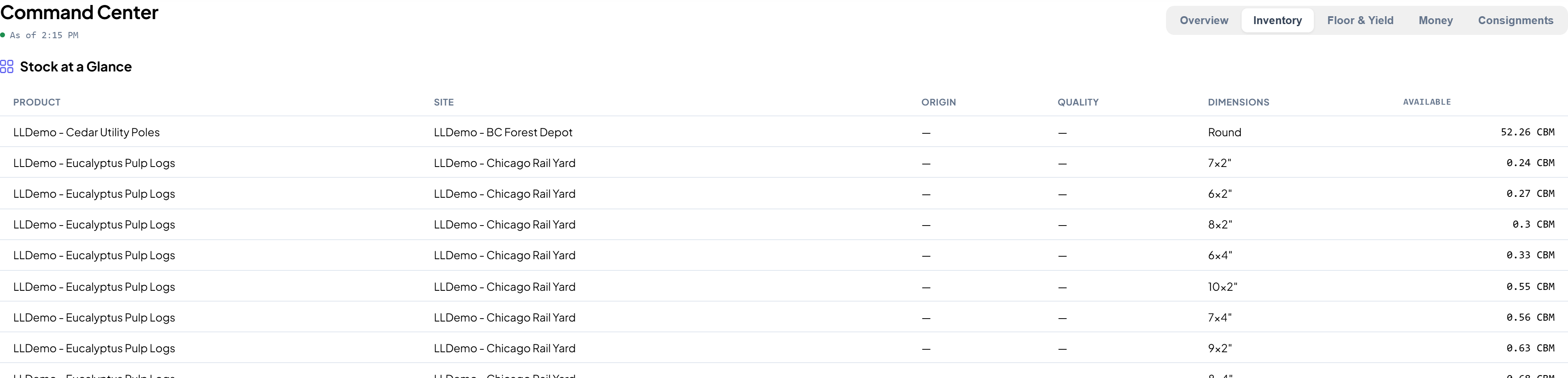
- Stock at a Glance — a table of available stock grouped by product, site, origin, quality, and dimensions (this is the same Round/Square rollup used elsewhere in Inventory).
- Conversion & Yield — average outturn percentage and net volume gained/lost from processing, broken down by species.
- Reconciliation Status — counts of total, reconciled, pending, and locked Transport Units, plus the largest source-vs-destination discrepancies.
- Site Utilisation — current volume vs. capacity per Loading Site, with a warning fill when a site is at or above 90%.
Floor Tab
A live table of everything currently running on the mill floor: operator, machine, location, product, start time, and status. Empty when nothing is currently in process.

Money Tab
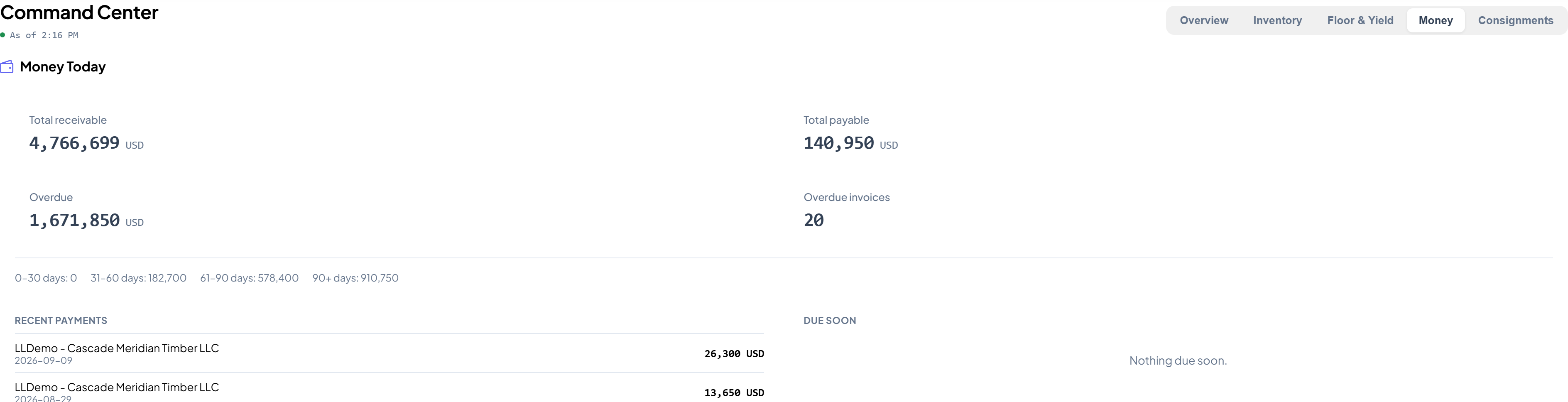
- Money Today — total receivable, total payable, overdue amount, and overdue count, in your primary transaction currency, plus a receivables-aging breakdown.
- Recent Payments and Due Soon — the latest payments received/made and the next payments coming due, each shown in its own currency (multi-currency consignments are not converted or blended here — figures are shown per transaction as recorded).
Financial Health figures on this page reflect all-time data — they are not affected by any date range picked elsewhere on the page or on the main Dashboard.
Consignments Tab
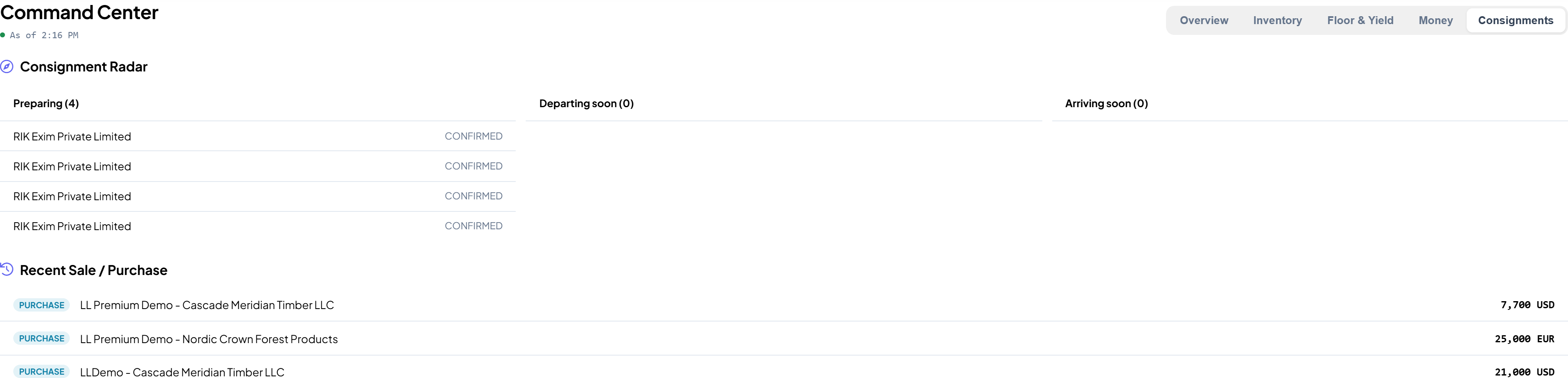
- Consignment Radar — consignments Preparing, Departing Soon, and Arriving Soon.
- Recent Activity — the latest Sale/Purchase/Payment events, with counterparty and amount.
- Trade Mix — a breakdown of recent activity by trade type.
Machine Management
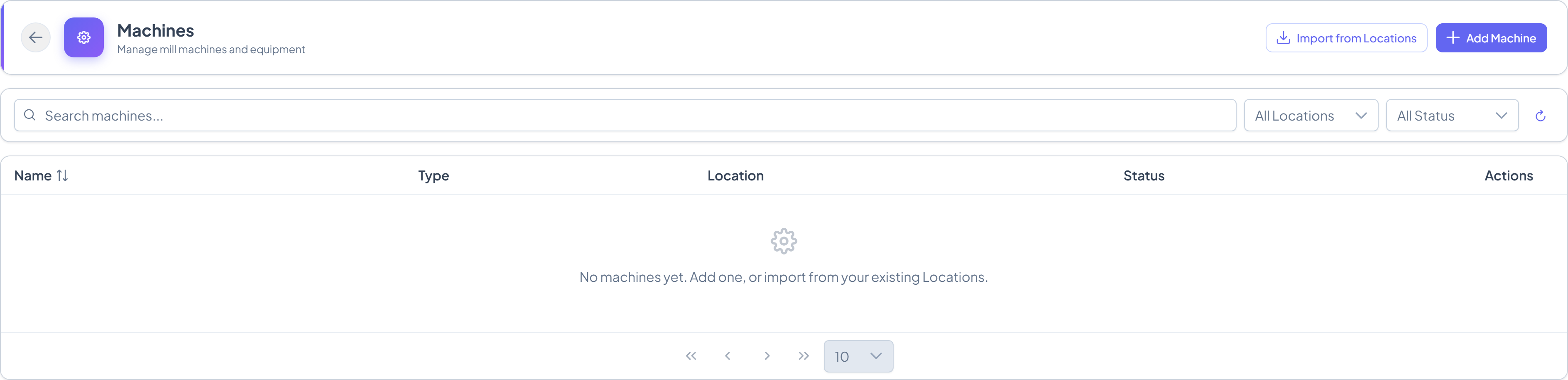
Machines are managed from Main Menu → Inventory → Machines (/inventory/machines). This is where mill equipment referenced by processing runs is created and maintained:
- Add Machine — create a machine record with a name and its assigned Loading Site.
- Import from Locations — if you already have machine-like entries recorded as Loading Sites, this pulls them in as Machine records instead of re-entering them.
- Each machine shows Active/Needs Review status. Deactivating a machine does not delete its processing history.
The stats strip at the top of the Machines page shows total machines, how many are active, and how many need review.
Common Problems
“I don’t see Command Center in my menu” — the page is Admin/Super Admin/Root only. If you’re an Admin and still don’t see it, ask your Super Admin to confirm your role, or contact support.
“Some sections are empty even though I know there’s data” — check whether your account has the underlying module permission (Inventory, Process, Finance, or Consignments access) — a missing section usually means a missing permission, not missing data.
“Money Today numbers don’t match what I filtered on the Dashboard” — that’s expected. Financial Health and Reconciliation figures are always all-time, independent of any date filter used elsewhere.