
Inviting Team Members — User Manual
Also searched as: create admin, add admin, add team member, add user, add colleague, add employee, new account for staff, resend invite, pending invitation, invite link expired.
How to Invite a New User
Only Admins and Super Admins can invite users — the Manage User page itself requires the Admin role, so a regular user can’t reach it even if granted specific permissions.
- Go to Main Menu → User → Manage User.
- Click Invite User.
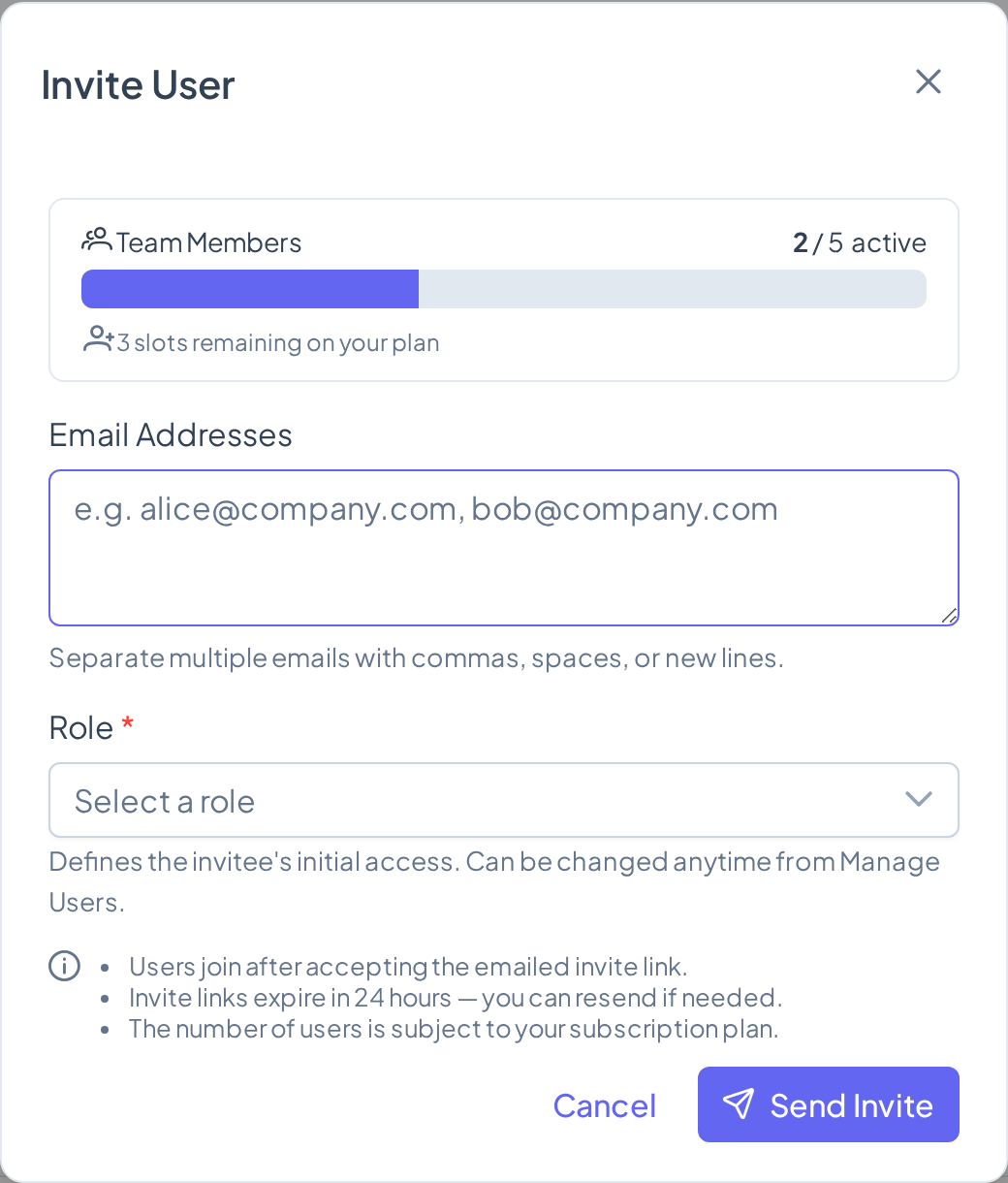
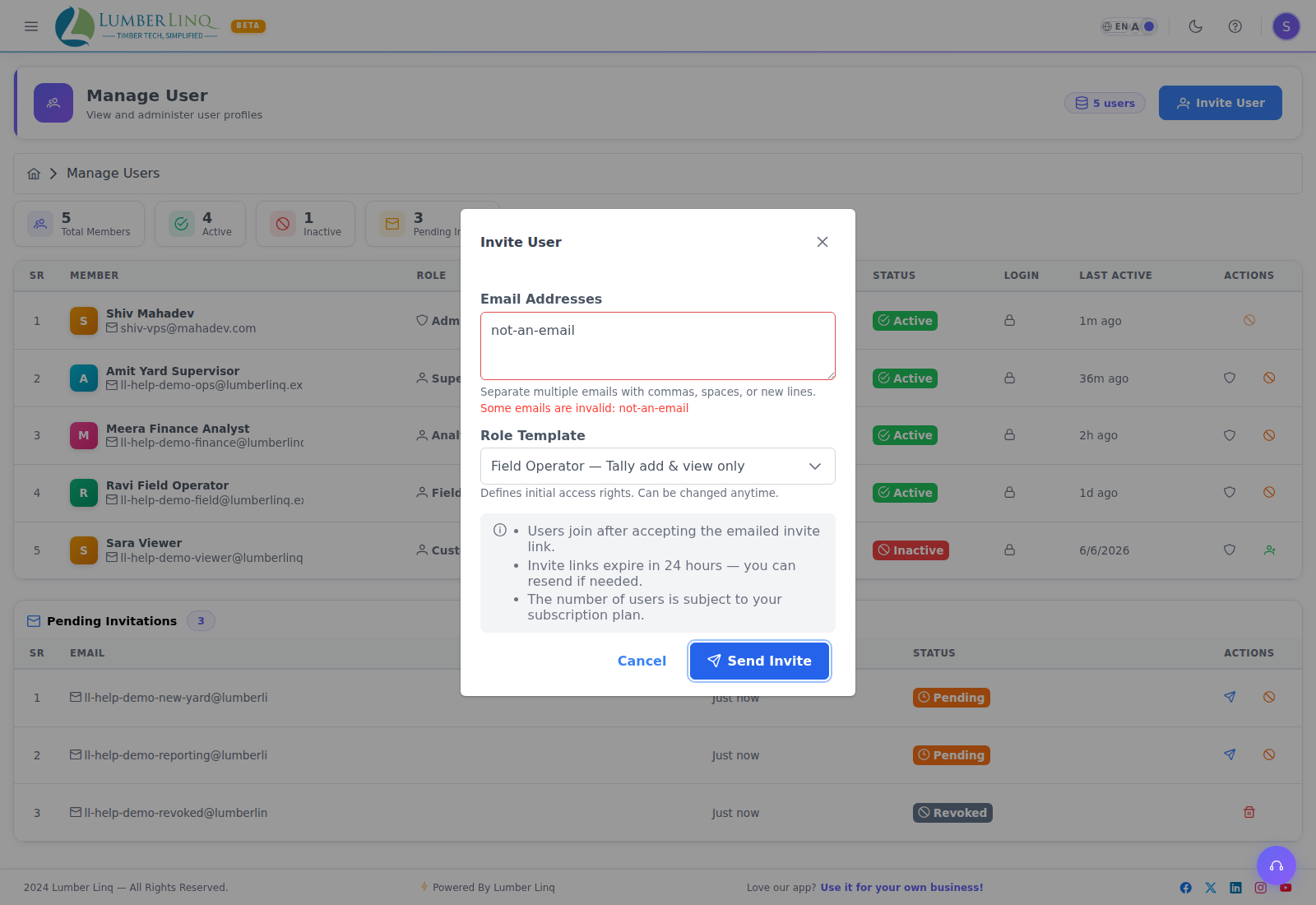
- Enter one or more email addresses — separate multiple invites with commas, spaces, or new lines. One invite is sent per address.
- Select the invitee’s access, from a dropdown that’s always required:
- Admin — Full access — unrestricted access to every feature and setting.
- Any of the company’s saved Access Roles (from Manage Roles) — each shows its permission count and which modules it covers.
- Custom Access — hand-pick individual permissions for just this invite.
- Click Send Invite.
The dialog also shows a user-limit meter (used vs. plan limit) and blocks sending once the company is at its user limit — upgrade the plan to add more.
The invited person receives an email with a registration link. Invite links expire in 24 hours — resend from Manage User if needed.
What the Invited User Receives
An email from [email protected] with a subject like “You’ve been invited to LumberLinq”. It contains a personalised greeting naming the company and a link that pre-registers their email and connects them to your company account.
Completing the Invitation (Invited User’s Steps)
- Click the link in the invitation email.
- Set a password (email is pre-filled).
- Complete the setup — no separate account setup wizard is required; you’re added directly to the existing company account.
- Log in at
app.lumberlinq.com/login.
What an Invited User Becomes
- Choosing Admin — Full access at invite time makes them a full Admin — full access to company data, can invite/manage other users, can access Manage User.
- Choosing an Access Role or Custom Access makes them a regular user whose module access is exactly the permissions in that role/selection (e.g. Tally access, Consignment access) — this applies whether or not RBAC is currently toggled on for the company; the permissions are stored either way.
- Super Admin isn’t selectable anywhere in the app (not at invite time, not from Manage User) — it’s an internal-only role change. Contact support if a user genuinely needs it.
Managing Existing Users
From User → Manage User:
- Deactivate a user to block their login without deleting their data
- Edit to change their access role or permissions
- Delete to permanently remove a user (use caution — this removes their access permanently)
Blocked Users
If a user is blocked (e.g. for off-topic AI Chat abuse), an Admin can unblock them from User Management.
Common Problems
“Invitation link expired” — ask the admin to send a new invitation. Links expire after a set period.
“Email not received” — check spam folder, confirm the admin entered the correct email address, and have the admin resend from Manage User.
“I received an invite but already have a LumberLinq account” — click the invite link anyway; it connects your existing account to the new company.