
Affiliate Program — User Manual
Also searched as: referral program, earn commission, become a partner, reseller program, affiliate link, payout account, KYC, verification, commission plan, milestone bonus.
What Is the Affiliate Program?
The Affiliate Program lets you earn commission by referring new subscribers to LumberLinq. You get a personal referral link — anyone who signs up through it is tracked as your referral, and you earn commission (a flat amount or a percentage, depending on the commission plan an admin assigns you) on their payments.
How to Apply
There are two ways to apply, depending on whether you already use LumberLinq:
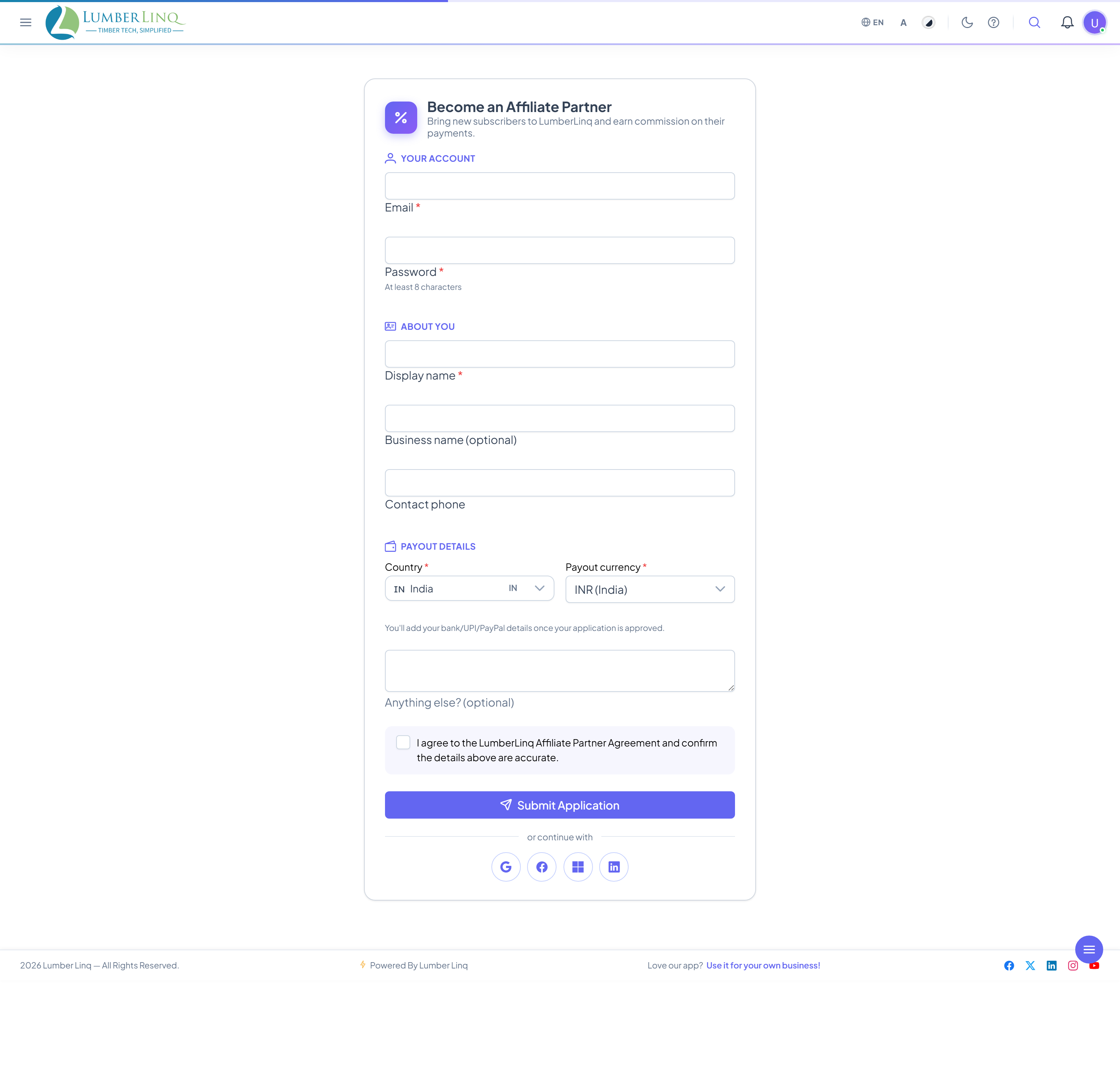
If you don’t have a LumberLinq account yet:
- Go to the public Become an Affiliate page (
/join-as-affiliate). - Under Your Account, enter your Email and a Password (at least 8 characters) — this creates your login.
- Under About You, fill in your Display name (required), and optionally your Business name and Contact phone.
- Under Payout Details, enter your Country code and choose your Payout currency. You’ll add your actual bank/UPI/PayPal details later, once you’re approved.
- Optionally add a note in Anything else?.
- Tick the agreement checkbox confirming you accept the LumberLinq Affiliate Partner Agreement and that your details are accurate.
- Click Submit Application — or, instead of filling the form manually, use one of the social sign-up buttons to continue with Google/another provider (this still requires the country, currency, and agreement fields above to be filled first).
If you’re already a LumberLinq subscriber:
- While logged in, go to the Become an Affiliate page (
/affiliate/apply). - The form is the same as above, minus the Email/Password section — you’re already logged in.
- Fill in your details and submit.
After submitting, you’ll see an Application submitted confirmation: “Thanks for applying to the LumberLinq Affiliate Program. Our team will review your application soon — you’ll be notified as soon as a decision is made.” If you applied without an existing account, you’ll get a Go to Login button.
Your Application Status
Once approved, you can sign in and reach your Affiliate Dashboard. While your application is still Pending Review, the dashboard shows a banner letting you know — and importantly, your referral link already works during this time, so you can start sharing it before approval comes through.
Your Affiliate Dashboard
Your dashboard (reached after logging in as an approved affiliate) shows:
- Your Referral Link — your personal link, with buttons to Copy it, share via WhatsApp, or show a QR code to scan.
- Four stat tiles: Total Referred (how many companies signed up through your link), Held (commission still in its hold period), Eligible (commission cleared and ready for payout), and Lifetime Paid (total paid out to you so far).
- Four tabs:
- Overview — a summary, or a “Share your link to get started” prompt if you have no referrals yet.
- Referrals — every company that signed up through your link, with signup date, how they were attributed, and their status.
- Commission Ledger — every commission entry, with date, amount, status, and the date it becomes eligible for payout.
- Payout History — every payout actually made to you, with date, amount, and reference number.
If verification isn’t complete yet, a banner reminds you: “Complete your verification before your first payout can be recorded — takes a couple of minutes,” with a button straight to the verification page.
Completing Verification
Go to Affiliate → Verification (or click the banner on your dashboard). This has three sections, each saved independently:
- Legal & Contact Details — your legal full name, address (line 1, line 2 optional, city, state, postal code, country), and optional alternate email/phone. This doesn’t have to match your public display name — it’s just to confirm a payout is genuinely yours. Click Save Details.
- Tax Identification — add your PAN (for India) or a Foreign tax ID if you’re outside India. Once saved, it’s shown masked, with an eye icon to reveal it again if you need to check it. Click Save Tax ID.
- Documents — upload up to 3 supporting documents (PDF, JPG, or PNG, max 10 MB each). Each shows its verification status once reviewed. If a document is rejected, the reason is shown so you can re-upload a corrected one.
Your overall verification status shows as Not started, Under review, Verified, or Needs changes (with the specific reason shown if something needs fixing).
Adding Your Payout Account
Go to Affiliate → Payout Account. Choose a payout Method:
- India Bank — bank name, account holder name, account number, IFSC code.
- India UPI — your UPI ID (e.g.
name@bank). - Foreign Bank Wire — bank name, beneficiary name, account number/IBAN, SWIFT/BIC, and the bank’s address.
- PayPal — your PayPal email.
- Wise — your Wise account identifier.
Fill in the fields for your chosen method and click Save. Once saved, your payout details are shown masked on this page, with a Reveal/Hide toggle so you can double-check them without them being visible by default.
When Do I Actually Get Paid?
Commission on a referral’s payment doesn’t get released immediately — it goes through a hold period first (shown as Held in your ledger), then becomes Eligible, and is finally recorded as Paid once an admin processes the payout. You need both your verification completed and a payout account on file before a payout can be recorded against you.