
Subscriptions & Billing — User Manual
Also searched as: billing, upgrade plan, invoice, payment method, grove plan, cancel subscription, downgrade, free trial, promo code, coupon code, add-on.
Accessing Subscription Settings
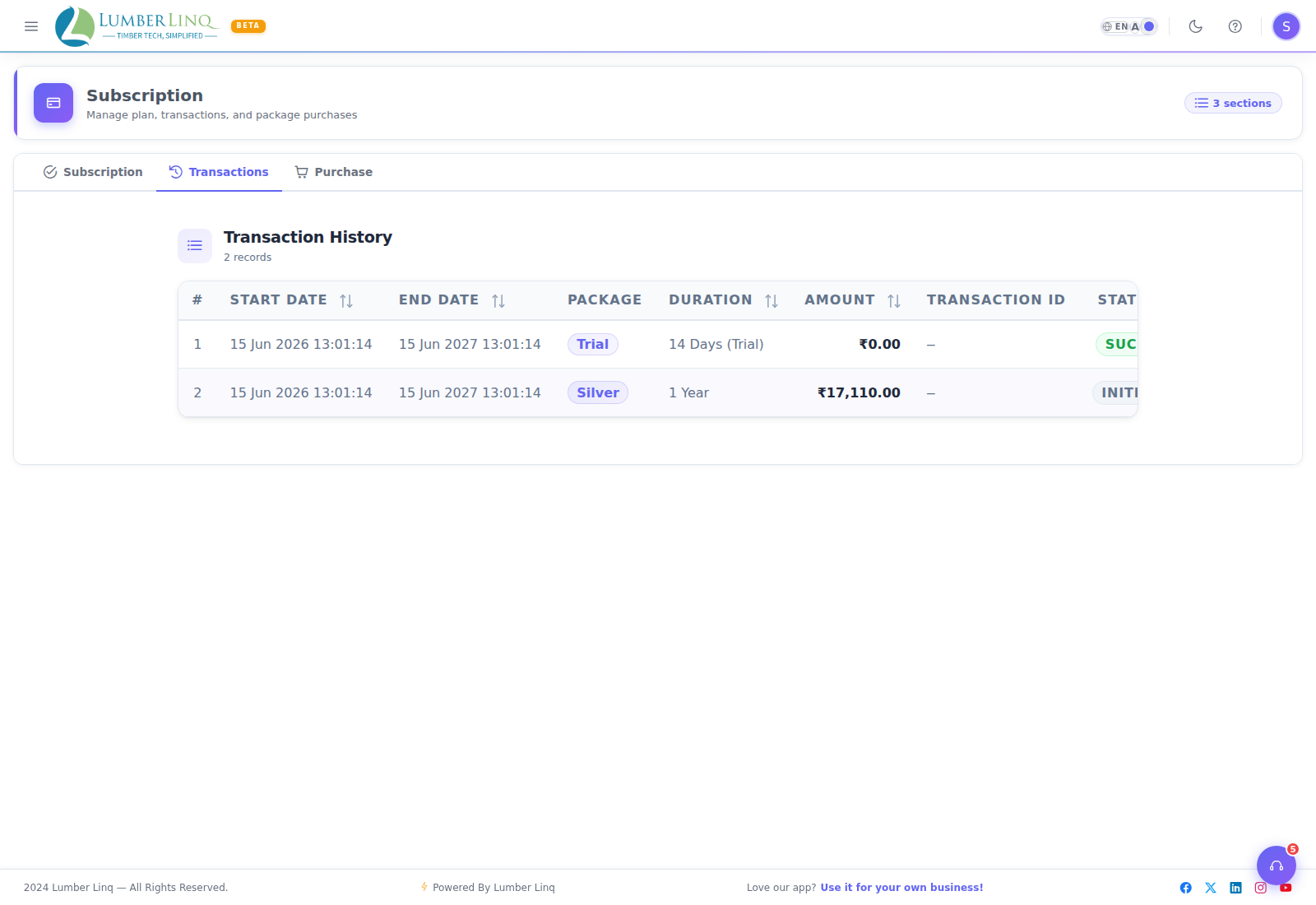
Open Main Menu → Company → Subscription. This page shows your current plan name and status, billing period, limits (tallies, shipments, users, storage, AI Chat messages), payment history, and options to upgrade, downgrade, or cancel.
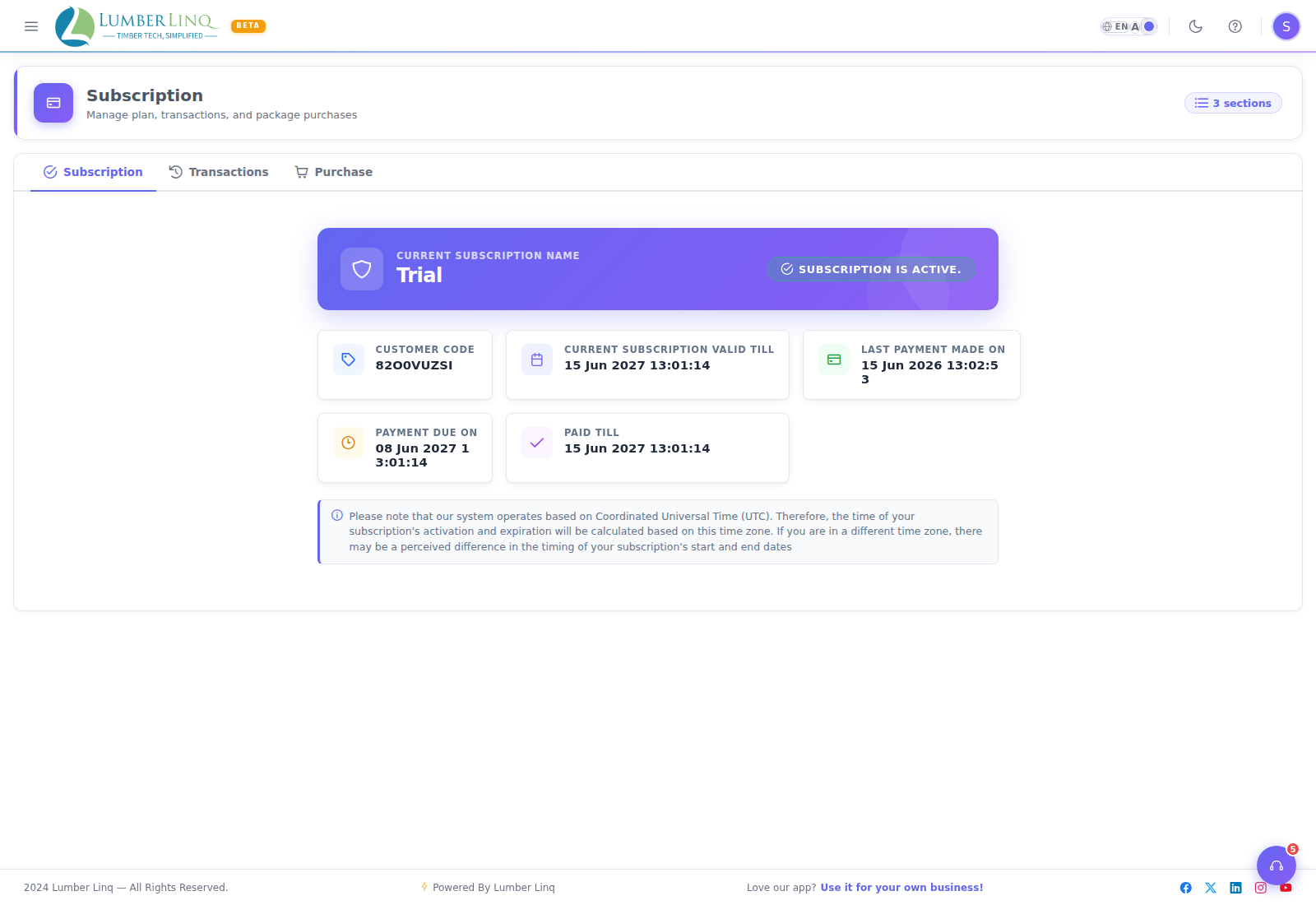
Trial Plan
All new accounts start on a Trial Plan with full feature access, for a limited number of days. Only one trial is ever allowed per company — you can’t restart a trial by picking a different package.
A trial has no grace period. It ends exactly on its end date — this is different from a paid plan lapsing (see below, which does get a short grace window).
What Happens After a Plan Lapses? (trial ends, or a paid renewal fails)
Nothing is ever deleted. Your tally sheets, Stock Units and every other record you created stay as they are.
What actually happens is a downgrade: your account moves onto the free Seedling plan. Seedling does not include Consignments or Business Partners, so while you are on it your consignments and business partners are hidden — their screens, their reports and any shared consignment links stop working (a shared link shows “no longer available”). They are not deleted: when you renew a plan that includes them, everything comes back at once.
On the free plan you keep using your tally sheets, Stock Units and the other core screens, and you just can’t create new records past that plan’s limits (new tallies, new users, etc.) until you subscribe again.
You are told before it happens. If your company has consignments or business partners, the Subscription page shows a notice — “What happens if your plan ends” — with the real numbers, and the renewal reminder e-mail says the same.
- A lapsed paid plan gets a short grace window first (a few days) before the downgrade happens, so a late renewal has a chance to catch up automatically.
- A lapsed trial has no grace window — the downgrade happens right at the trial’s end date.
To keep full access, renew or upgrade before this happens.
Upgrading or Renewing Your Plan
- Go to Subscription from the sidebar.
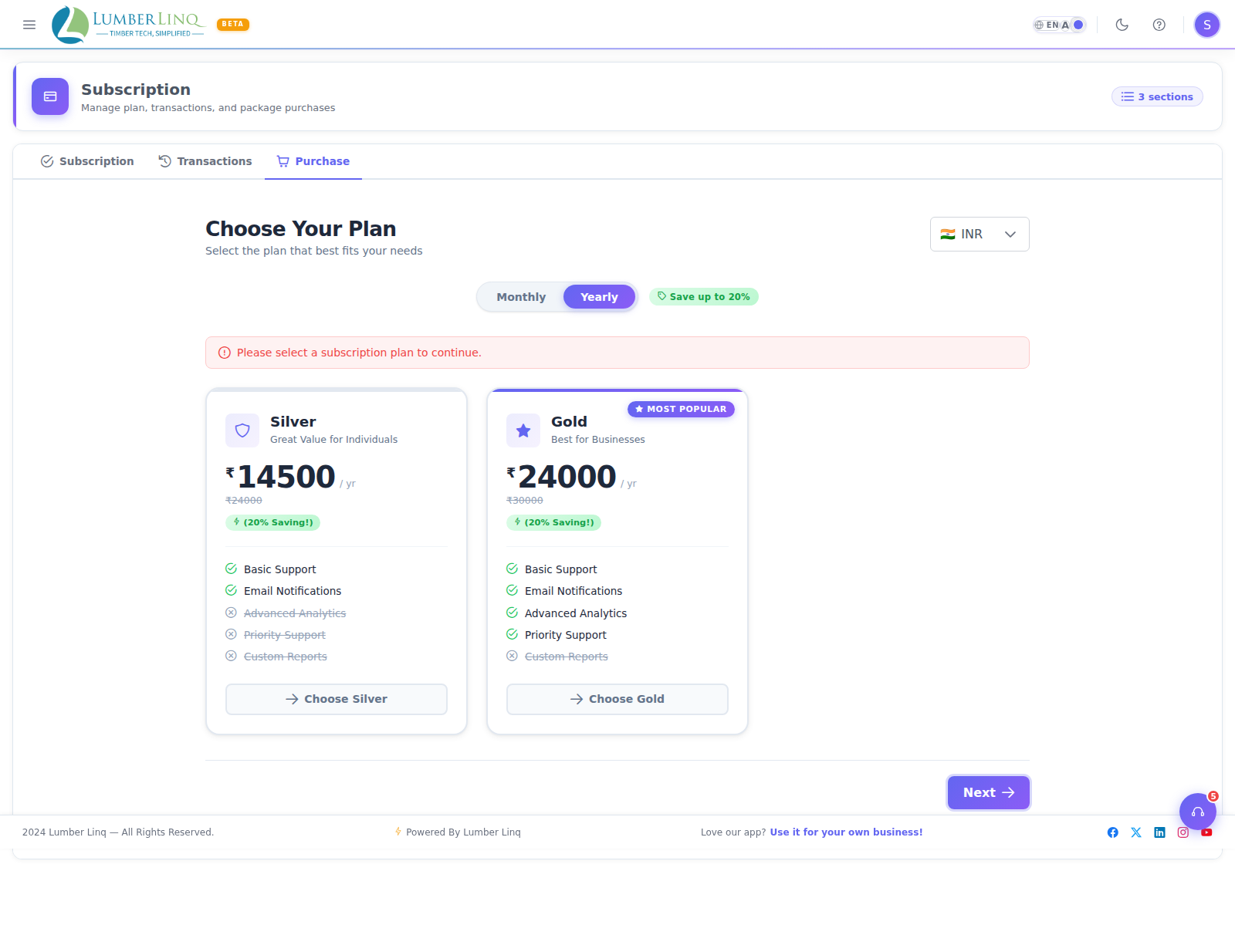
- Click Upgrade or Change Plan.
- Browse available plans and select the one that fits your needs.
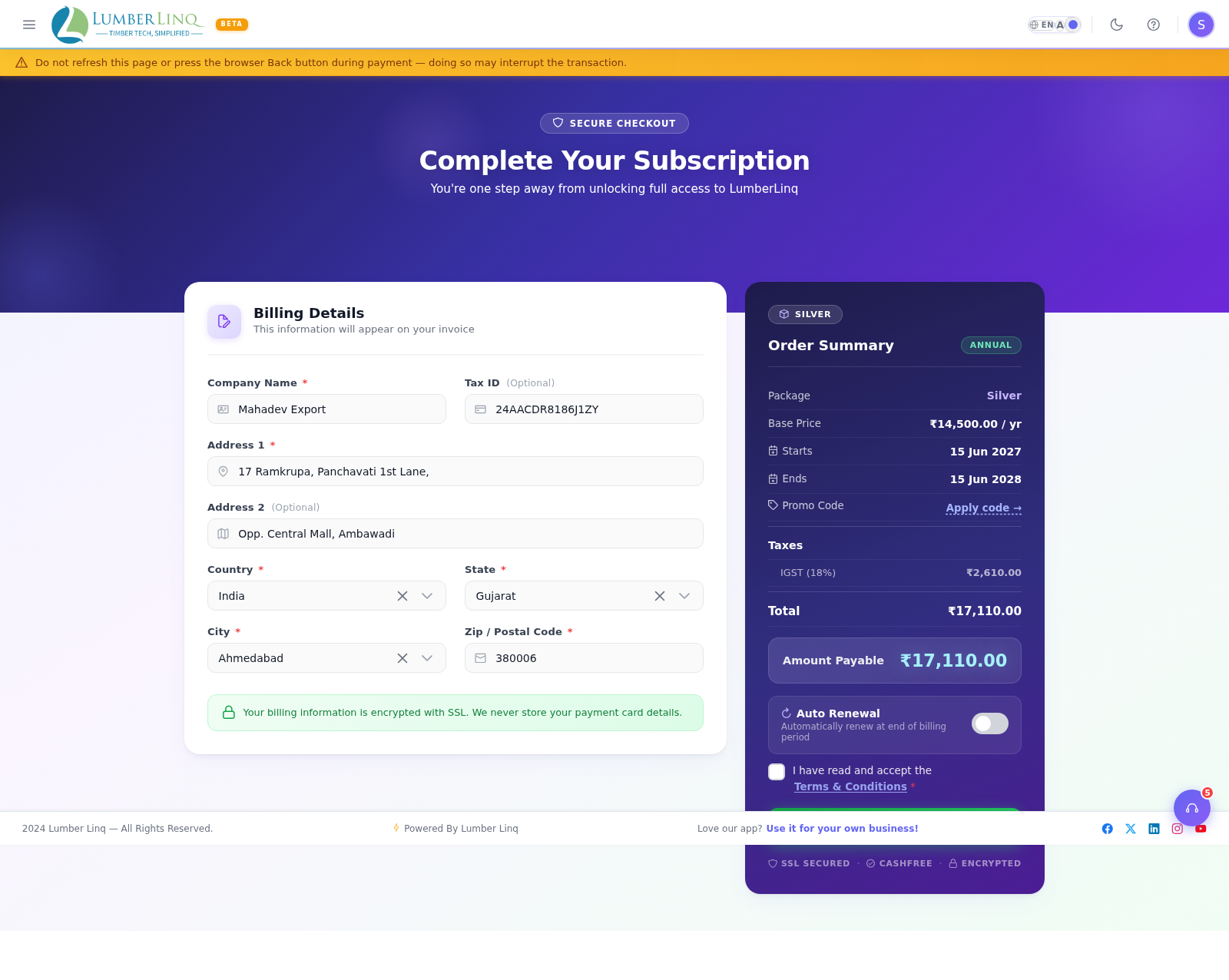
- Choose billing frequency — monthly or annual. Annual is usually the better deal — check the current pricing page for the real numbers, since these change over time.
- Click Subscribe / Pay.
- Complete payment via the payment gateway.
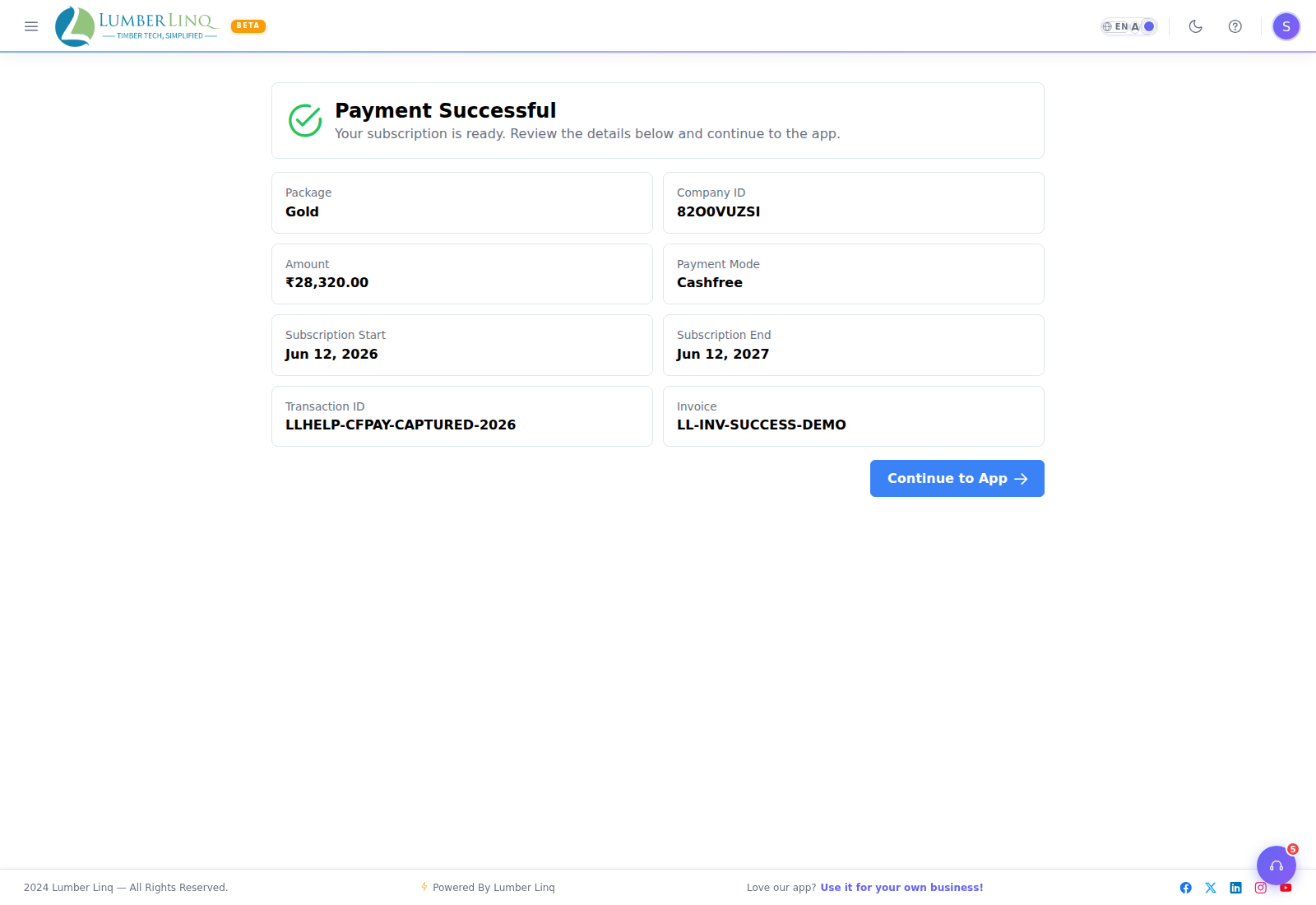
- After successful payment, your plan upgrades immediately and limits are updated.
Renewing after a lapse (trial ended, or a paid plan downgraded) uses this exact same flow — there’s no separate “reactivation” screen.
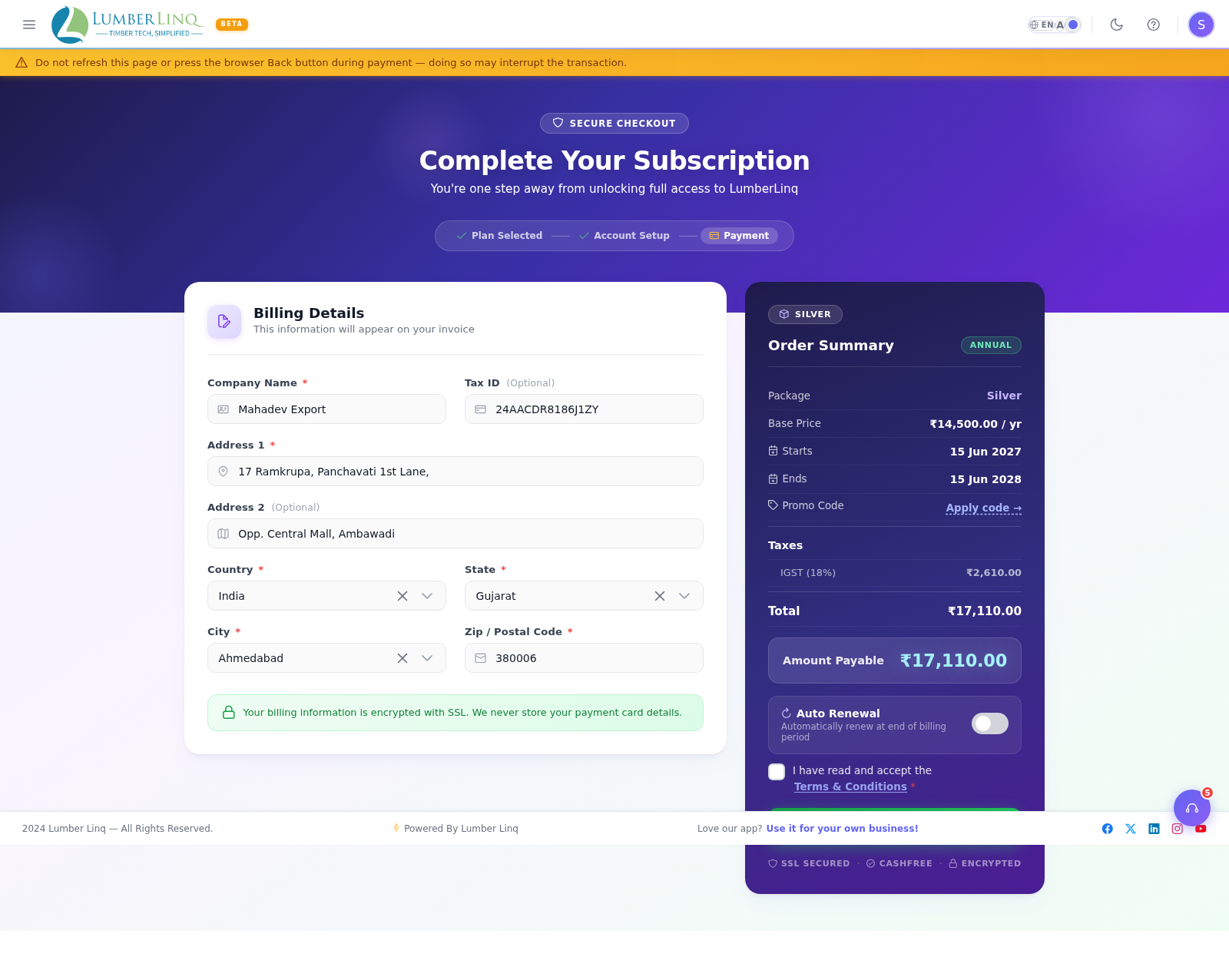
Checkout and Payment
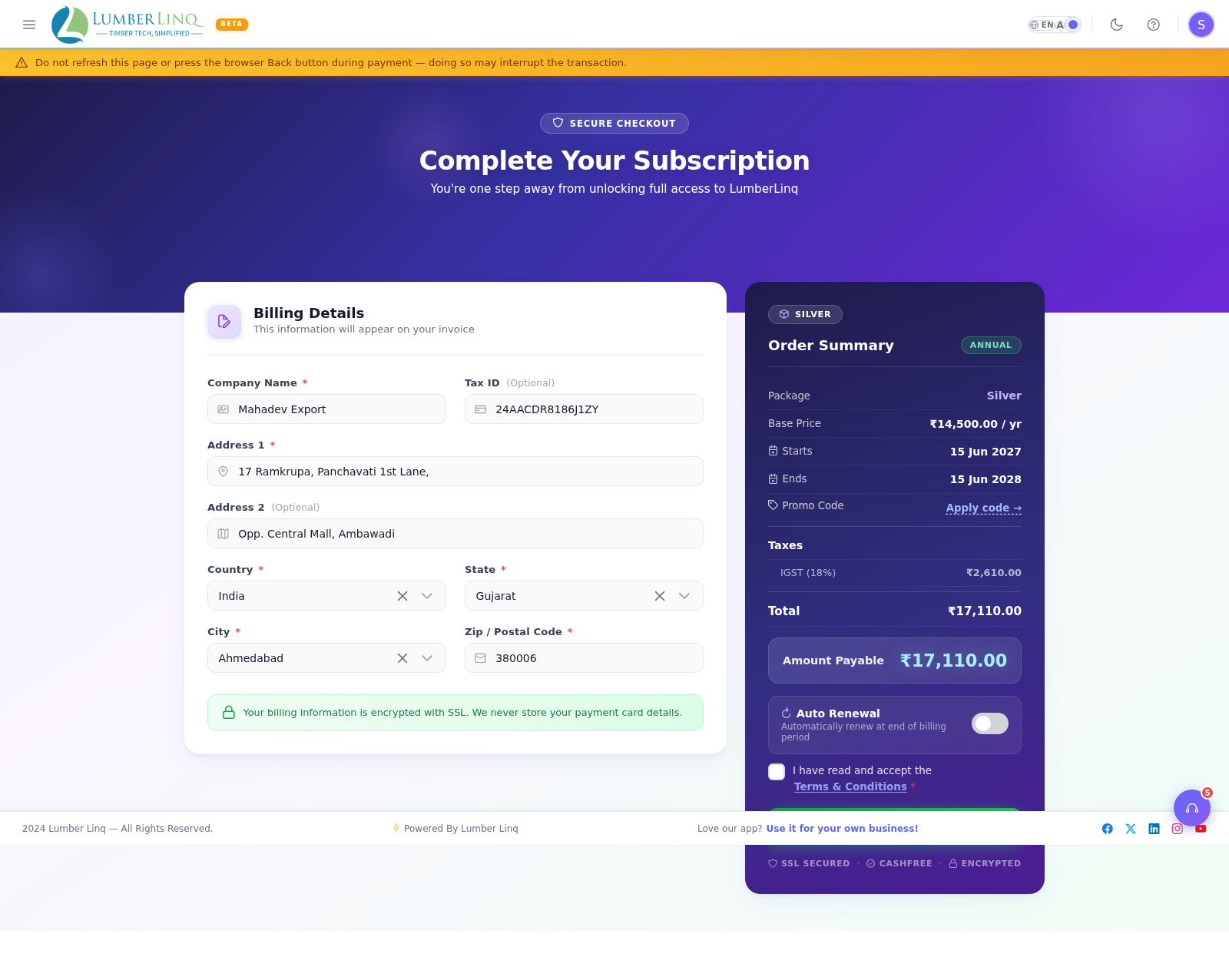
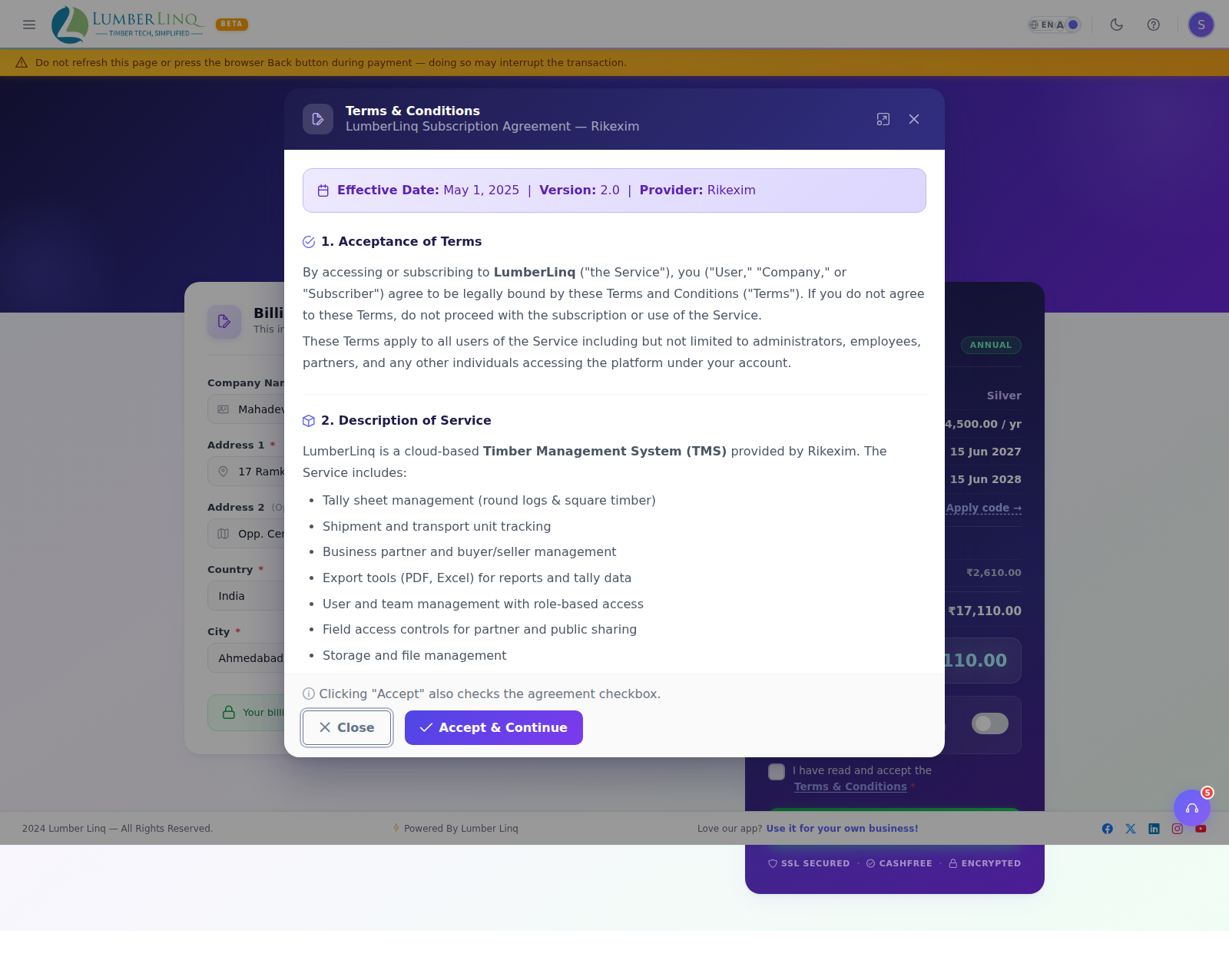
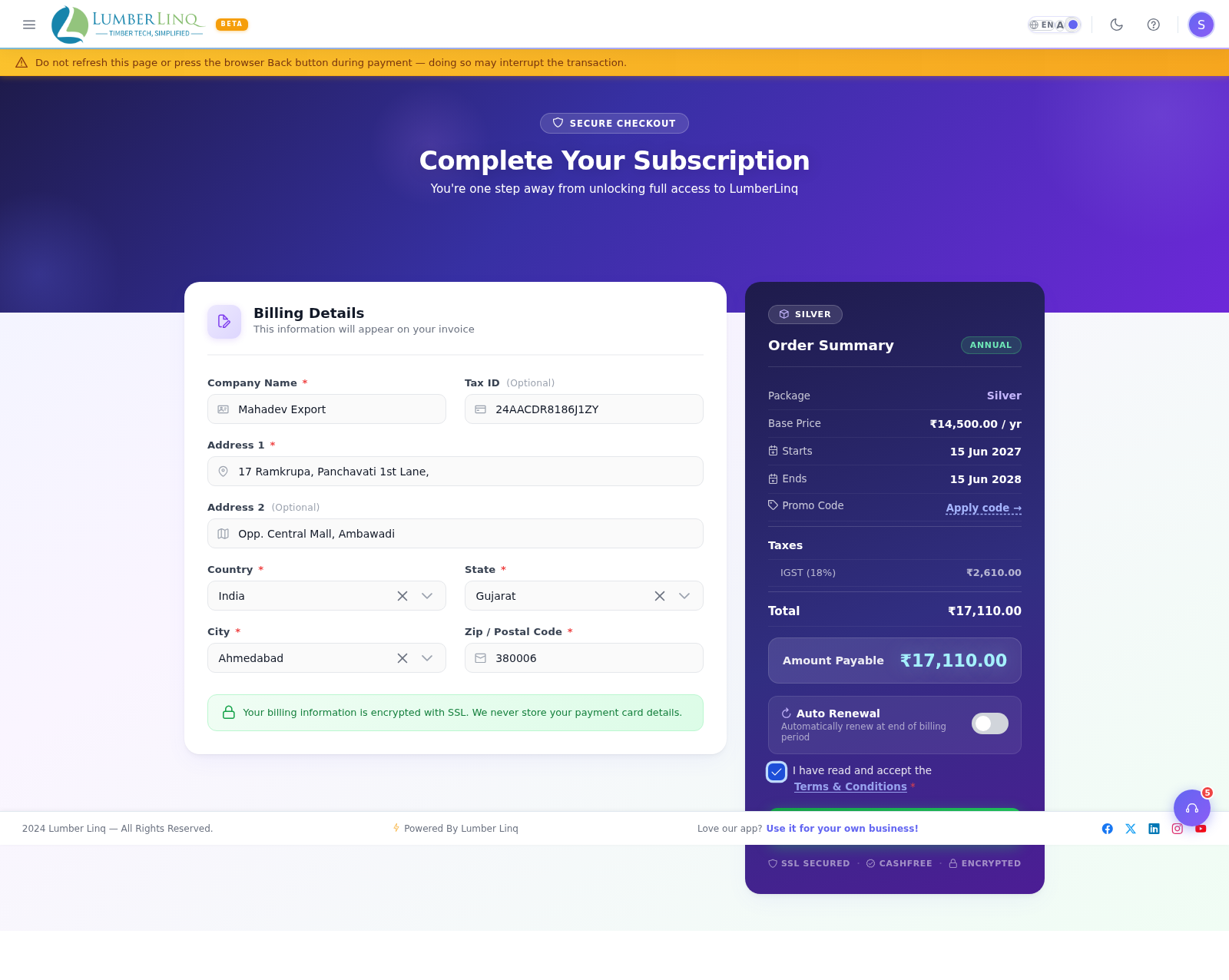
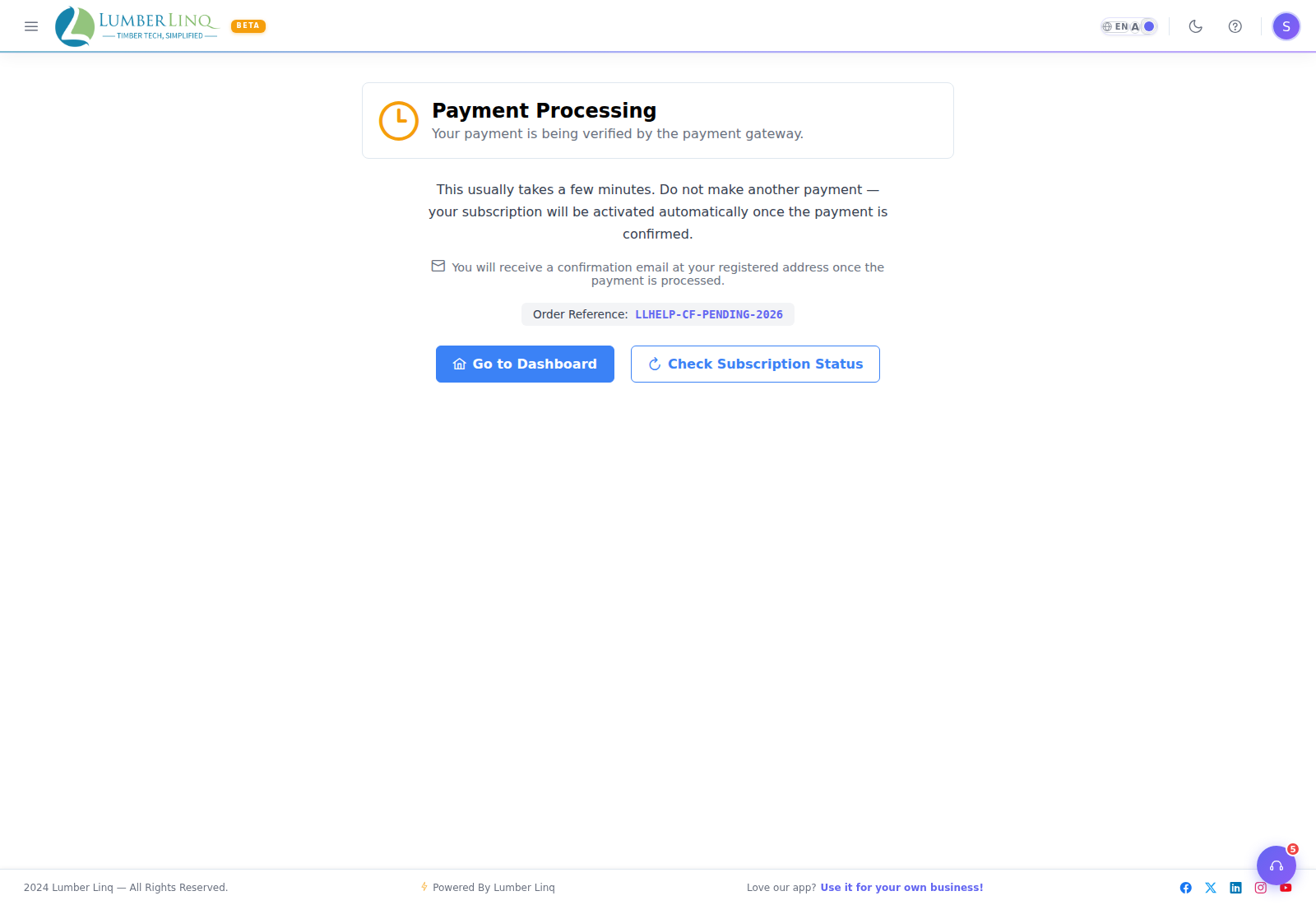
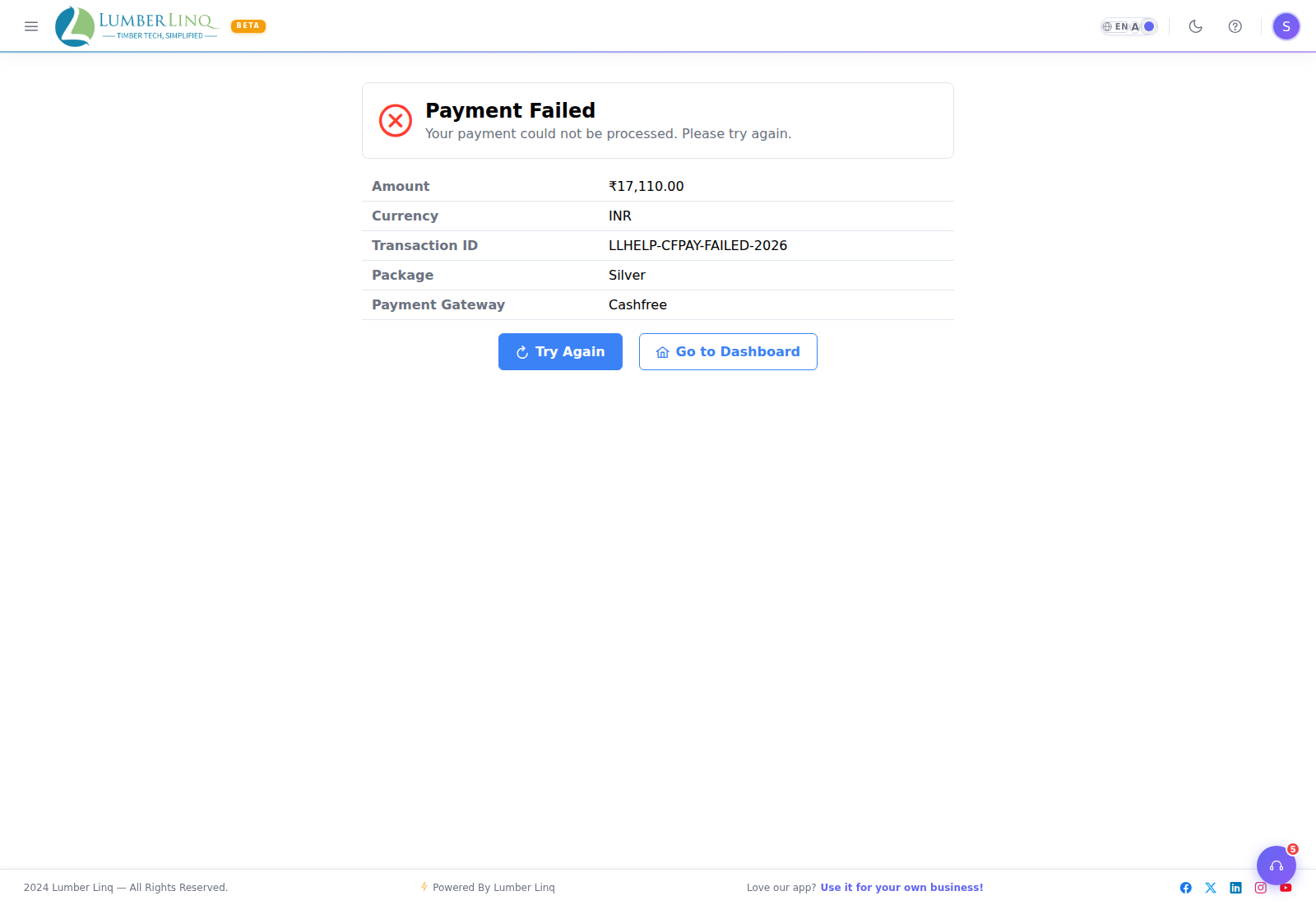
After payment, you’ll land on a success, pending, or failure screen depending on the gateway’s response:
Payment Methods Supported
The subscription checkout screen uses Razorpay or Cashfree (UPI, net banking, credit/debit cards, depending on your region) — whichever is configured for your account. Other payment gateways exist elsewhere in LumberLinq but aren’t used on this particular screen. Companies billed in INR can also pay by bank transfer or cheque — see the next section.
Paying by Bank Transfer or Cheque (INR plans)
If your company is billed in INR you can pay by bank transfer (NEFT / RTGS / IMPS) or cheque instead of the online gateway.
When the option is shown
- On INR plans only, in the web app (it is not shown in the iPhone app).
- Not for monthly plans, because monthly plans renew automatically. Choose a longer plan to use it.
- Auto-Renewal must be off. Turn it off on the payment page and the option appears; turn it on and it disappears.
How to pay
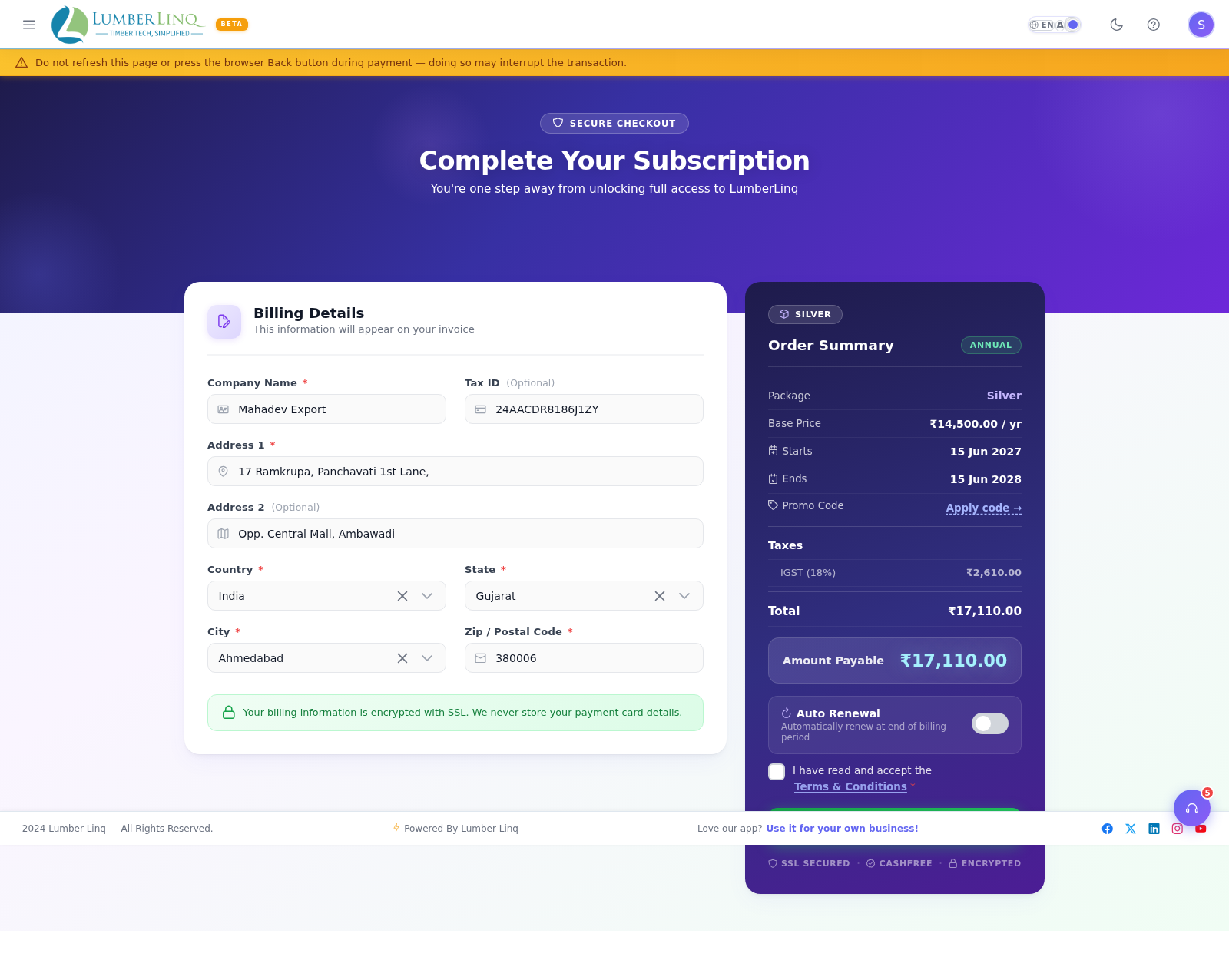
- On the payment page fill in the billing details and accept the terms. Under Proceed to Payment, click Pay by bank transfer / cheque (INR).
- The window shows the Amount to pay (it already includes GST and your coupon discount — please pay exactly this amount), our bank details (account name, bank, account number, branch), who to make a cheque payable to and where to send it, and a reference to write in the payment remarks (or on the back of the cheque) so we can find your payment.
- Make the transfer or send the cheque, then click I have paid — enter the details. Choose how you paid, enter the UTR number of the transfer or the cheque number (at least 4 characters) and the date. Your bank and a note are optional. A proof of payment (screenshot of the transfer or photo of the cheque; JPG, PNG, WEBP, HEIC or PDF, up to 8 MB) is optional but helps us confirm faster. Click Submit payment details.
- The page now shows “Your payment is waiting for confirmation”. Until we decide you can Attach proof or Replace proof there. Only one such payment can be waiting at a time, and the same UTR number cannot be used by another company.
What happens next
- The LumberLinq team checks the payment in the bank and switches your plan on. You get a notification, and your GST invoice is e-mailed to you when the payment is confirmed.
- If a payment cannot be accepted you get a notification with the reason and can submit the details again (a rejected UTR number can be used again).
- A waiting payment is not cancelled automatically.
- A company that pays this way is never charged automatically. Before the plan ends you get the renewal reminder e-mail, which includes the bank details.
Promo Codes
If you have a promo code, enter it on the payment screen and press Apply before you pay. The discount is taken off the price first and GST is worked out on the reduced amount.
How promo codes work:
- Once per company. A code can be used one time by your company. It is not applied again at a renewal or an upgrade, and once your company has used it, the payment screen says “You have already used this code.”
- For this payment only. A promo code discounts the payment you are making now. Because of that, Auto-Renewal is switched off while a code is applied (also on monthly plans, where it is otherwise required). After you have paid you can start auto-pay from the Subscription page — it then charges the normal full price.
- Some codes have limits. A code can be limited to one currency or one billing period (monthly or yearly), can have an expiry date, and can stop working once all its uses are taken. A fixed-amount code is for INR billing only.
- Remove a code with the Remove button next to it to see the price without it.
Plan Limits and Limit Banners
Each plan has limits on:
- Tally sheets — maximum number of tallies
- Consignments — maximum number of consignments
- Users — number of team members you can invite
- Storage — file/photo storage quota
- AI Chat (Linc) — daily message limit per user
- AI credits — shared pool used by AI Import (tally sheets) and, on the Forest plan, Ask AI inside Unified Search’s Stock mode. Cost is based on how much text/image content is processed per request, not a flat fee — a Claude-style usage banner warns you at 80%, 90%, 95%, and 100% of your plan’s credit limit used.
Limits reset. A counted limit resets at the start of its period — most are per month (the plan page shows the period next to each limit, e.g. “per month”). Counting starts again from zero in the new period; your existing records are never deleted. Periods follow your company’s timezone.
When you approach a limit, a Plan Limit Banner appears at the top of the relevant module page. When a limit is reached, you cannot create new records of that type until you upgrade or delete old records.
Forest Plan
Forest is LumberLinq’s top subscription tier. In addition to everything on lower plans, it unlocks:
- Ask AI inside Unified Search’s Stock mode — AI-assisted natural-language stock lookup (see Dashboard, Utility, Storage & Support → Unified Search)
- Custom branding on exports and share links
If a Forest-only feature is greyed out or missing, check your current plan on this page before assuming it’s a technical error.
Downloading Your Invoice
From Subscription → Payment History, click the download icon next to any paid invoice. The invoice downloads as a PDF.
Renewal Reminder Email
One to two days before an automatic renewal, you get an email with the exact amount that will be charged. If you cancel or downgrade before then, no reminder is sent.
What Happens If an Auto-Renewal Payment Fails?
- You receive an email notification.
- Your access is NOT cut immediately — it continues until your current billing period actually ends.
- Once that period ends with no successful renewal, the normal lapse handling above applies (grace period, then downgrade if still unresolved).
- Update your payment method from Subscription → Payment Methods and retry, or complete a fresh purchase from the Subscription page.
Cancelling a Subscription
Go to Subscription → click Cancel Plan. Cancellation takes effect at the end of the current billing period. Data is retained until the account is fully deactivated.